Application Filter
The Application Filter controls user access to a set of preset applications.
YouTube
Google Docs
Google Drive
Gmail
Google Classroom
Google Games
The Application Filter also provides Windows Application Filtering, which filters the web traffic of applications and browsers on Windows devices.
Click Content Filtering from the Main Menu, then click Filters from its sub-menu. The Filters screen appears.
Click Application Filter from the Web Filters section. The Application Filter screen appears.
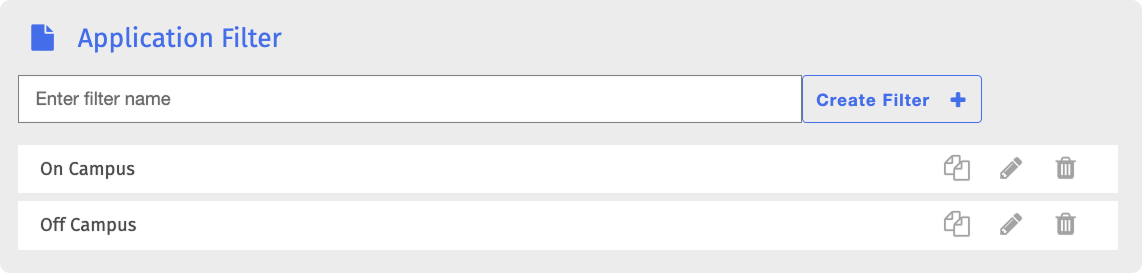
Type the name of the filter in the Enter filter name text box.
Click Create Filter + to add the filter. The new filter appears at the bottom of the list.
Locate the filter to configure and click the
 icon. The Edit screen appears.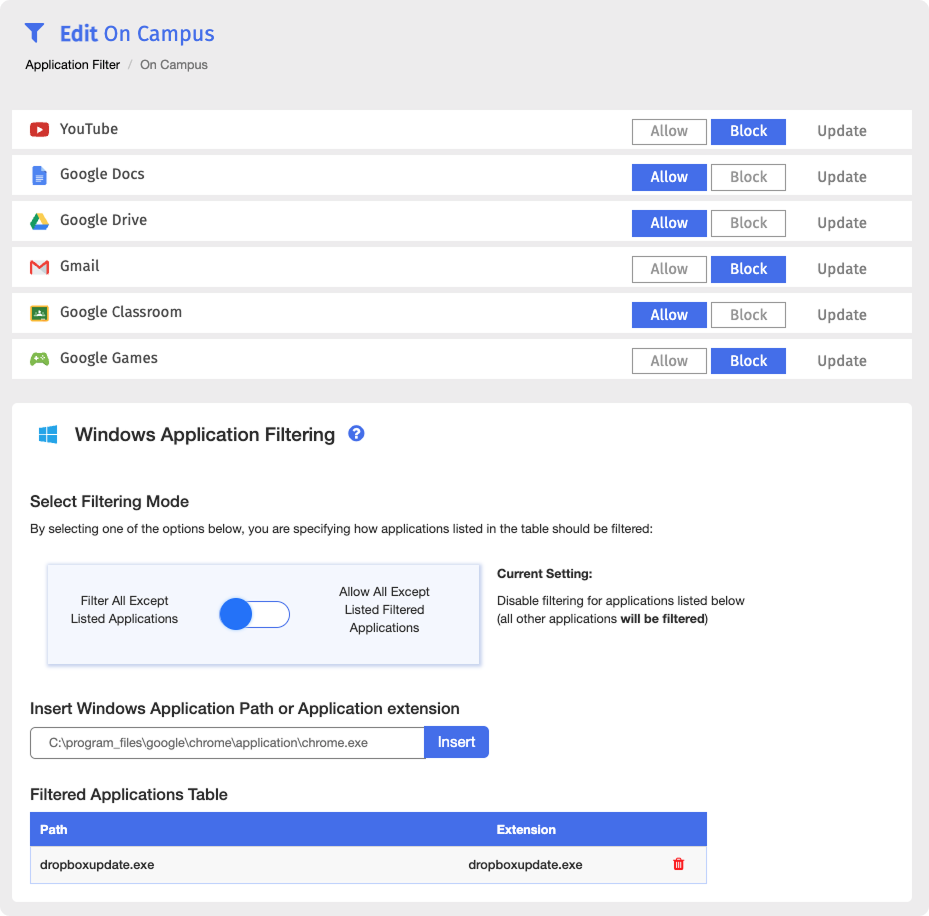
Note
Application Filter allows all applications by default. Change which applications are blocked and which are allowed.
Click Content Filtering from the Main Menu, then click Filters from its sub-menu. The Filters screen appears.
Click Application Filter from the Web Filters section. The Application Filter screen appears.
Locate the filter to edit and click the
icon. The Edit screen appears.Click the Allow or Block button for the desired application.
Click Update for each application you allow or block to apply the changes.
Prerequisites
Ensure the following prerequisites are in place before applying the Application Filter:
The Blocksi MSI agent deployed to the Windows devices to be filtered. Refer to the Windows Deployment section for deployment instructions.
The applications already installed on the target devices.
Click Content Filtering from the Main Menu, then click Filters from its sub-menu. The Filters screen appears.
Click Application Filter from the Web Filters section. The Application Filter screen appears.
Locate the filter to edit and click the
icon. The Edit screen appears.Under Windows Application Filtering, use the toggle to select a filtering mode:
Filter All Except Listed Applications (Default) - Filters all applications and browsers except those added in the Filtered Applications Table. Best for comprehensive, device-wide filtering with specific exceptions.
Allow All Except Listed Filtered Applications - Allows all application and browser web traffic and filters only the applications added in the Filtered Applications Table. Best for restricting specific applications without affecting others.
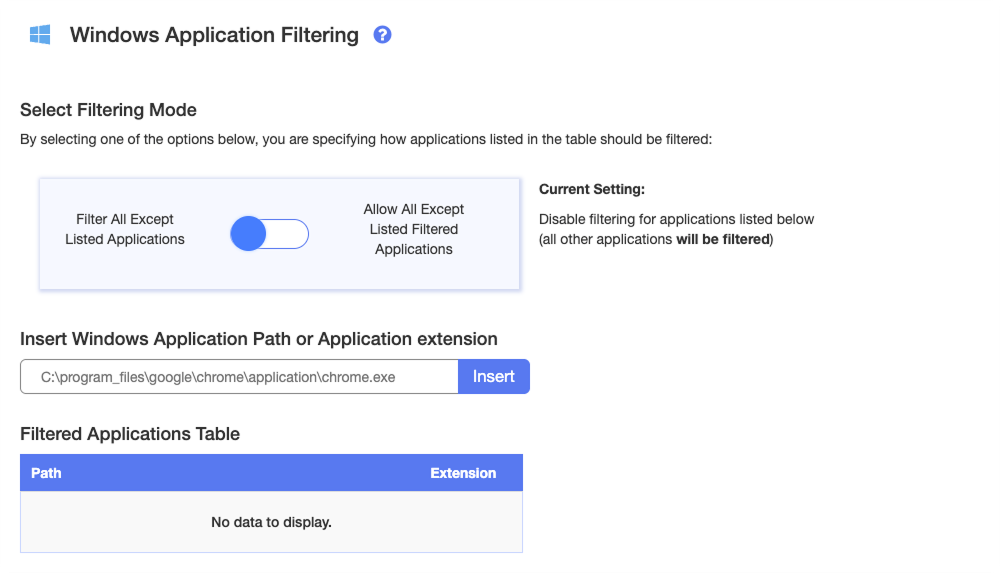
Type the paths or executable names of the Windows applications to filter or allow in the Insert Windows Application Path or Application extension text box.
Tip
To filter common browsers, add the following executable names:
Google Chrome -
chrome.exeMicrosoft Edge -
msedge.exeFirefox -
firefox.exe
Important
Some applications need more than one executable name to run properly. For example, Dropbox requires both
DropboxUpdate.exeandDropbox.exe.Click Insert. The entry appears in the Filtered Applications Table.
Note
To remove an entry, click the
 button in the last column of its row.
Important
An Application Filter takes effect only when it is part of a policy assigned to the relevant users. After adding the filter to the appropriate policy, click Update Policies on All Clients to apply the changes.
Open Task Manager on the target device and note the application's running processes.
Open the
bsflt.logfile in the root of theC:\drive and press Ctrl+F to find theApiMethods::fetchWhitelistedAppsrow. This row lists the allowed.exefiles.If Task Manager shows
.exefiles not listed in the log, add them to the Filtered Applications Table using the procedure in the Filtering Windows Applications section.
Click Content Filtering from the Main Menu, then click Filters from its sub-menu. Click Application Filter from the Web Filters section. The Application Filter screen appears.
Locate the filter to rename and click the filter name. A box opens to allow you to rename the filter.

Rename the filter and click the Save button.
Locate the filter to modify and click the
icon to the right of the filter name. The Edit screen appears.Make the necessary changes to the filter. Click Update for any application changes and Insert if you added a Windows Application Path.
Locate the filter to duplicate and click the
 icon. The Duplicate Filter window opens.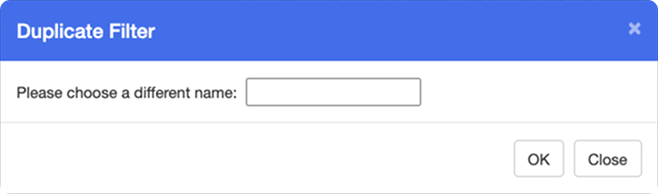
Type the name of the new filter in the text box.
Click OK. The duplicated filter appears at the bottom of the list. It contains the same application settings as the original filter.
Make any changes to the new filter and save it.
Locate the filter to delete and click the
 icon to the right of the filter. A confirmation prompt appears.
Click OK to confirm.