Substitute Teachers
Substitute teachers have access to regular Teacher Dashboards and can access most functionalities and must therefore be linked to a teacher account on the Admin Dashboard. Administrators can add substitute teachers directly from the Admin Dashboard and then validate them, or substitute teachers can be added from the Teacher Dashboard and validated by the administrator afterwards. Administrators can also set substitute teacher expiration dates, configure their passwords, and remove substitute teacher access when needed.
This section covers how to both add and validate substitute teachers.
Add substitute teachers on your Admin Dashboard.
Important
The maximum number of substitute teachers per main teacher is three.
Click Dashboard Settings from the Main Menu, then click Teacher Dashboard from its sub-menu. The Teacher Accounts screen appears.
Scroll down to the teacher email list at the bottom of the Teacher Dashboard page.
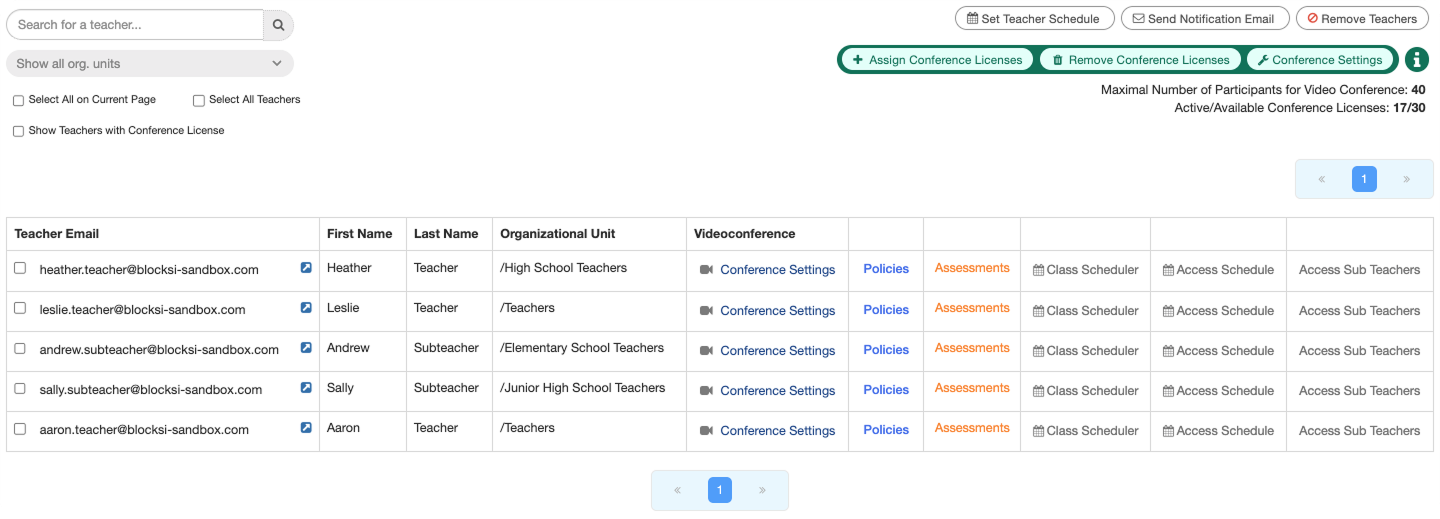
Search for a teacher whose substitute teachers you want to configure using the search box.
Tip
If you need help searching for teacher accounts, refer to the Searching for a Teacher Account section.
Click the Access Sub Teachers button in the same row as the teacher whose substitute teachers you want to configure. The Teacher's Sub Teachers List window opens.

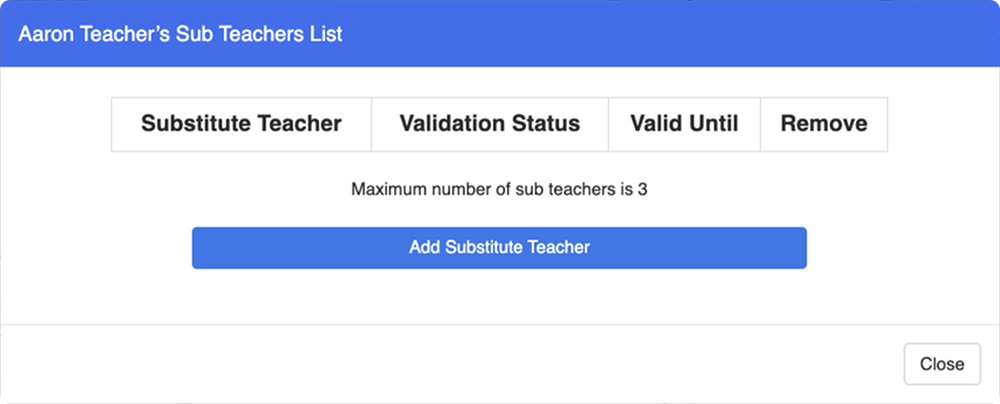
Click the Add Substitute Teacher button to expand the window. Enter the substitute teacher's email address in the text box and set a substitute expiration date if needed.
Note
Checking the Substitute Expiration Date checkbox requires a date to be entered in date format. The substitute teacher will lose access to the main teacher's Teacher Dashboard once this date is reached.
Enter a password for the substitute teacher in the Create Substitute Teacher Password field and confirm it by entering it again.
Important
The password must contain at least 8 characters, one uppercase letter, and one special character.
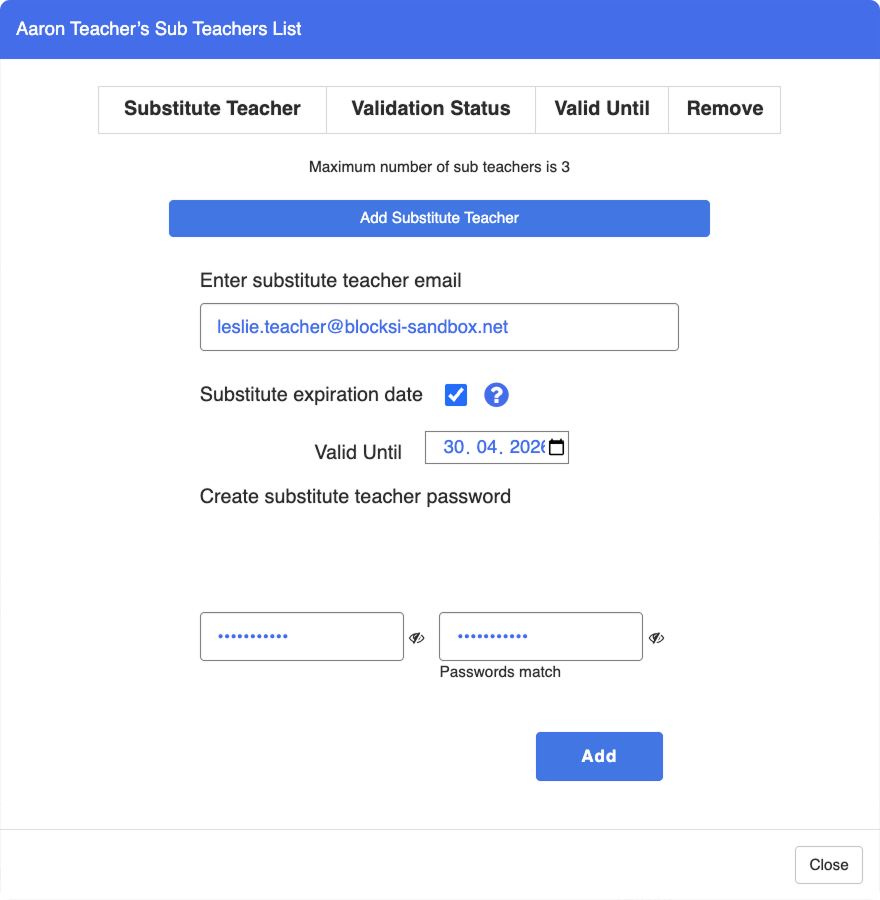
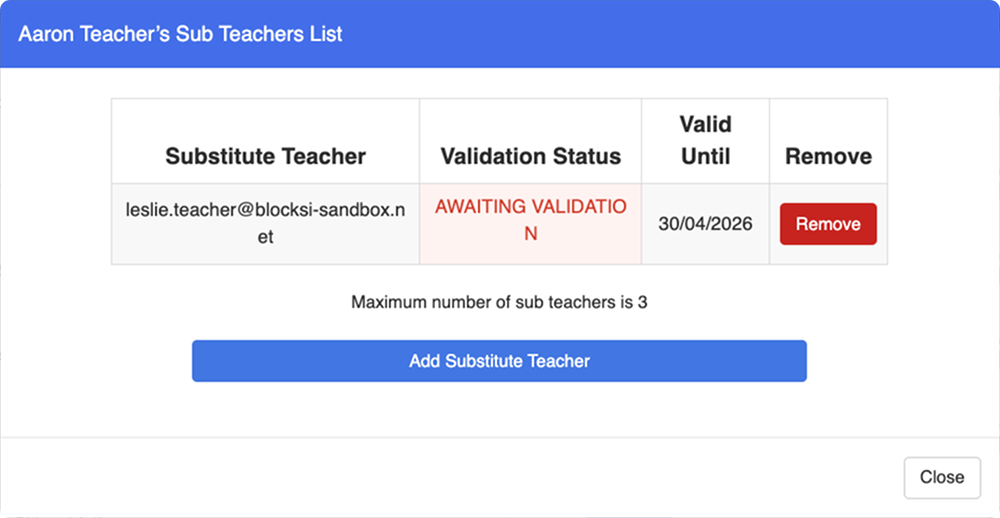
Click Add when you are done to add the substitute teacher to the list. The substitute teacher is added to the Substitute Teacher table with a red AWAITING VALIDATION status in the second column.
Note
To remove a substitute teacher, click the Remove button in the same row as the substitute teacher you want to remove. This can be done if the substitute teacher no longer requires access, or if they were added by mistake.
Validate substitute teachers which were added from the Teacher or Admin Dashboard.
Click Dashboard Settings from the Main Menu, then click Teacher Dashboard from its sub-menu. The Teacher Accounts screen appears.
Scroll down to the teacher email list at the bottom of the Teacher Dashboard page.
Search for a teacher whose substitute teachers you want to configure using the search box.
Tip
If you need help searching for teacher accounts, refer to the Searching for a Teacher Account section.
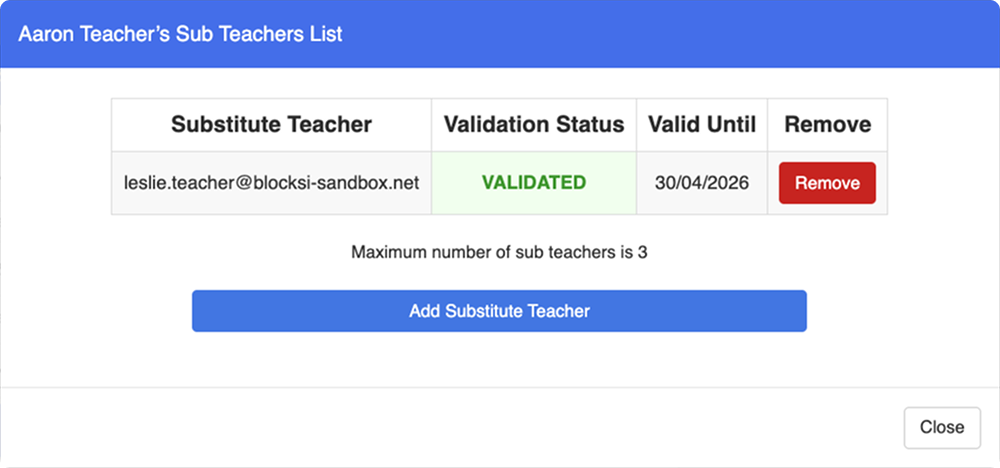
Click the Access Sub Teachers button in the same row as the teacher whose substitute teachers you want to validate. The Teacher's Sub Teachers List window opens, displaying a table with pending substitute teachers.
Locate the substitute teacher you want to validate and click the AWAITING VALIDATION status in their row. The status changes to VALIDATED, displayed in green, indicating that the substitute teacher has been approved.
Note
To remove a substitute teacher, click the Remove button in the same row as the substitute teacher you want to remove. This can be done if the substitute teacher no longer requires access, or if they were added by mistake.