OneRoster (SIS) Integration
OneRoster v1.1 - Supports two authentication methods: OAuth 1.0a (signature-based, where credentials are signed into each request) and OAuth 2.0 (token-based, where credentials are exchanged for a temporary access token).
OneRoster v1.2 - Uses OAuth 2.0 exclusively and requires a token endpoint URL for authentication.
Both versions allow Blocksi to retrieve teachers, students, classes, and parent–student pairings from your SIS.
Click Dashboard Settings from the Main Menu, then click Teacher Dashboard from its sub-menu. The Teacher Accounts screen appears.
Scroll down to the OneRoster SIS Connection Settings section.
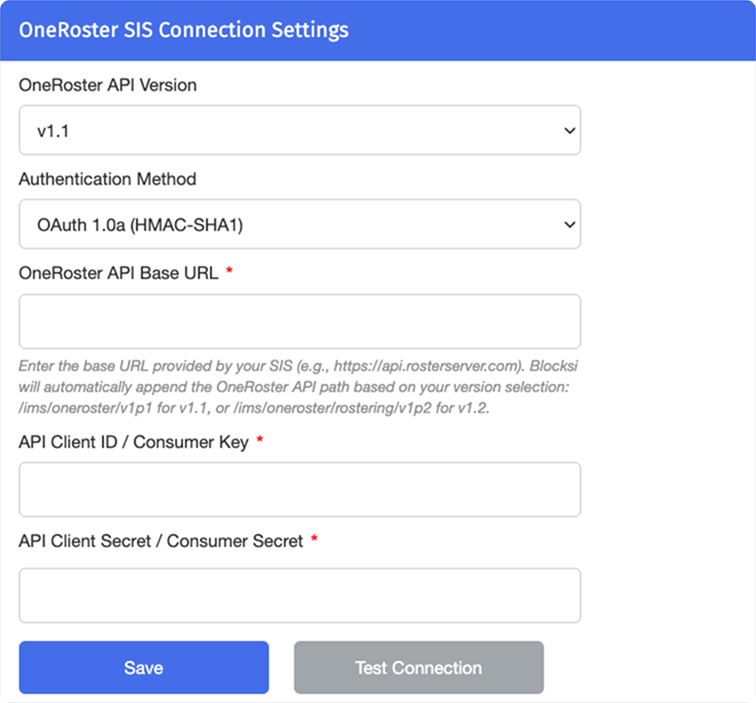
Select OneRoster API Version from the drop-down list.
Note
If you select API v1.1, you will also need to select a OneRoster Authentication Method (OAuth 1.0a or OAuth 2.0).
The remaining steps differ depending on the OneRoster API Version you selected. Refer to the appropriate section below for further instructions.
Enter the Host URL (your base OneRoster API endpoint).
Enter the Consumer Key and the Consumer Secret.
Enter the OAuth 2.0 Token Endpoint URL.
Note
This field is only required if you selected OAuth 2.0 as the authentication method.
Click Test Connection to validate the configuration. The system will perform comprehensive endpoint testing. Click Save once the testing is complete.
Important
The OneRoster API Base URL must not include the OneRoster endpoint path (e.g., do not append /ims/oneroster/rostering/v1p2). The system will automatically append the appropriate OneRoster API path based on your version selection.
Enter the Host URL (your base OneRoster API endpoint).
Enter the API Client ID and the API Client Secret.
Enter the OAuth 2.0 Token Endpoint URL.
Optionally, configure custom scopes. If left blank, the system automatically configures the appropriate default scopes.
Click Test Connection to validate the configuration. The system will perform comprehensive endpoint testing. Click Save once the testing is complete.
Important
The OneRoster API Base URL must not include the OneRoster endpoint path (e.g., do not append /ims/oneroster/rostering/v1p2). The system will automatically append the appropriate OneRoster API path based on your version selection.