Searching, Removing, and Exporting Parent Accounts
Click Dashboard Settings from the Main Menu, then click Parent Dashboard from its sub-menu. The Parent Accounts screen appears.
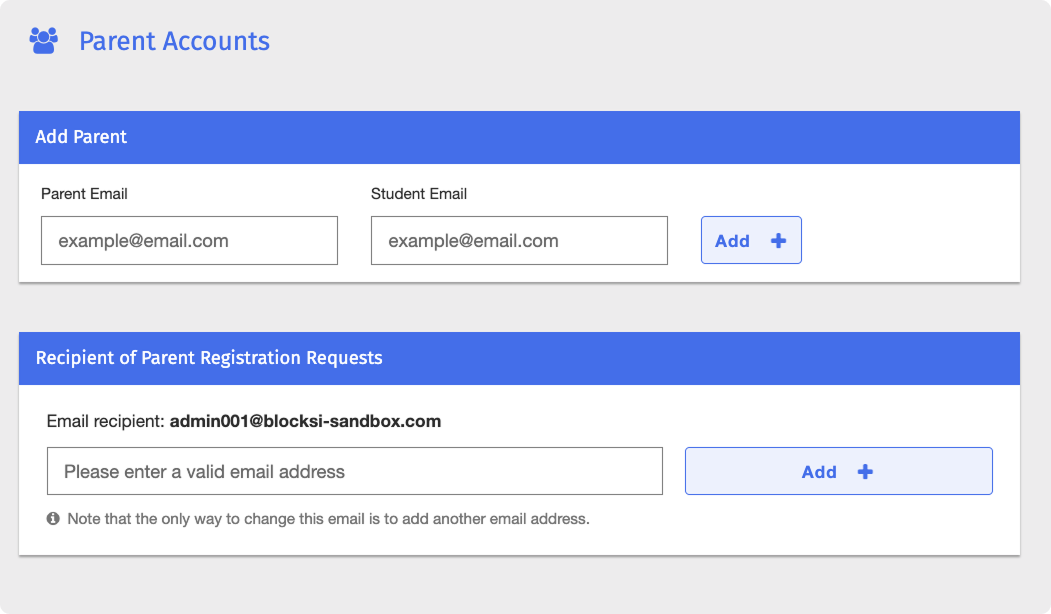
Scroll down to the parent email list at the bottom of the Parent Dashboard page.
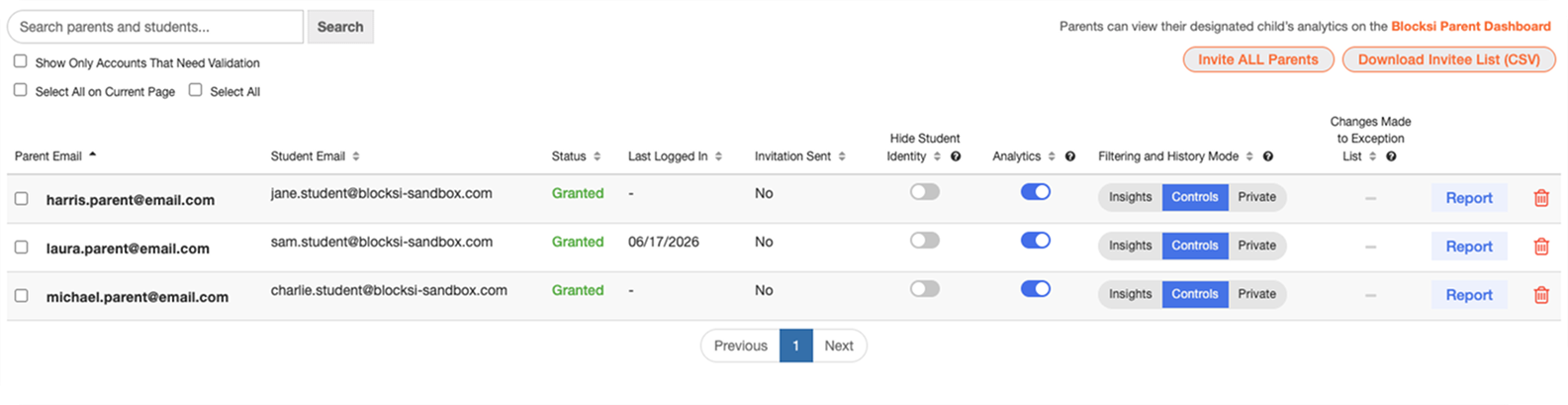
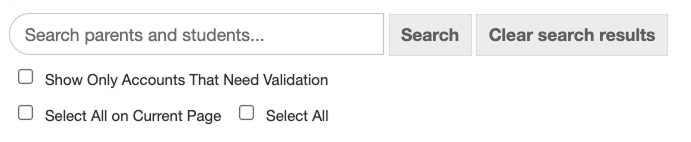
Enter the parent or student email address in the Search parents and students... text box.
Tip
To narrow the search results to parent accounts that have not yet been validated, check the Show Only Accounts That Need Validation option.
Click the Search button to run the search. Any parents matching the criteria are displayed in the parent email list below.
Click Dashboard Settings from the Main Menu, then click Parent Dashboard from its sub-menu. The Parent Accounts screen appears.
Scroll down to the parent email list at the bottom of the Parent Dashboard page.
Click the
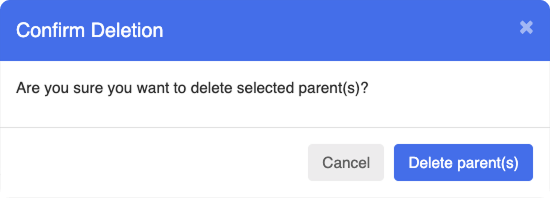
 icon in the same row as the parent to remove. A confirmation prompt appears. To remove multiple parents at once, select the checkbox to the left of each parent account, then click the
  button.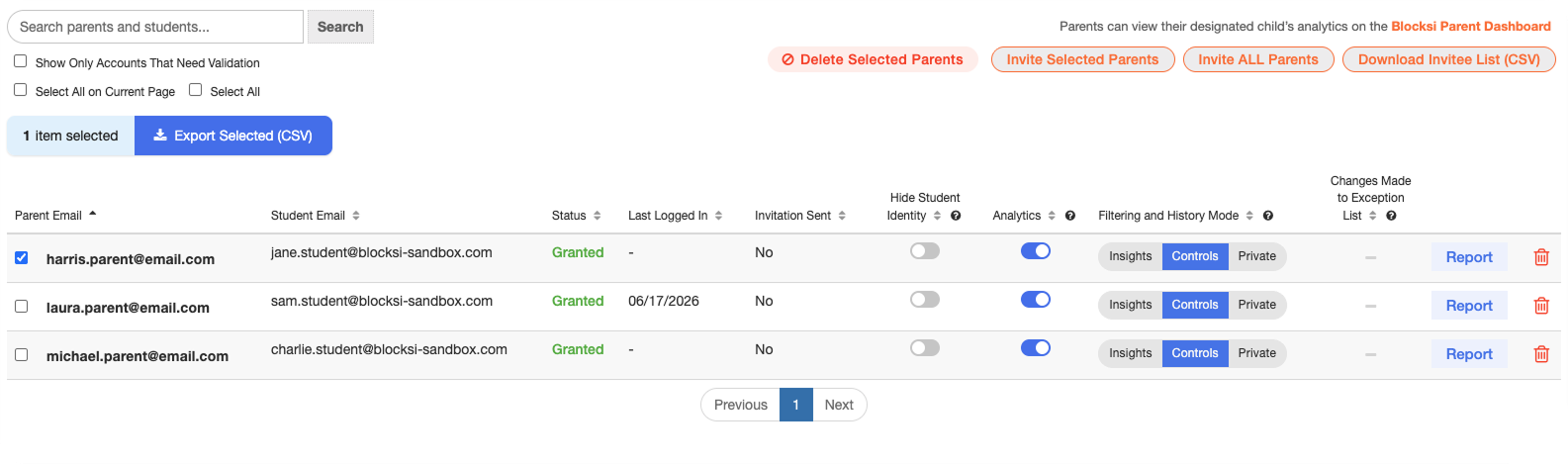
Click Delete parent(s) to remove the account.
Tip
Use the search box to quickly find the parent accounts you want to delete.
Parent accounts can be exported to a CSV file containing all data from the parent email list.
Parent Email
Student Email
Status
Date of Last Log In
Invitation Sent
Student Identity Hidden
Filtering and History Mode
Exception List Changes
Click Dashboard Settings from the Main Menu, then click Parent Dashboard from its sub-menu. The Parent Accounts screen appears.
Scroll down to the parent email list at the bottom of the Parent Dashboard page.
Select the checkbox to the left of each parent account to export, then click the
 button. The selected accounts are exported to a CSV file.
Tip
The counter to the left of the
 button shows the number of parents selected for export.
Note
Alternatively, check the Select All on Current Page or Select All option under the Search section to select all parents at once, then click the
button.