Canvas Integration
Integrating Canvas with Blocksi allows Blocksi to retrieve teachers and their classes from Canvas. Once the integration is complete, administrators can import teacher accounts and teachers can roster their classes, using data sourced from Canvas.
Integrating Canvas with Blocksi requires a developer key in Canvas, the credentials that key generates, and an access token from the Canvas administrator account. You then enter these values in the Blocksi Admin Dashboard. All teacher accounts must also exist in Canvas.
Navigate to your school's domain account at
district.instructure.com, wheredistrictis your organization, and sign in as District Admin.Click Admin from the menu to the left, then click your district name from its sub-menu.
Click Developer Keys from the menu. The Developer Keys screen appears.
Click the + Developer Key button to the far right.
Click the + API Key option from the drop-down menu.
Disable the Enforce Scopes option.
Type the Key Name, Owner Email, Redirect URLs, and Redirect URLs (Legacy). Use the following for the redirect URLs:
Redirect URLs -
https://teacher.blocksi.net/canvas/loginandhttps://service.block.net/classlink/canvas-mobile-loginRedirect URLs (Legacy) -
https://teacher.blocksi.net/canvas/login
Click Save. You are returned to the Developer Keys screen.
Locate the key you just created and click the On button in the State column.
Domain - Your Canvas domain, entered without
https://and without a trailing slash.API Client ID / Consumer Key - The number assigned to the Blocksi developer key in Canvas.
API Client Secret / Consumer Secret - The key issued with the Blocksi developer key in Canvas.
Access Token - A token generated from the Canvas administrator account.
Both values come from the developer key you created for Blocksi. Canvas displays them stacked in the Details column of the Developer Keys screen: the numeric API Client ID / Consumer Key on the first line, and the API Client Secret / Consumer Secret directly beneath it.
Important
Copy the two values separately. Selecting the entire Details cell copies the ID and the secret together, and pasting that combined string into the API Client ID / Consumer Key field causes teacher sign-in to Canvas to fail.
In Canvas, navigate to Admin > your district name > Developer Keys. The Developer Keys screen appears.
Locate the Blocksi key you created in Creating a Developer Key in Canvas and copy only the number displayed in the first line of the Details column. This number is the API Client ID / Consumer Key.
Copy only the string displayed beneath the number in the Details column. This string is the API Client Secret / Consumer Secret.
The access token is generated from the Canvas administrator account rather than from the developer key.
In Canvas, navigate to Account > Settings.
Scroll down to the Approved Integrations section and click + New Access Token.
Copy the value displayed in the Token field of the Access Token Details window.
Important
Copy the token before you leave this page. Canvas does not display the full token again. If you lose the token, click Regenerate Token to create a new value, then update the Access Token field in Blocksi with that new value.
The Canvas credentials section on the Teacher Dashboard settings page stores the values you collected from Canvas.
Sign in to the Blocksi Admin Dashboard.
Click Dashboard Settings from the Main Menu, then click Teacher Dashboard from its sub-menu. Scroll down to the Canvas credentials section.
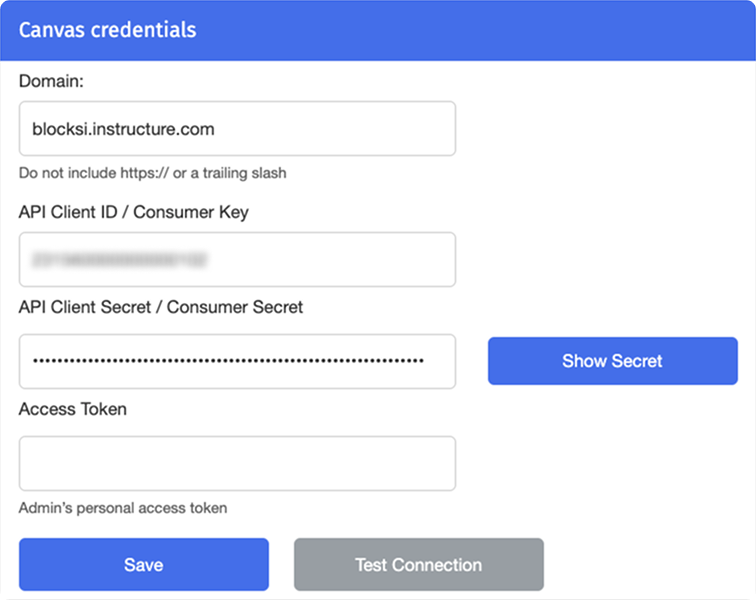
Type your Canvas domain in the Domain field, for example
district.instructure.com. Do not includehttps://or a trailing slash.Paste only the number you copied from the Details column in Canvas into the API Client ID / Consumer Key field.
Warning
The API Client ID / Consumer Key contains digits only. If the value you pasted into Blocksi contains letters, the secret was copied along with the ID.
Paste only the string you copied from the Details column in Canvas into the API Client Secret / Consumer Secret field.
Paste the token you copied from Canvas into the Access Token field.
Note
Refer to Obtaining the Canvas Credentials for help on how to obtain the required keys and tokens.
Click Test Connection to confirm that Blocksi can connect to your Canvas instance.
Click Save.