Setting Delegate Access and Managing Roles
Configure the global settings that determine delegate access and permissions for managing the Delegate Dashboard across your district. While general settings are district-wide and define which functionalities are available to all delegates globally, roles and permissions can also be configured individually per delegate account.
These settings define general access to the Delegate Dashboard and are applied district-wide.
Click Dashboard Settings from the Main Menu, then click Delegate Dashboard from its sub-menu. The Delegate Accounts screen appears.
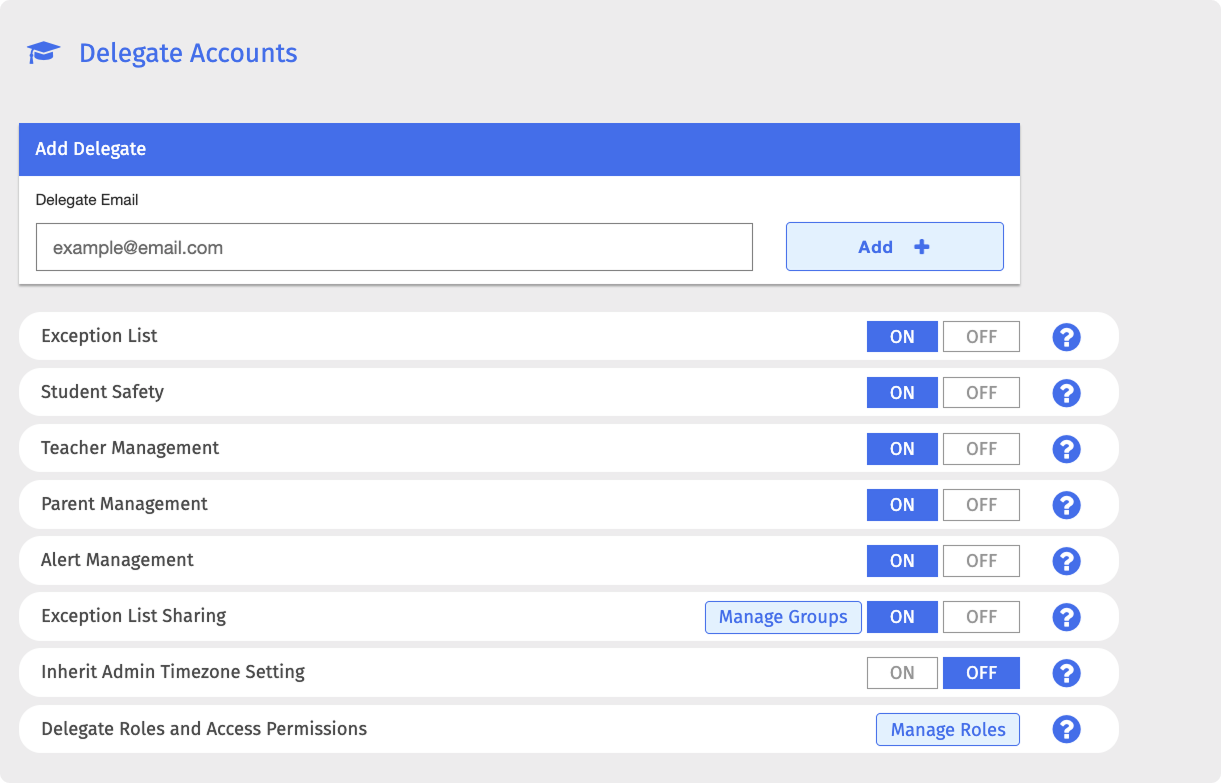
Toggle each setting to ON or OFF as required.
Option | Description |
|---|---|
Exception List | Set whether to allow delegates to create exception lists. If set to OFF, the Exception List option is removed from the Main Menu on the Delegate Dashboard. |
Student Safety | Set whether to allow delegates to access Student Safety. If set to OFF, the Student Safety option is removed from the Main Menu on the Delegate Dashboard. |
Teacher Management | Set whether to allow delegates access to teacher management. If set to OFF, the Teacher Accounts option is removed from Settings on the Main Menu on the Delegate Dashboard. NoteDelegates can only manage teacher accounts that belong to the organizational unit assigned to the delegate. |
Parent Management | Set whether to allow delegates access to parent management. If set to OFF, the Parent Accounts option is removed from Settings on the Main Menu on the Delegate Dashboard. NoteDelegates can only manage parent accounts of students that belong to the organizational unit assigned to the delegate. |
Alert Management | Set whether to allow delegates access to alert management. If set to OFF, the Alerts option is removed from the Main Menu on the Delegate Dashboard. |
Exception List Sharing | Set whether to allow delegates in the same organizational unit to share exception lists. Use the Manage Groups button to create groups of more than one organizational unit so delegates can share exception lists with users outside their organizational unit. |
Inherit Admin Timezone Setting | Set whether delegates inherit the super admin's timezone setting. If set to ON, the admin's current timezone is applied to all delegates immediately. If set to OFF, delegates can set their own timezone preference on the Delegate Dashboard. |
Create and manage individual roles for delegate accounts.
Click Dashboard Settings from the Main Menu, then click Delegate Dashboard from its sub-menu. The Delegate Accounts screen appears.
Locate the Delegate Roles and Access Permissions section in the table and click the Manage Roles button. The Delegate Roles and Access Permissions window opens.
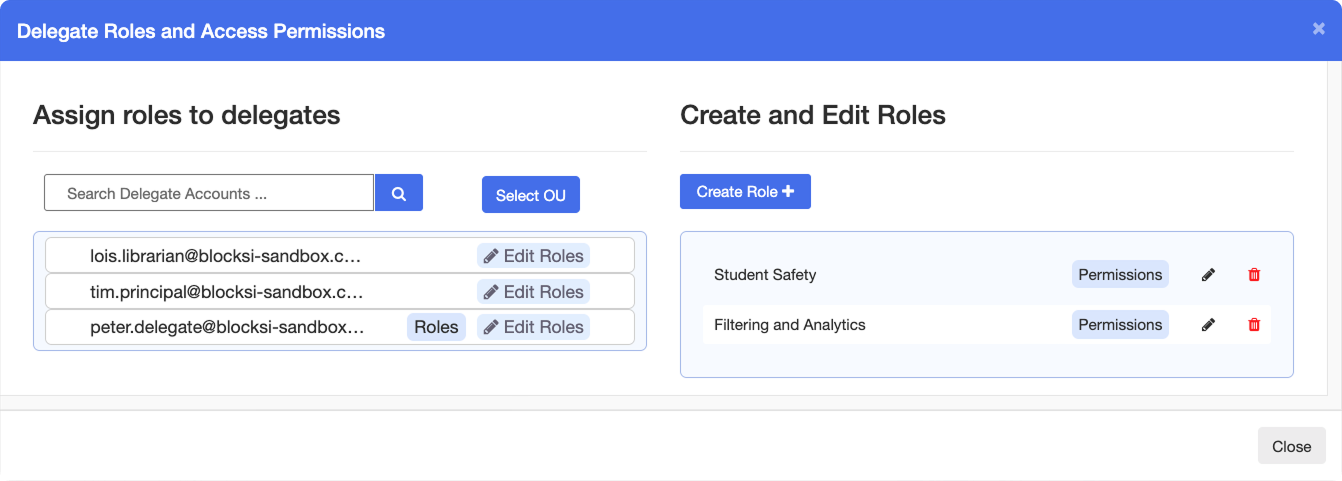
On the right side, under the Create and Edit Roles section, click the Create Role + button. The section expands, displaying a list of available permissions.
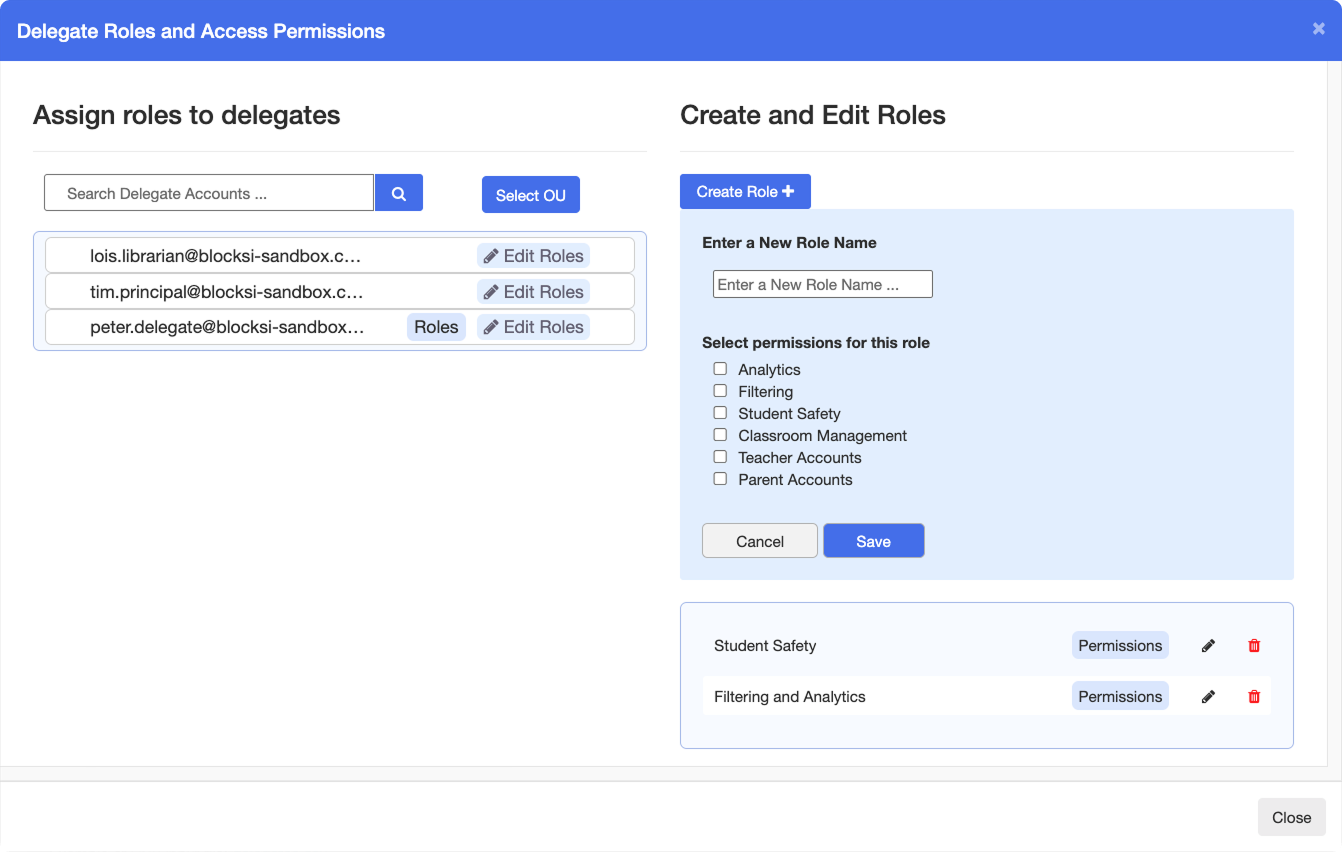
Enter a role name in the text box and select the desired permissions by checking the checkbox to the left of each permission. The available permissions are:
Analytics - Grants access to the Insights tab, allowing delegates to view analytics.
Filtering - Grants access to the Filtering tab, including the Exception List, Organizational Units, and Penalty Box tabs.
Student Safety - Grants access to the Student Safety tab.
Classroom Management - Grants access to the Class Monitoring feature.
Teacher Accounts - Grants access to the Teacher Account Settings.
Parent Accounts - Grants access to the Parent Account Settings.
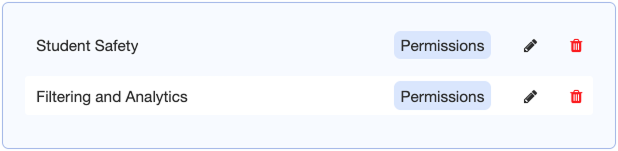
Click Save. The role is created and added to the list of roles under the Create and Edit Roles section on the right side.
Note
To edit a role, click the pencil icon in the same row as the role. To delete a role, click the trash icon in the same row.
Click Dashboard Settings from the Main Menu, then click Delegate Dashboard from its sub-menu. The Delegate Accounts screen appears.
Locate the Delegate Roles and Access Permissions section in the table and click the Manage Roles button. The Delegate Roles and Access Permissions window opens.
In the Assign Roles to Delegates section on the left side, click Edit Roles to the right of the delegate whose roles you want to change. The section expands, displaying the selected delegate's roles.
Tip
To search through the list of delegates, use the search box directly above the list.
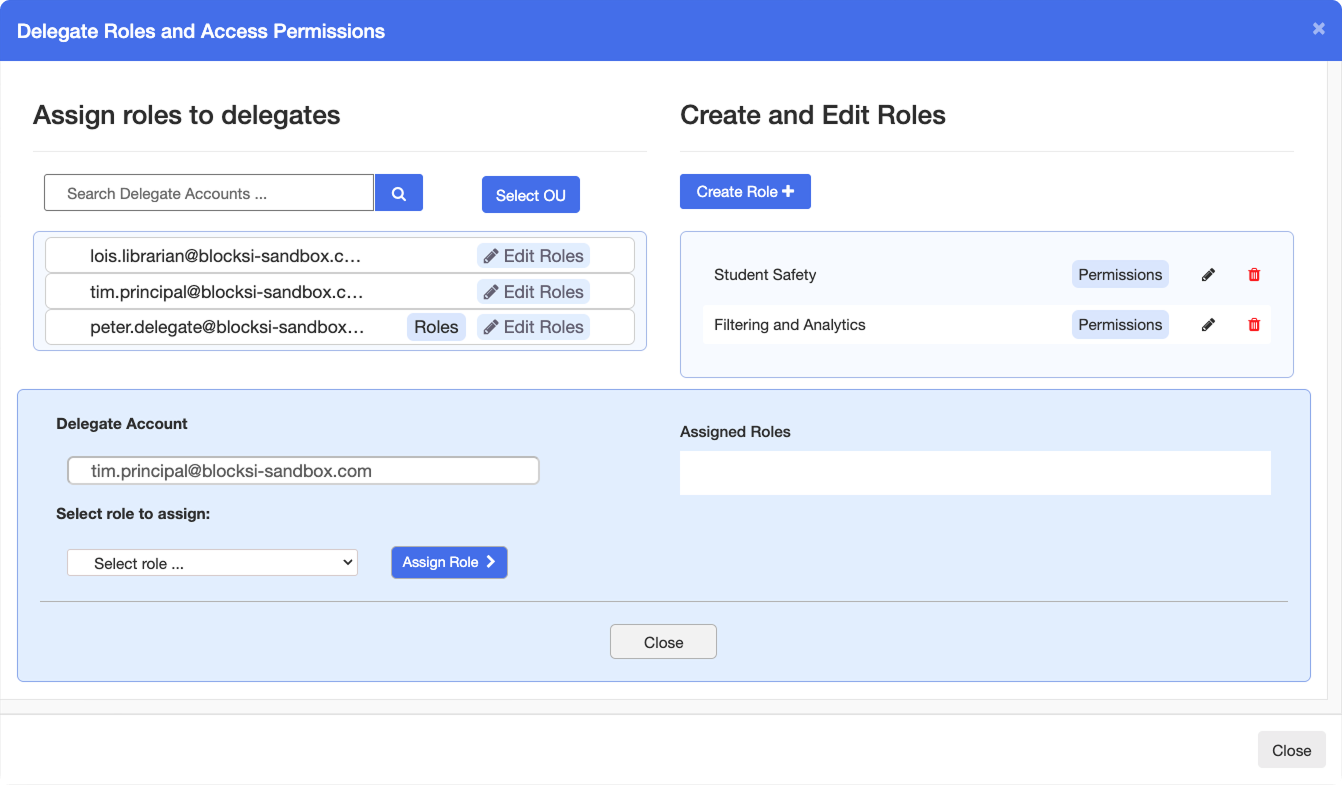
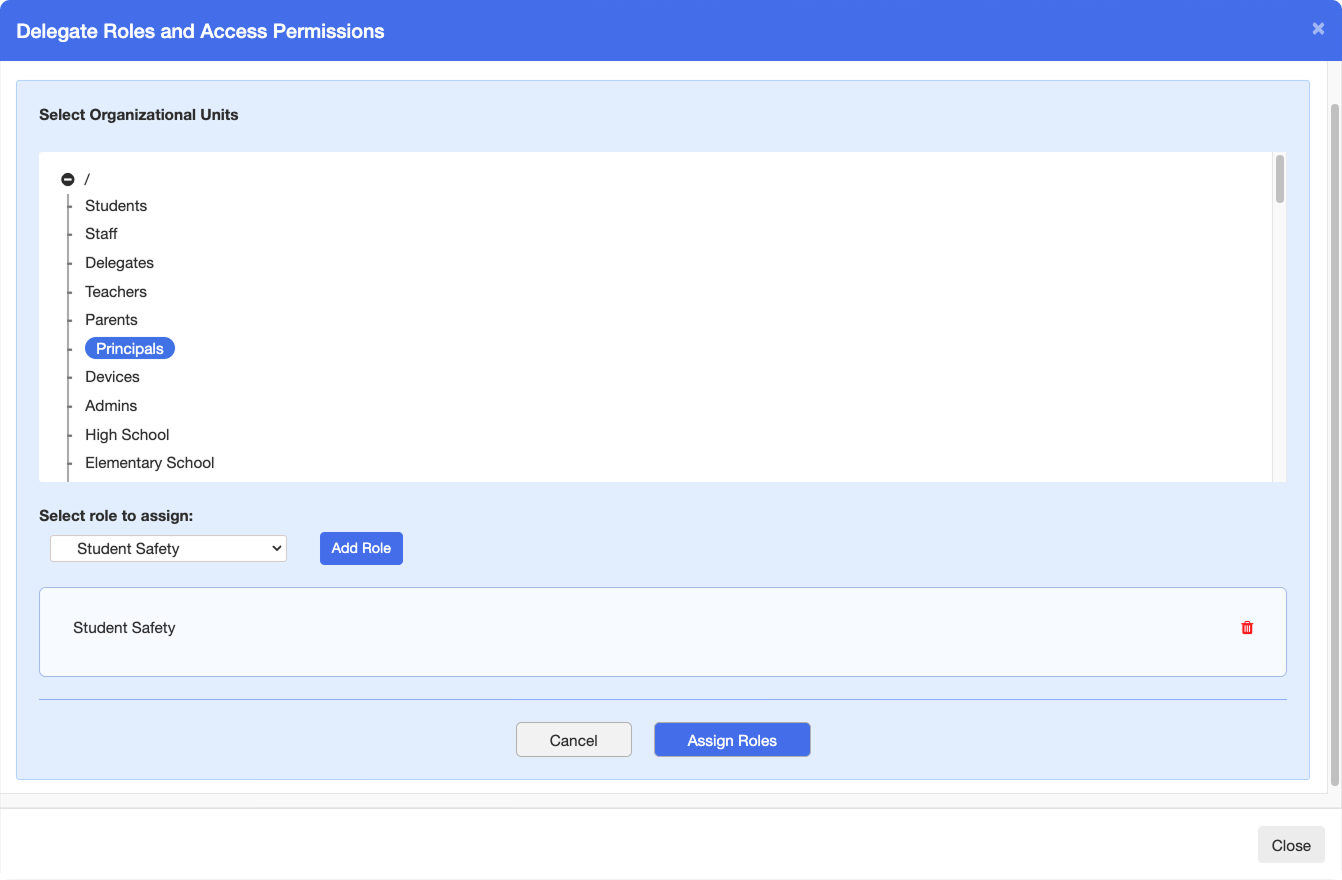
Select a role from the Select role to assign drop-down list, then click the Assign Role button. The assigned role appears under the Assigned Roles section to the right.
Note
To remove a role from a delegate, click the trash icon next to the assigned role in the Assigned Roles section.
Tip
Alternatively, you can see the roles assigned to a delegate by hovering over the Roles button next to the delegate's email address. This button only appears if at least one role has been assigned to the delegate.
Tip
To assign a role to an entire organizational unit, click the Select OU in the Assign Roles to Delegates section. Select the organizational unit you want to assign a role to, then select a role from the Select Role to Assign drop-down list, click Add Role, then click Assign Roles to save.