Emulating Teachers
As an administrator, you can access a teacher's Teacher Dashboard by emulating their account. This is especially useful when troubleshooting issues on behalf of a teacher, verifying that your settings and configurations are working as intended, or starting and controlling class sessions in the teacher's absence.
Warning
Any actions performed while emulating a teacher's account will take effect as if they were performed by the teacher themselves. Use this feature with caution.
Note
If a teacher is currently logged in to their Teacher Dashboard, any actions performed by either party will only be visible to the other one after refreshing the page.
Click Dashboard Settings from the Main Menu, then click Teacher Dashboard from its sub-menu. The Teacher Accounts screen appears.
Scroll down to the teacher email list at the bottom of the Teacher Dashboard page.
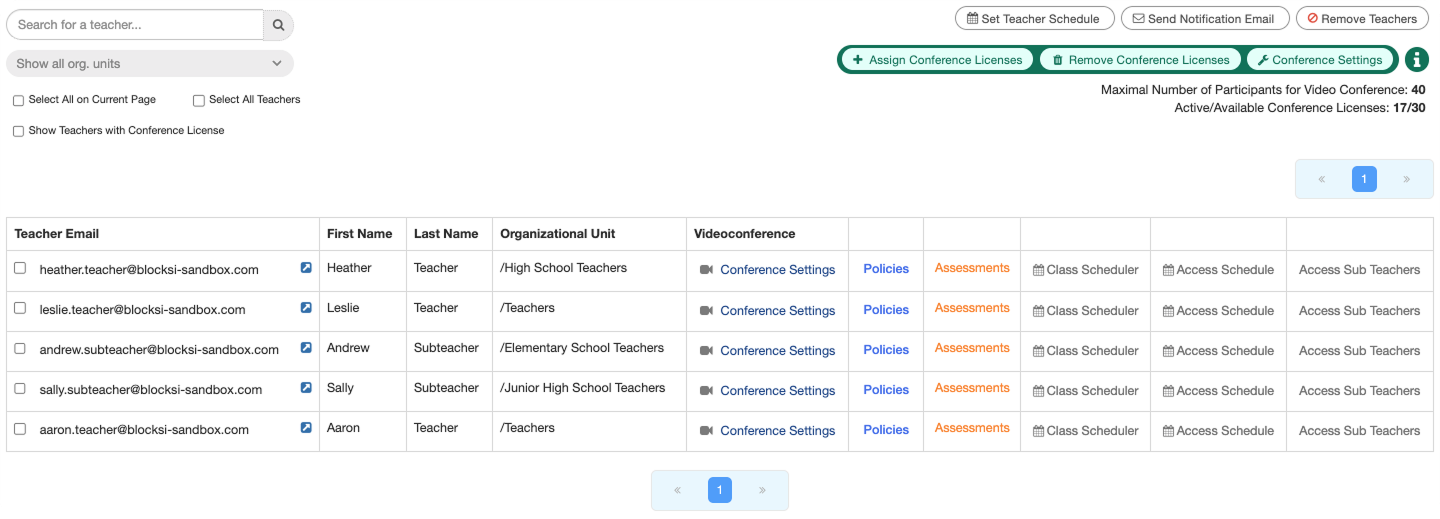
Search for the teacher you want to emulate using the search box.
Tip
If you need help searching for teacher accounts, refer to the Searching for a Teacher Account section.
Click the
 button next to the teacher's email address in the first column. The teacher's Teacher Dashboard opens in a new tab, giving you full access to their dashboard.
Important
A new session is added to the Teacher Dashboard, indicating that the selected teacher's dashboard has been opened. The
 icon will display next to the selected time zone, confirming that emulation is currently in session.