YouTube Category Filter
The YouTube Category Filter allows or blocks YouTube videos based on their category. Use it when you want to block whole types of videos, such as Music or Sports, while keeping others, such as Education, available.
Important
The YouTube Keyword Filter has the highest priority of the YouTube filters, followed by the YouTube Channel Exception List, then the YouTube Category Filter. If a channel is allowed in the YouTube Channel Exception List, students can watch its videos even if their category is blocked. If YouTube is blocked in an Application Filter, students cannot access YouTube at all, regardless of the YouTube filters.
Each video’s category is chosen when it is uploaded to YouTube, so it may not always match the video’s content.
Note
YouTube video categories come from YouTube, not Blocksi, so they cannot be re-evaluated. You can check a video’s category under YouTube Rating in the Website Rating Tool in the Action Bar.
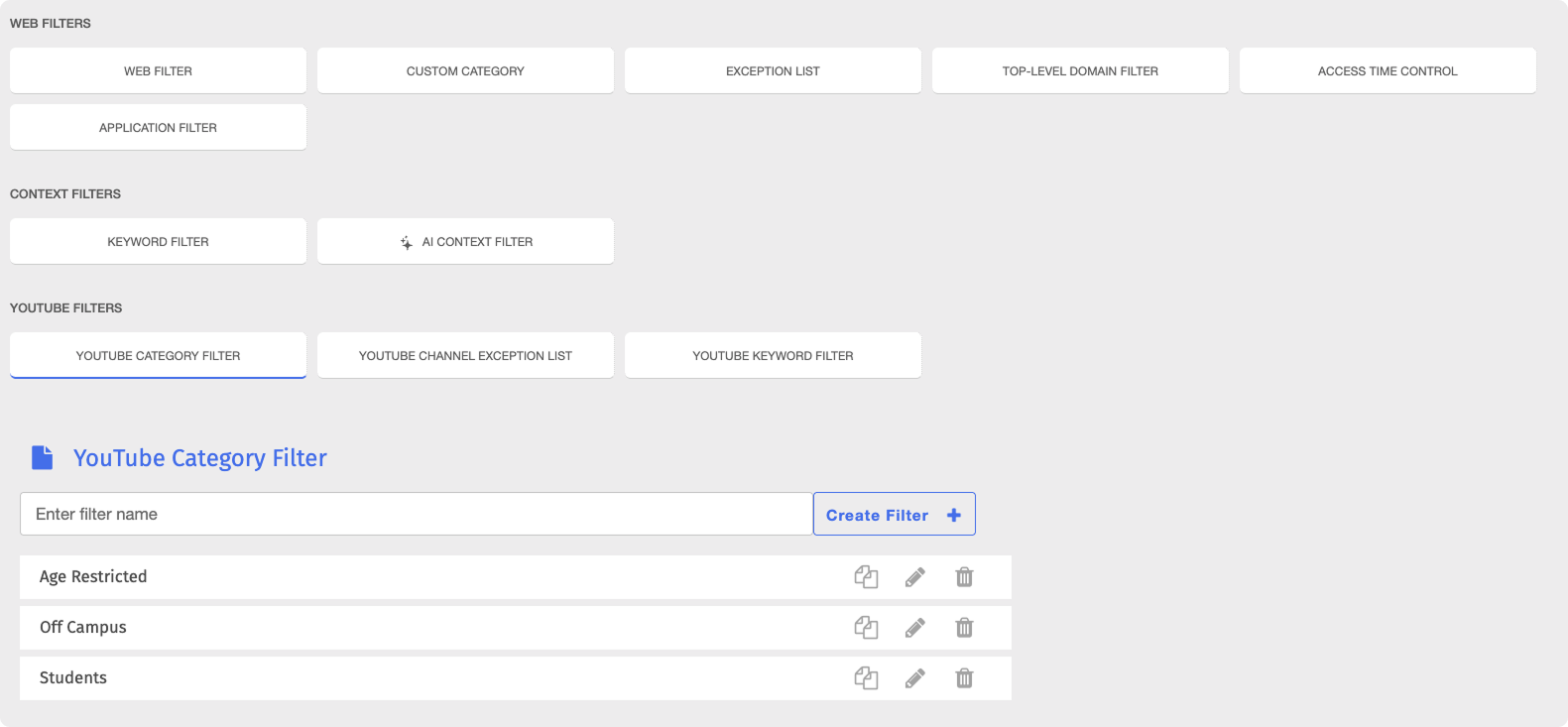
To access the YouTube Category Filter page, click Content Filtering from the Main Menu, then click Filters from its sub-menu. On the Filters page, click YouTube Category Filter listed under YouTube Filters.
Important
After making any changes to your content filtering or policies, click the  button in the Action Bar at the top of the page to apply the changes.
To set up a YouTube Category Filter, create the filter, set your YouTube options, then allow or block each category.
Type a name for the filter in the Enter filter name text box, then click the
 button. The Edit YouTube Category Filter page opens.
Important
All categories are set to Allow, all YouTube Options are turned off, and Restriction Level is set to Unrestricted by default upon creating a YouTube Category Filter. A new YouTube Category Filter blocks nothing until you change at least one of these settings.

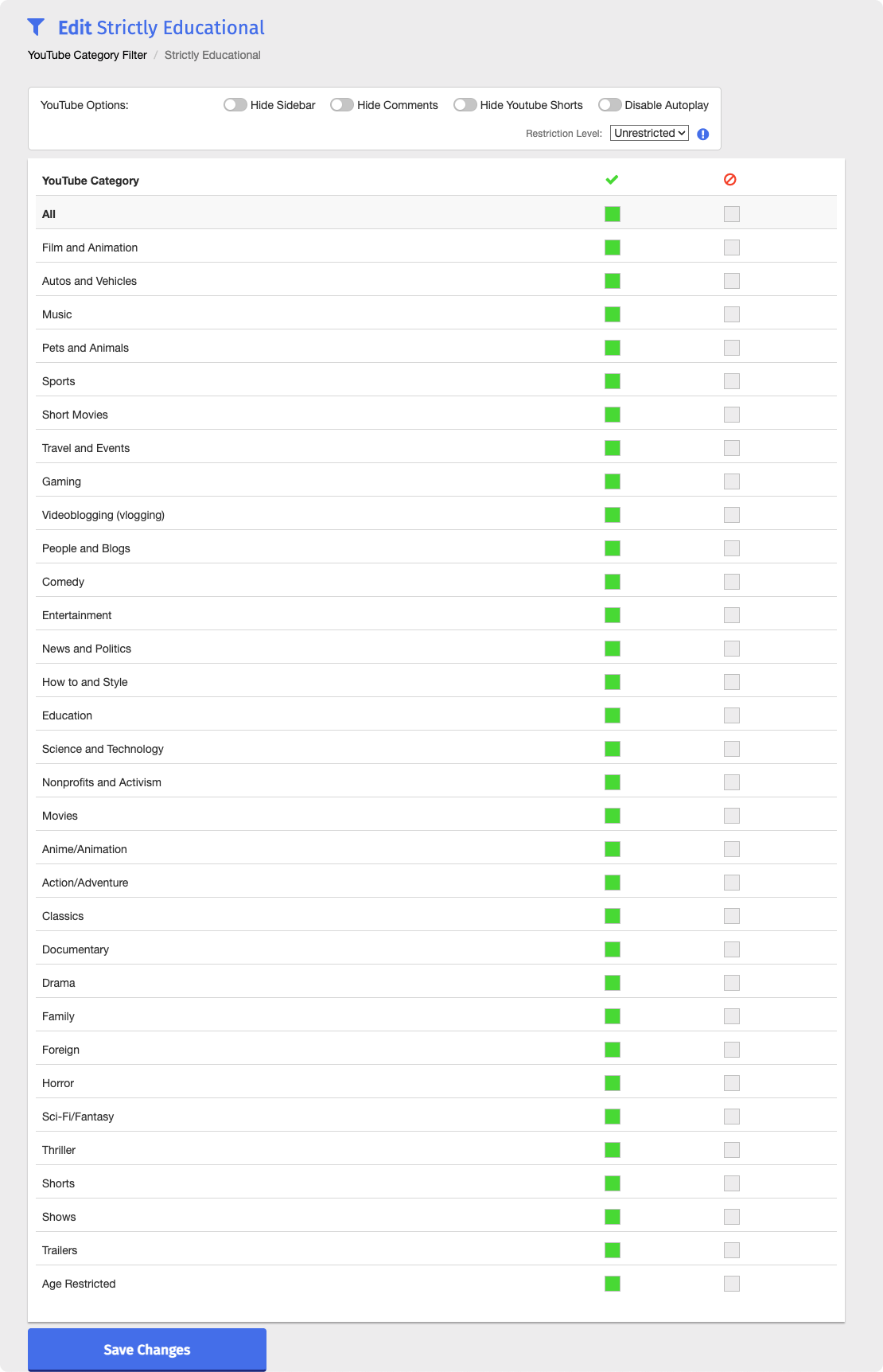
Under YouTube Options, turn on any of the following options:
Hide Sidebar - Hides the suggested videos on the right side of YouTube.
Hide Comments - Hides all comments on YouTube videos.
Hide YouTube Shorts - Hides all YouTube Shorts videos.
Disable Autoplay - Stops the next video from playing automatically when the current video ends.
Select one of the following options from the Restriction Level drop-down list:
Unrestricted - YouTube Restricted Mode is off. This is the default option.
Moderate - Filters out potentially mature videos while leaving most videos available.
Strict - Filters out more potentially mature videos than Moderate, so fewer videos are available.
Important
Restriction levels are set by YouTube and apply on top of your category settings. Moderate and Strict can block videos even in categories you allow.
Select one of the following states for the category you want to change, or use the All row to change every category at once:
 Allow - Students can watch videos in the category.
 Block - Students cannot watch videos in the category.
Repeat step 4 for each category you want to change.
Click the
 button.
You can manage your YouTube Category Filters by changing categories and settings, renaming, duplicating, or deleting them. All of these actions can be performed directly on the YouTube Category Filter page.
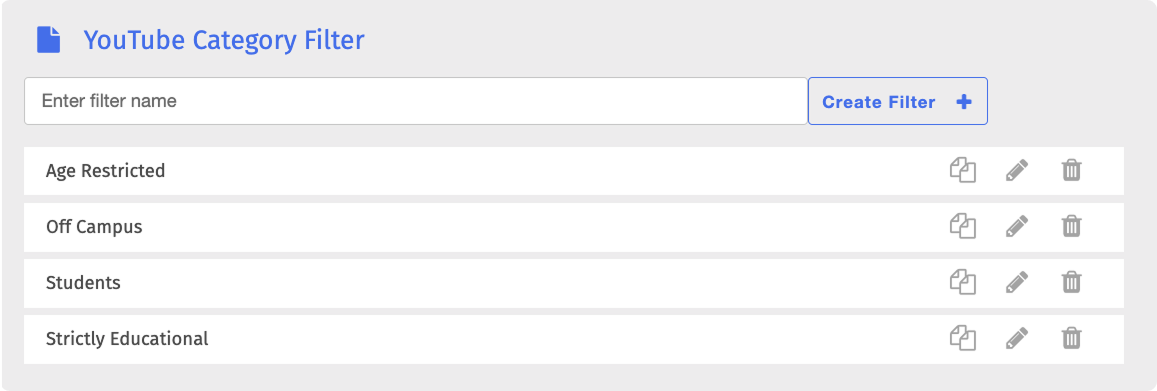
On the YouTube Category Filter page, locate the filter and click the  button to open the Edit YouTube Category Filter page. Make your changes, then click the button.
On the YouTube Category Filter page, locate the filter to rename and click its name. The filter name opens in an editable text box.

Make your changes, then click the Save button.
On the YouTube Category Filter page, locate the filter to duplicate and click the
 button. The Duplicate Filter window opens.
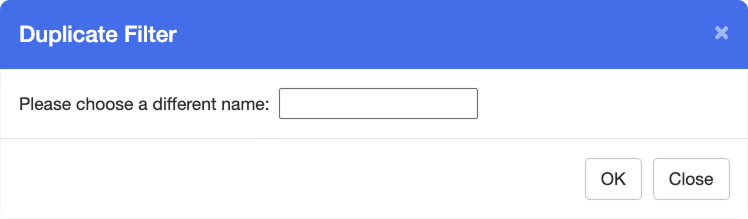
Enter a name for the new filter in the text box, then click OK. The new filter appears on the YouTube Category Filter page.
Note
The duplicate is an exact copy of the original, including the state of every category, its YouTube Options, and its Restriction Level. The original YouTube Category Filter is not removed upon duplicating.
Warning
Deleting a YouTube Category Filter is a permanent action. Deleted filters cannot be recovered.
On the YouTube Category Filter page, locate the filter to delete and click the
 button to the right of it.
Click OK in the confirmation window. The YouTube Category Filter is permanently removed from the list.