Parent Dashboard Reports
Administrators can export reports on parent activity within the Parent Dashboard as well as configure student reports for parents to receive.
Administrators can export two separate parent reports: one listing all parents in the selected organizational unit along with any changes they have made to filtering on their Parent Dashboard, and another listing all parents who have logged in along with the date of their last login.
This report provides a snapshot of parent activity within a selected organizational unit.
Parent and student email addresses
Student's organizational unit
Parent's most recent login date
Selected Filtering and History Mode
Yes/No indicators for changes to blocked and allowed URL lists
Click Dashboard Settings from the Main Menu, then click Parent Dashboard from its sub-menu. The Parent Accounts screen appears.
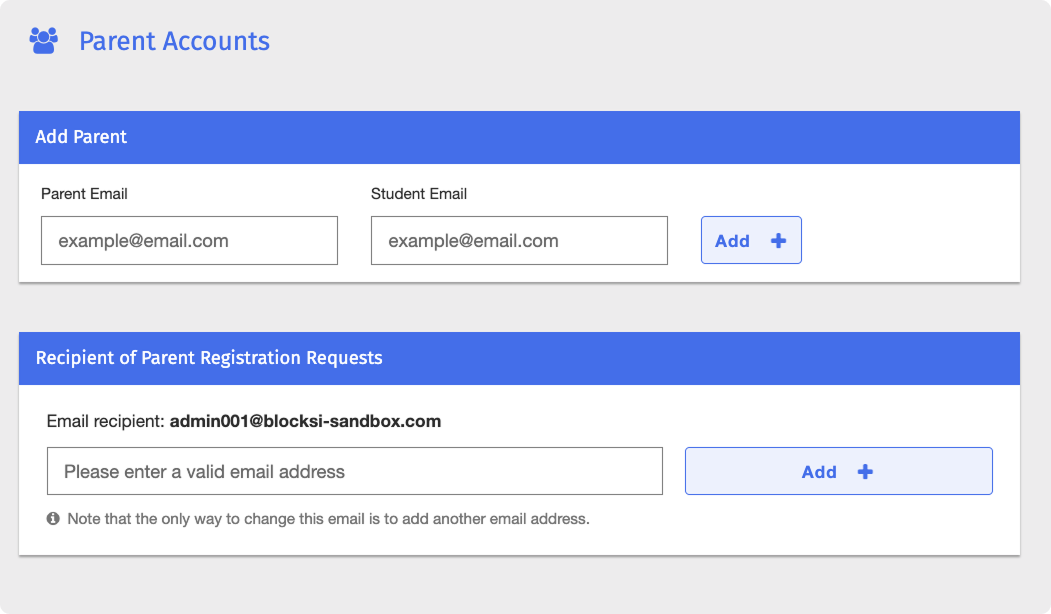
Scroll down to the Export Parent Report section under the Parent Dashboard Settings.
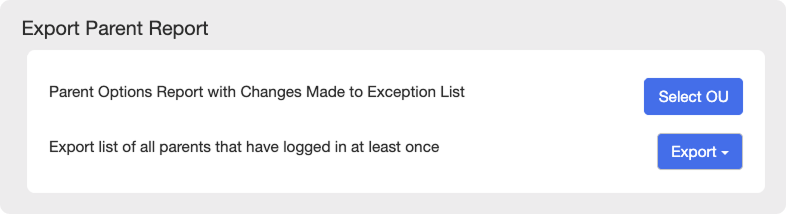
Click the Select OU button to the right of Parent Options Report with Changes Made to Exception List. A window listing the organizational units appears.
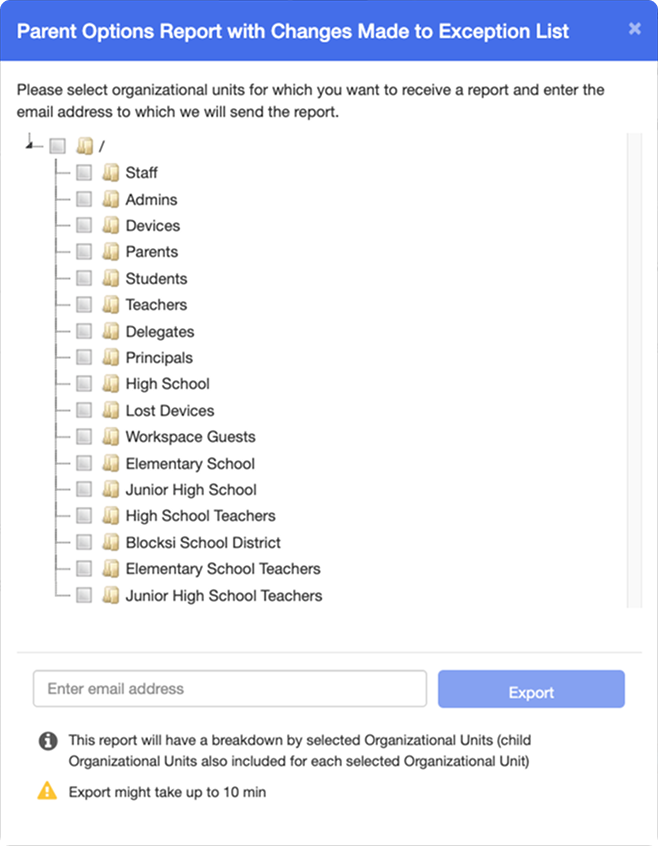
Select the organizational units to include in the report, enter the recipient's email address, and click the Export button.
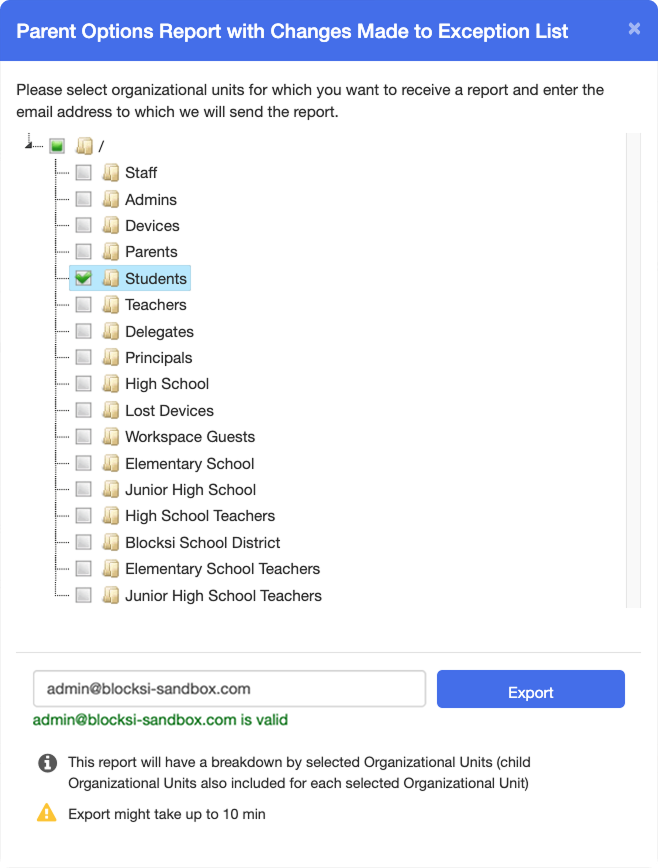
Note
The report is sent to the recipient's email address as a CSV file within 10 minutes.
This report lists all parents who have logged into the Parent Dashboard, along with the date of their most recent login.
Click Dashboard Settings from the Main Menu, then click Parent Dashboard from its sub-menu. The Parent Accounts screen appears.
Scroll down to the Export Parent Report section under the Parent Dashboard Settings.
Click the Export button to the right of Export list of all parents that have logged in at least once. A time range selector appears.
Select one of the available time ranges: last 24 hours, last 30 days, last 60 days, or last 90 days.
Note
The report is downloaded as a CSV file.
Student reports provide periodic summaries of a student's web activity to the parent and any additional recipients. For each parent-student pair, administrators can set the report frequency and manage the recipient list.
Click Dashboard Settings from the Main Menu, then click Parent Dashboard from its sub-menu. The Parent Accounts screen appears.
Scroll down to the parent email list at the bottom of the Parent Dashboard page.
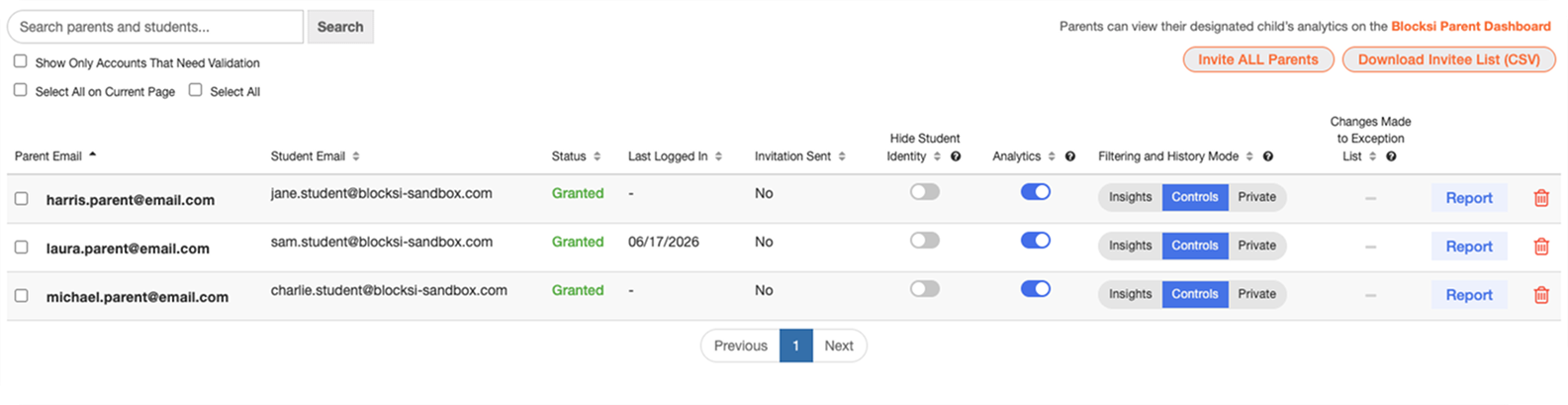
Click the
 button in the row of the parent whose student reports you want to configure. The Set Student Analytics Reporting window appears.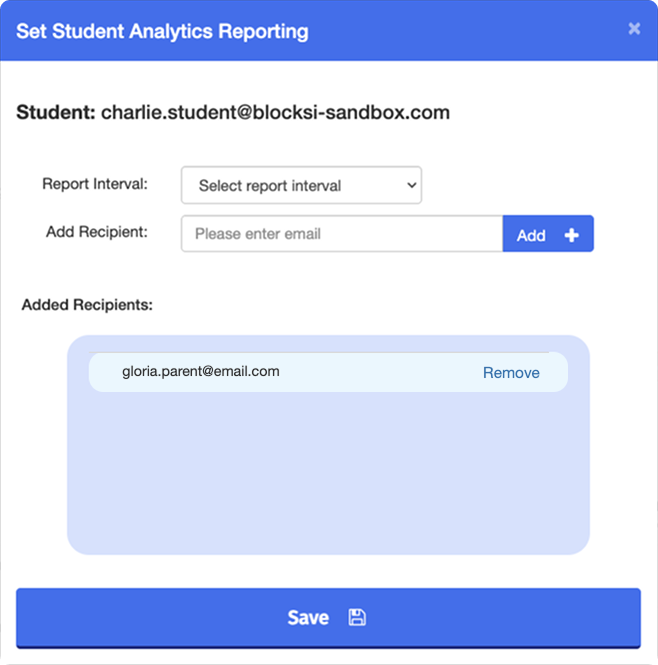
Select a report interval from the Report Interval drop-down menu. The report interval can be set on a daily, weekly, or monthly basis.
Under the Add Recipient section, enter the email address of an additional recipient and click Add +. The recipient appears in the Added Recipients list.
Note
By default, the parent you are configuring the report for is the only recipient. Added recipients appear in the corresponding list under the Added Recipients section.
Tip
To remove a recipient, click the Remove button next to their email address.
Click the Save button to confirm the configuration.