Configuring Parent Dashboard Settings
The Parent Dashboard Settings can be accessed by navigating to Dashboard Settings from the Main Menu, then selecting Parent Dashboard from its sub-menu.
This section allows administrators to determine the level of access granted to parents and configure the filtering options parents can apply to their children. In addition, it controls which student activity insights and reports parents can review.
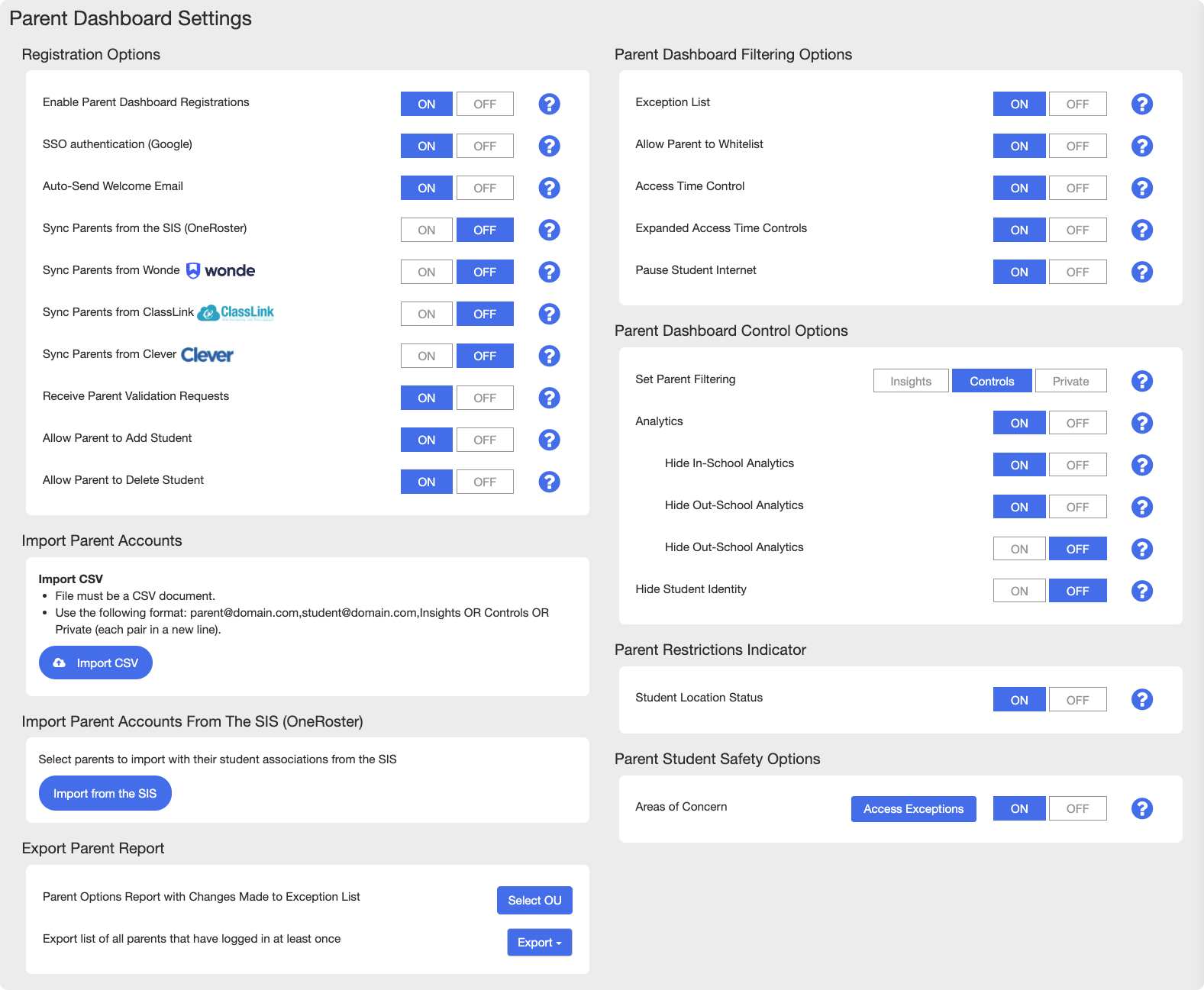
These settings configure how parent accounts are registered, synced, and managed.
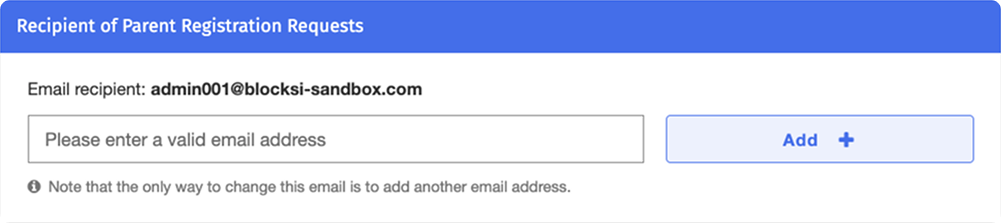
By default, parent registration and validation requests are sent to the Blocksi super admin. To change the recipient, enter a different email address in the text box under the Recipient of Parent Registration Requests section, then click Add +.
Option | Description |
|---|---|
Enable Parent Dashboard Registrations | Set whether to allow registrations for the Parent Dashboard. If set to OFF, parents cannot create their own accounts and can only access the Parent Dashboard after an administrator adds them and sends an invitation. For more information on adding parent accounts, refer to the Adding Parent Accounts section. |
SSO Authentication (Google) | Set whether to allow Google as a sign-in method for the Parent Dashboard. If set to OFF, parents can only sign in using email and password. |
Auto-Send Welcome Email | Set whether to send a welcome email to parents when adding, importing, or syncing new parent-student pairs. |
Sync Parents from the SIS (OneRoster) | Set whether to sync parent-student pairs from the SIS (OneRoster). If set to ON, parent accounts and their student pairs sync automatically from OneRoster. |
Sync Parents from Wonde | Set whether to sync parent-student pairs from Wonde. If set to ON, parent accounts and their student pairs sync automatically from Wonde. |
Sync Parents from ClassLink | Set whether to sync parent-student pairs from ClassLink. If set to ON, parent accounts and their student pairs sync automatically from ClassLink. |
Sync Parents from Clever | Set whether to sync parent-student pairs from Clever. If set to ON, parent accounts and their student pairs sync automatically from Clever. |
Receive Parent Validation Requests | Set whether to receive an email notification when a parent submits a new validation request for their parent-student pairs. |
Allow Parent to Add Student | Set whether to allow parents to add additional students to their account. |
Allow Parent to Delete Student | Set whether to allow parents to remove students from their account. |
Note
Parents you add or approve in the dashboard persist through daily ClassLink, Clever, and OneRoster syncs. To remove a manually added parent, delete them directly from the dashboard - sync jobs do not remove them. Parents imported from the SIS are managed through the SIS itself.
These settings determine which filtering and access-control features parents can use on the Parent Dashboard.
Option | Description |
|---|---|
Exception List | Set whether parents have access to the Exception List, enabling them to block or allow specific URLs when students are off-campus. |
Allow Parent to Whitelist | Set whether parents can use the Exception List to allow URLs. If set to OFF, parents can only use the Exception List to block URLs. The allow action will be disabled. |
Access Time Control | Set whether parents can use the Access Time Control filter to set a bedtime and restrict their children's internet access. |
Expanded Access Time Controls | Set whether expanded Access Time Controls are available (Bedtime, YouTube, Streaming, Gaming, Social Media, and Google Games). If set to OFF, only the Bedtime Access Time Control is available on the Parent Dashboard. |
Pause Student Internet | Set whether parents can pause student internet from the Parent Dashboard. When paused, students cannot access the internet from their devices. |
These settings determine which set of options is displayed on the Parent Dashboard. Each of the three options: Insights, Controls, and Private, can be set both globally or per-parent.
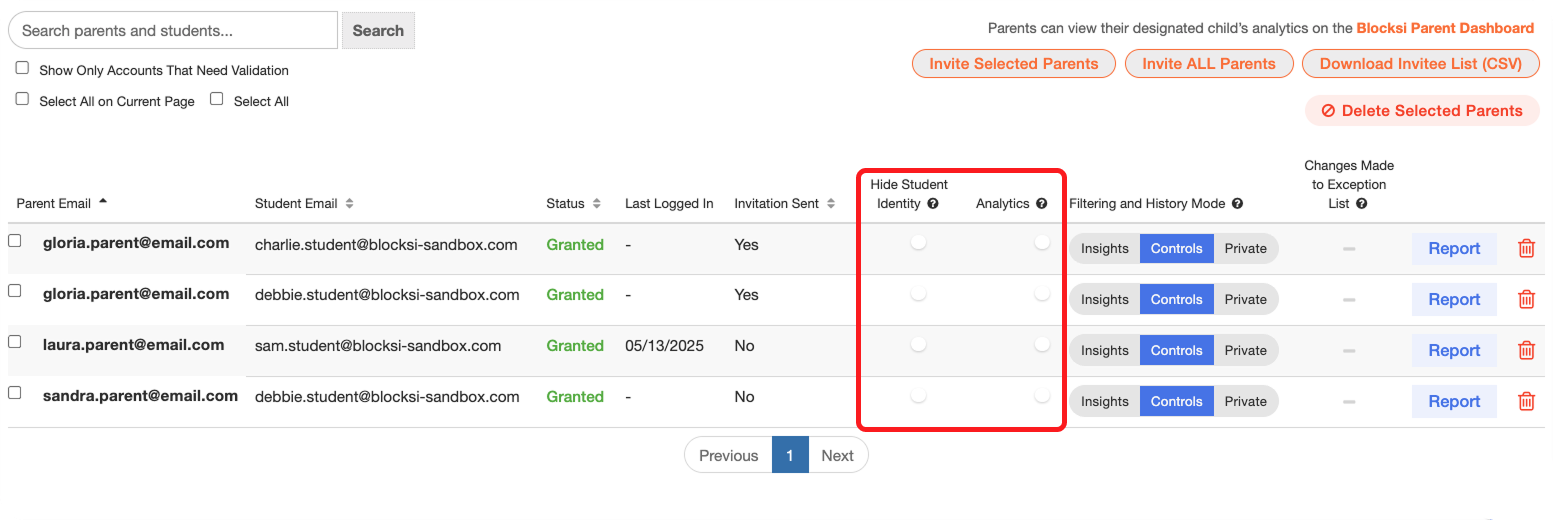
To set globally, click the desired option and confirm your selection. To set per-parent, scroll down to the parent email list and make your selection in the Filtering and History Mode column.
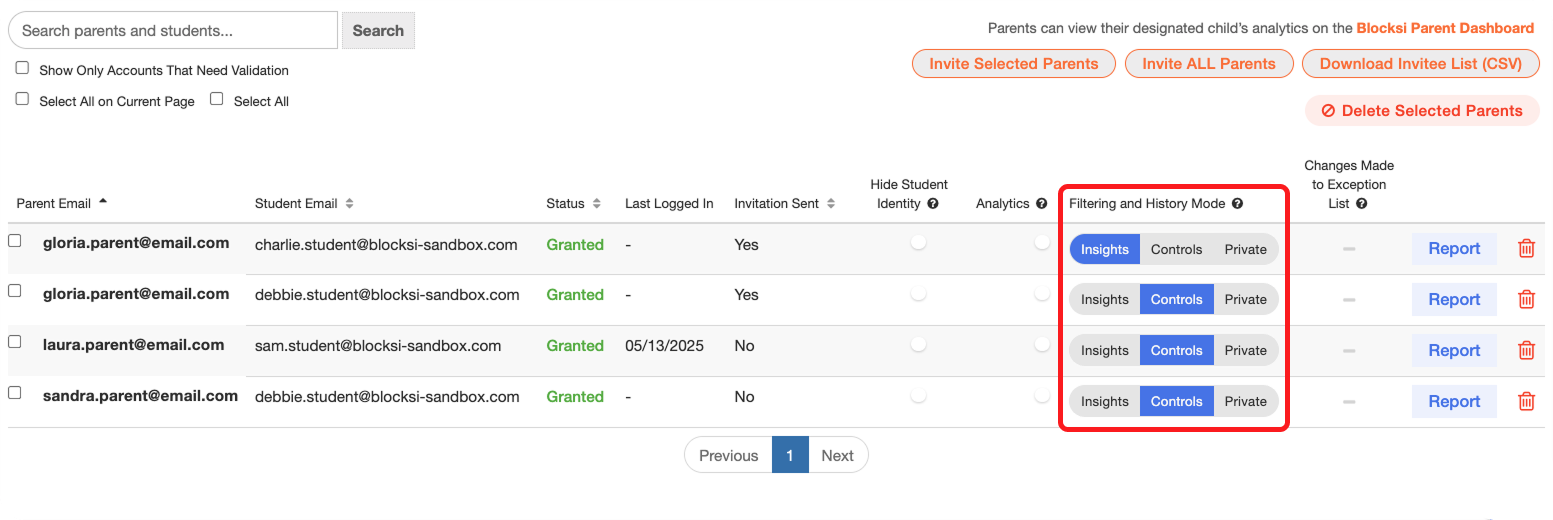
Review the individual control options descriptions below.
This option allows parents to view Web Analytics and monitor their children's browsing activity. No filtering controls are available on the Parent Dashboard when this option is selected.
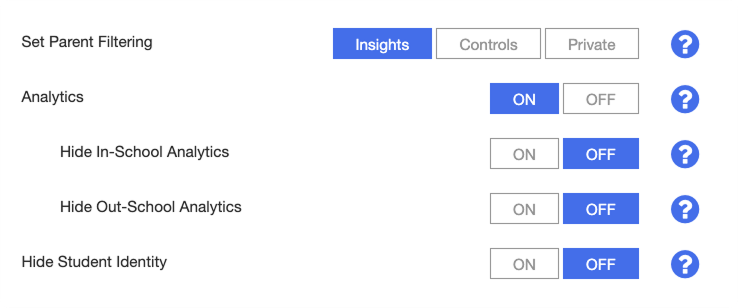
This option grants parents access to filtering controls. Parents can block or allow URLs using the Exception List, manage device access time, and pause the internet. The specific features available are determined by the settings in the Parent Dashboard Filtering Options section. Insights and Web Analytics are also available unless disabled by the administrator.
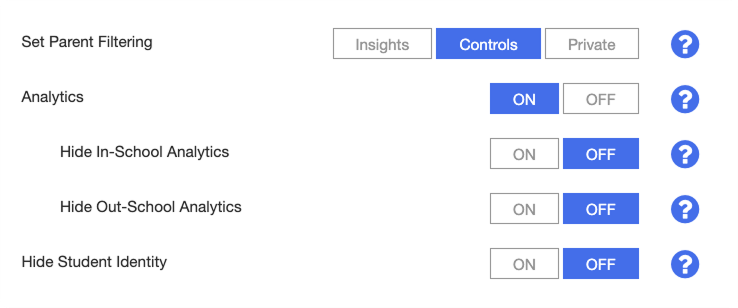
This option provides privacy for students when out of school. When a student is marked as out-of-school, no activity is logged and no filtering is applied. When the student is in-school, filtering and logging continue, and parents can view Web Analytics.
Tip
This option is especially useful during summer or other periods when school is out of session, or when parents prefer not to monitor their children's out-of-school activity.
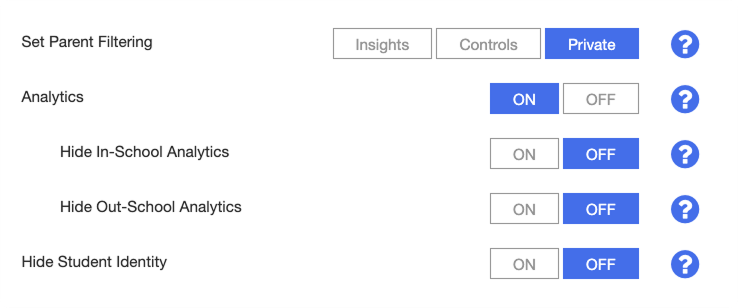
The following settings further control what is displayed on the Parent Dashboard.
Option | Description |
|---|---|
Analytics | Set whether the Insights section containing Web Analytics is accessible on the Parent Dashboard. If set to ON, two additional settings appear:
|
Hide Student Identity | Set whether to hide the student's first and last name on the Parent Dashboard. If set to ON, only the student's email address and alias are displayed. |
Note
To set these settings per-parent, scroll down to the parent email list and use the toggle switches in the corresponding columns.
These settings configure student location visibility and the Areas of Concern safety feature for the Parent Dashboard.
Section | Option | Description |
|---|---|---|
Parent Restrictions Indicator | Student Location Status | Set whether to display the student's location status (in-school or out-of-school) on the Parent Dashboard. For more information, refer to the Geofencing section. |
Parent Student Safety Options | Areas of Concern | Set whether the Areas of Concern feature is enabled on the Parent Dashboard. If set to ON, the feature is enabled for all parents. If set to OFF, only parents selected via the Access Exceptions button can use the feature. |