App Usage Insights
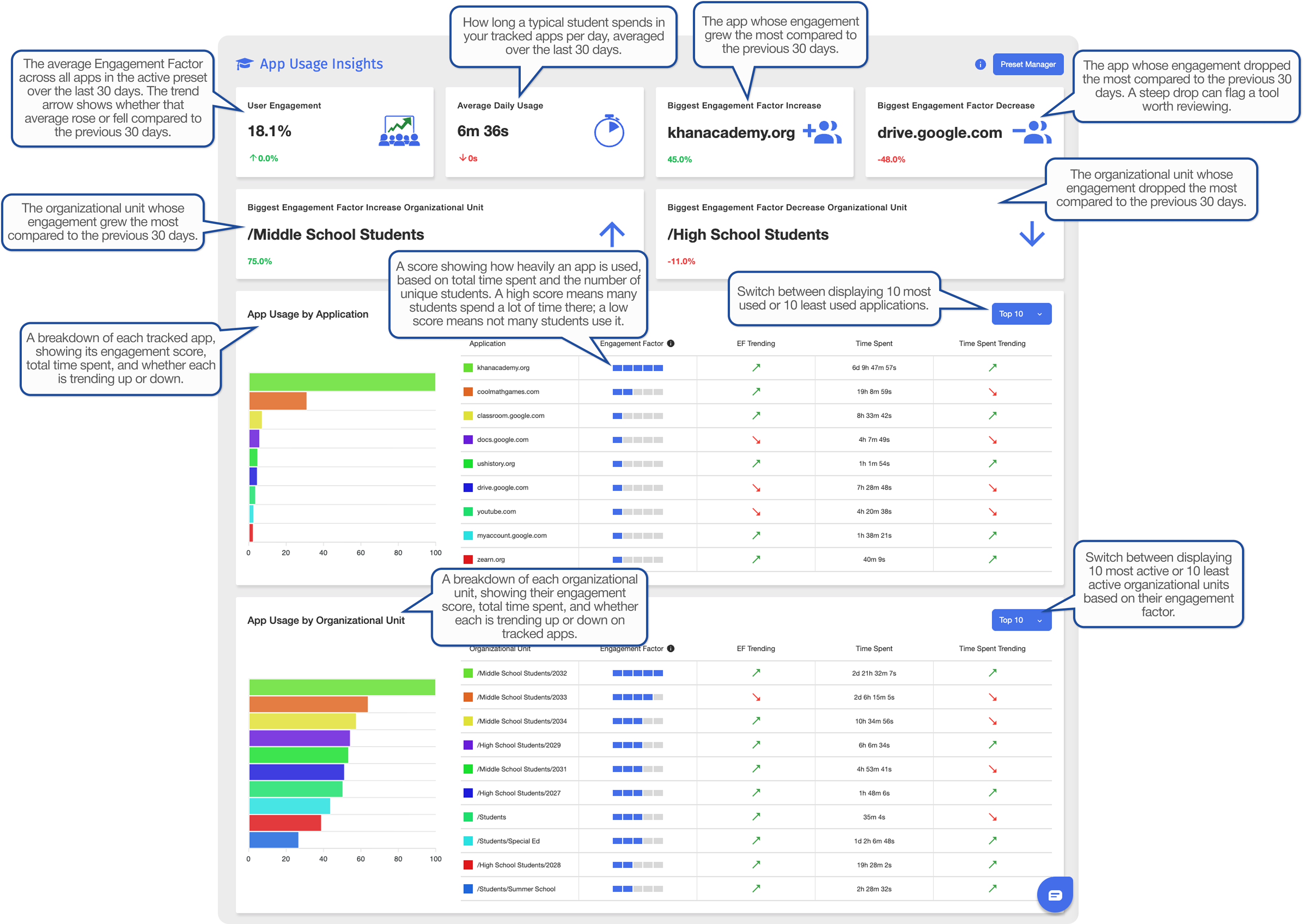
App Usage Insights gives administrators a clear view of how applications are accessed and used across the district. It shows how many students use each app, how much time they spend in it, and how that usage is trending. These insights support evidence-based decisions about EdTech tools - preparing for a software renewal, evaluating a newly deployed tool, or building a case for budget reallocation.
To access App Usage Insights, click Insights from the Main Menu, then click App Usage Insights from its sub-menu. The page appears, showing data from the past 30 days of student activity.
App Usage Insights includes a default preset of some of the most commonly used apps globally, which cannot be modified. Administrators can also create custom presets containing any apps they choose, then filter App Usage Insights by the selected preset.
On the App Usage Insights page, click Preset Manager. The Preset Manager window opens.
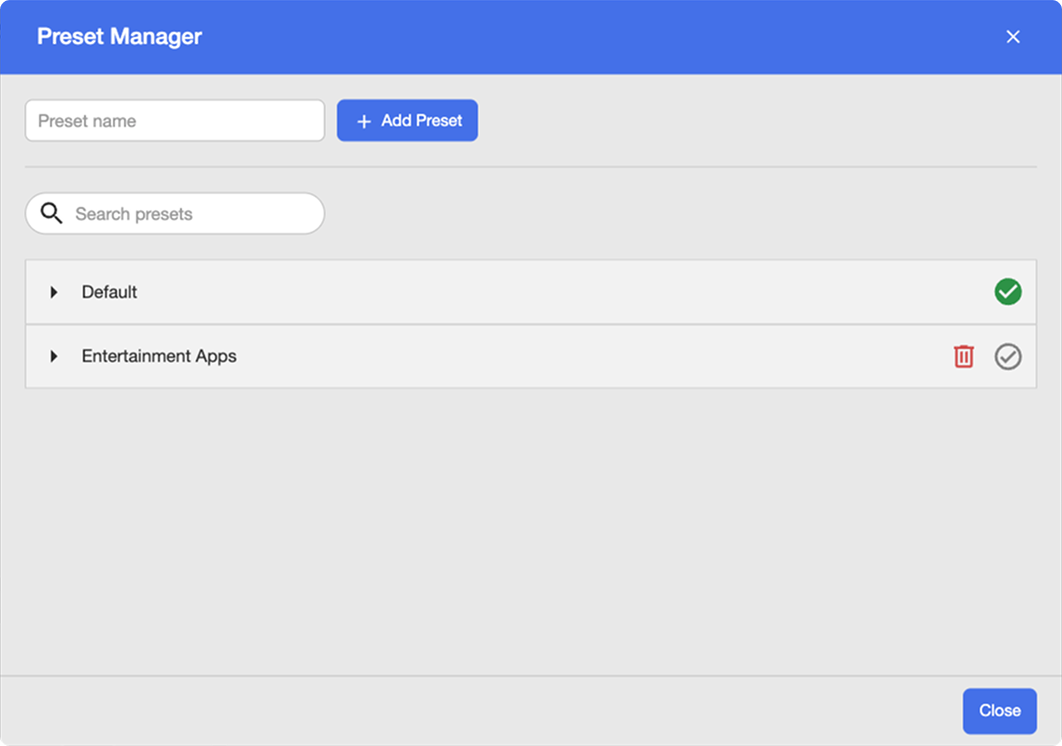
In the Preset name field, enter a name, then click Add Preset.
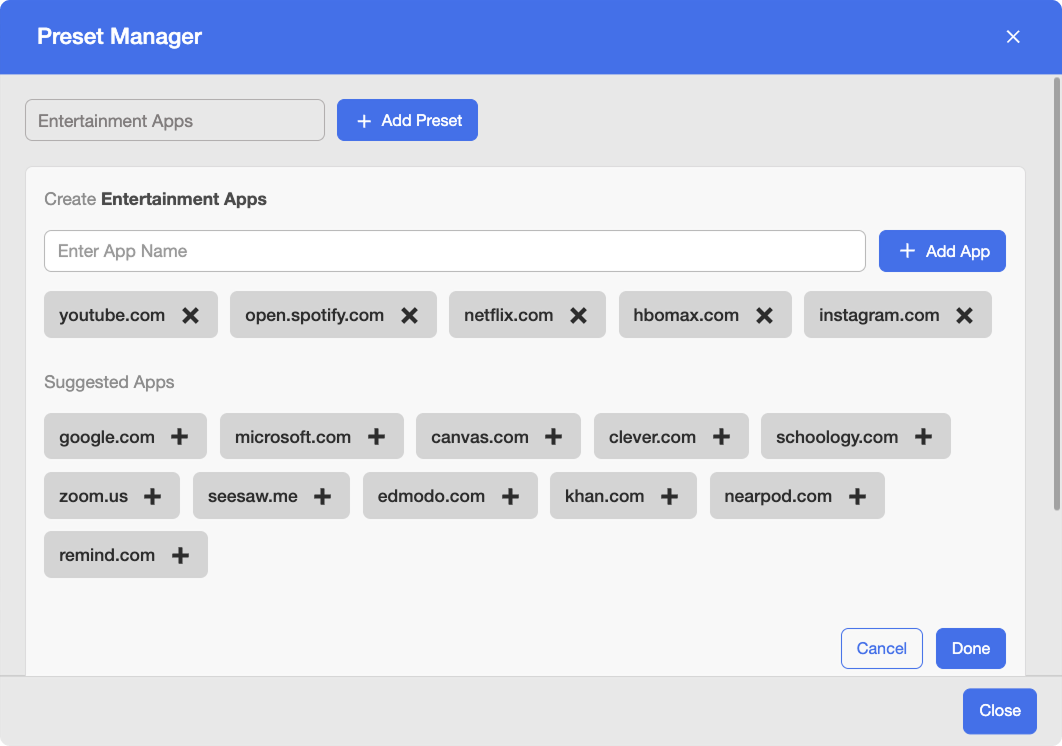
In the Enter App Name field, enter the URL of the app you want to include, then click + Add App. Repeat this step for each app you want to include in the preset.
Tip
To edit a custom preset, click its name to expand it, then add or remove apps as needed. To delete a preset entirely, click the
 icon.
icon.Click the
 icon next to the preset name to set it as the active preset.
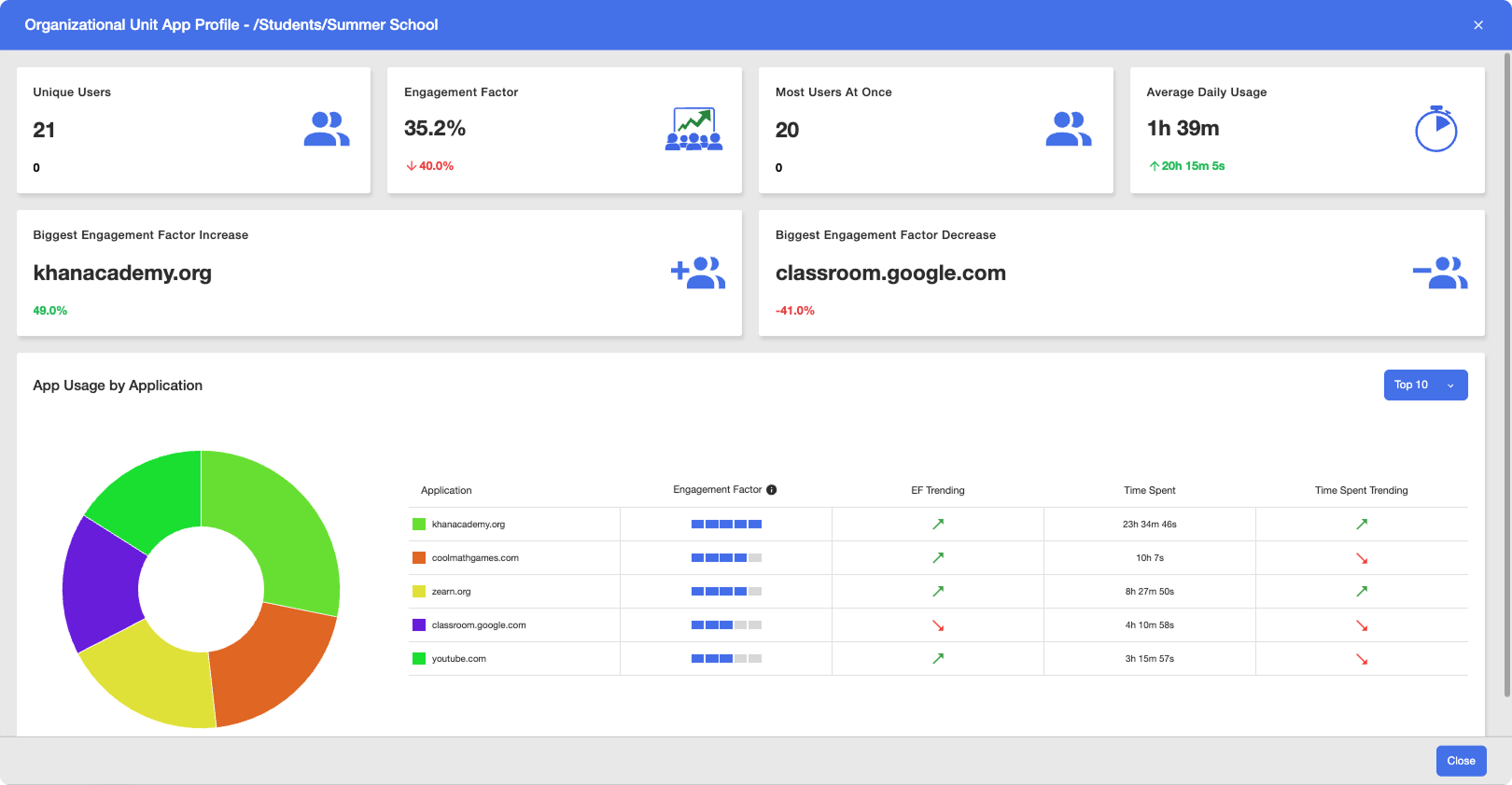
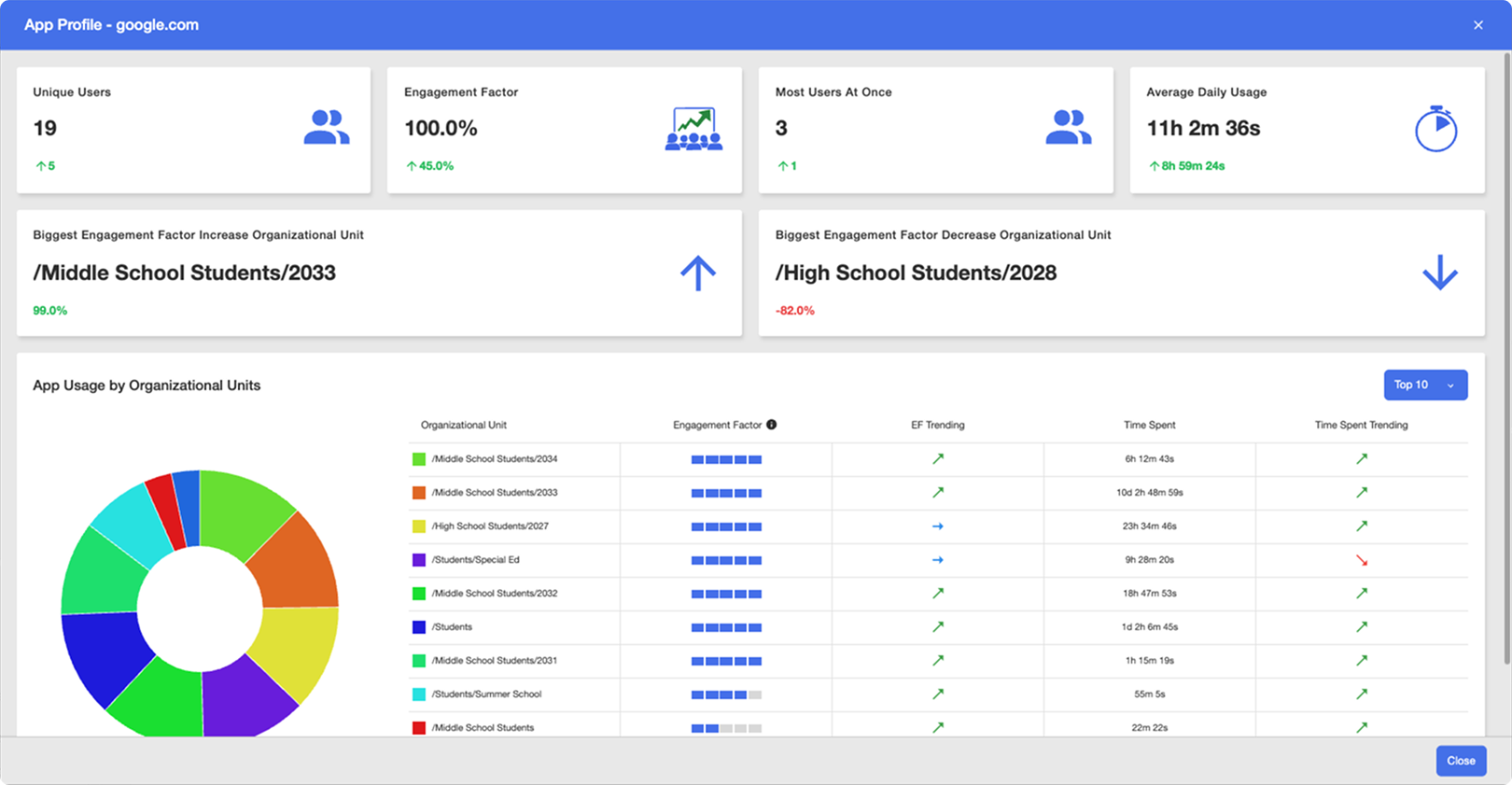
Administrators can open a detailed profile for any individual application or organizational unit. An App Profile focuses on a single application - who is using it, how many people, and for how long - while an Organizational Unit App Profile focuses on a single organizational unit and the applications it uses most. Both profiles draw on the same core metrics (unique users, engagement factor, time spent, and trend indicators), filtered to the selected app or organizational unit.
Click a specific app's name to open the App Profile window, displaying data. This provides deeper insight into who uses the app the most, how many unique users it has, how much time they spend in it, and engagement trends both overall and across organizational units.
Click a specific organizational unit's name to open the Organizational Unit App Profile window, displaying data. This provides deeper insight into which applications the unit uses the most, how many unique users it has, how much time they spend in those applications, and engagement trends both overall and across individual apps.