Searching and Removing Delegate Accounts
Click Dashboard Settings from the Main Menu, then click Delegate Dashboard from its sub-menu. The Delegate Accounts screen appears.
Scroll down to the delegate email list at the bottom of the Delegate Dashboard page.
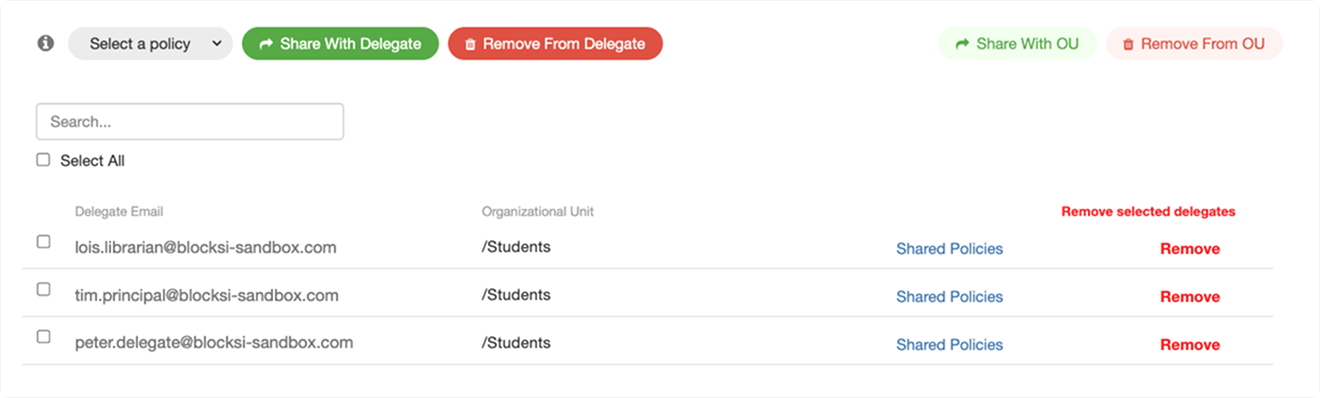
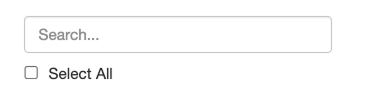
Type the string to search either by the email address or the delegated organizational units in the Search... text box and click enter. Any delegates matching the criteria are displayed in the delegate email list below.
Note
The search string does not need to be a complete query - entering only part of it will display the matching results.
Tip
The number of delegates matching the search criteria is displayed to the right of the search box.
Click Dashboard Settings from the Main Menu, then click Delegate Dashboard from its sub-menu. The Delegate Accounts screen appears.
Scroll down to the delegate email list at the bottom of the Delegate Dashboard page.
Locate the delegate you wish to remove and click the Remove button in the corresponding column. A confirmation prompt appears.
Click OK to remove the account.
Tip
You can remove multiple delegate accounts at once by selecting the checkboxes to the left of the delegates you want to remove, then clicking the Remove selected delegates button at the top right of the delegate email list.
