Blocksi Filter - Intune iOS Configuration Guide
The following contains procedures for deploying Blocksi Filter (full URL + granular YouTube filtering solution) through Intune.
Blocksi Filter app - The filter itself.
Blocksi certificate profile - Allows the filter to protect web traffic on the device.
Per-app VPN profile - Turns on filtering for the built-in Safari browser and provides the connection that managed apps are attached to.
Prerequisites
Ensure the following prerequisites are in place before proceeding with deployment:
Administrator access to the Microsoft Intune Admin Center at intune.microsoft.com.
Your Blocksi Super-Admin account email address.
Send your Organization ID and organization name to Blocksi Support to authorize your district's use of the Blocksi Filter app. Refer to the Getting Your Organization ID and Name section for more information.
Ensure that Custom Apps and the Volume Purchase Program (VPP) are fully enabled and configured. Refer to the Configuring Volume Purchasing section for more information.
Your Intune tenant is connected to Apple Business Manager or Apple School Manager.
Supervised iPads or iPhones running iOS 16 or later are enrolled in Microsoft Intune through Apple School Manager or Apple Business Manager. A device or user group exists that contains the target devices. Assign the app and all profiles to this same group.
A filtering policy must be created and configured on the Blocksi Admin Dashboard.
The Blocksi Filter app is assigned to the location that your MDM uses in Apple School Manager or Apple Business Manager, and has synced into Intune.
Sign in to your Apple School Manager account with your Administrator credentials.
Click your account name in the lower left-hand corner, and then click Preferences from the pop-up menu.
Go to Organization Information.
Locate your Organization ID and Organization Name.
Send this information to Blocksi. It is required to add your organization to the approved list of customers who can use Blocksi's filtering app.
Sign in to your company's account at business.apple.com (Apple Business Manager) or school.apple.com (Apple School Manager).
Click your account name in the top right corner, then click Settings from the drop-down menu.
Click Payments and Billing.
Under the Apps and Books tab, scroll to the Content Tokens section and click Download next to the correct server location token. The token is downloaded to the Downloads folder on your computer.
In Intune, navigate to Tenant Administration > Connectors and Tokens > Apple VPP Tokens, then click Create. The Create VPP Token page opens on the Basics tab.
On the Basics tab, specify the following:
Token Name - Enter an administrative name for the token.
Apple ID - Enter the Managed Apple ID of the account associated with the uploaded token.
VPP Token File - Select the location token you downloaded from Apple Business Manager or Apple School Manager.
Click Next to proceed to the Settings tab and specify the following:
Take Control of Token from Another MDM - Set to Yes to allow the token to be reassigned to Intune from another MDM solution.
Country/Region - Select the VPP country/region store. Intune synchronizes VPP apps for all locales from the selected store.
Type of VPP Account - Select Business or Education.
Automatic App Updates - Select Yes or No to enable or disable automatic updates. When enabled, Intune detects VPP app updates and automatically pushes them to the device when it checks in.
Select the I grant Microsoft permission to send both user and device information to Apple checkbox.
Click Next to proceed to the Scope Tags tab. Click Select Scope Tags to optionally add scope tags for the token, then click Next.
On the Review + create tab, review your settings and click Create. The token appears in the list of VPP tokens.
Volume-purchased apps are not added to Intune manually. After you assign Blocksi Filter to the location of your Apple VPP token in Apple Business Manager or Apple School Manager, the app syncs into Intune from your Apple VPP token and appears in Apps > All Apps.
Volume-purchased apps are not listed in the Select app type pane, so Blocksi Filter cannot be added with Create.
In Intune, navigate to Tenant Administration > Connectors and Tokens > Apple VPP Tokens.
Click the ellipsis button in the row for your token, then click Sync.
Note
Newly assigned apps can take up to 24 hours to appear in Intune on their own. A manual sync usually takes about 15 minutes.
Navigate to Apps > All Apps and confirm that Blocksi Filter is listed with a type of iOS volume purchase program app.
Assign the app to your target devices as Required. Refer to the Assigning the App to Device Groups section for more information.
In Intune, navigate to Apps > All Apps and click the Blocksi Filter application.
Note
Blocksi Filter and the legacy Blocksi For iPad app can both appear in this list. Make sure that you select Blocksi Filter.
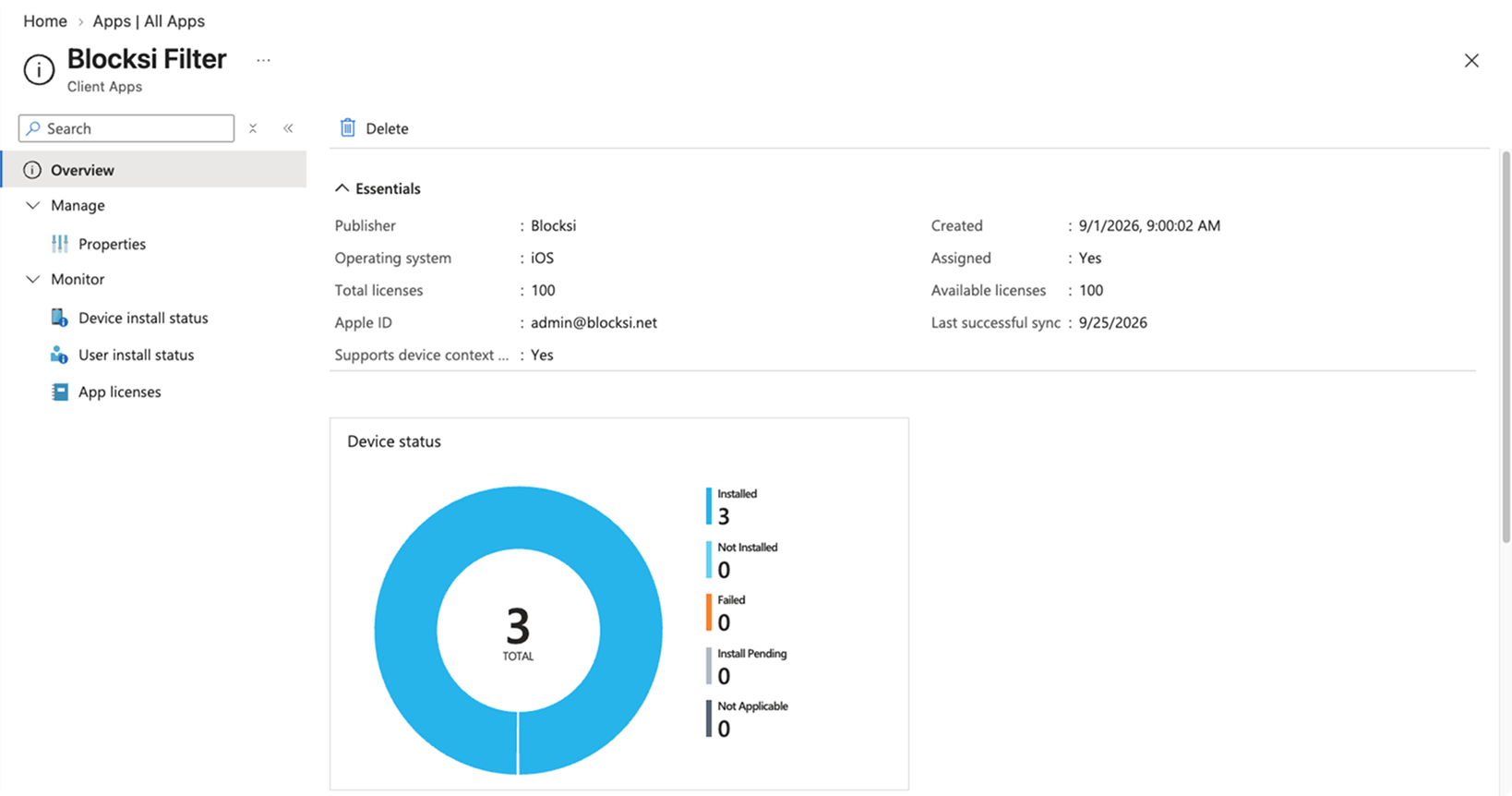
Select Properties, then click Edit next to Assignments.
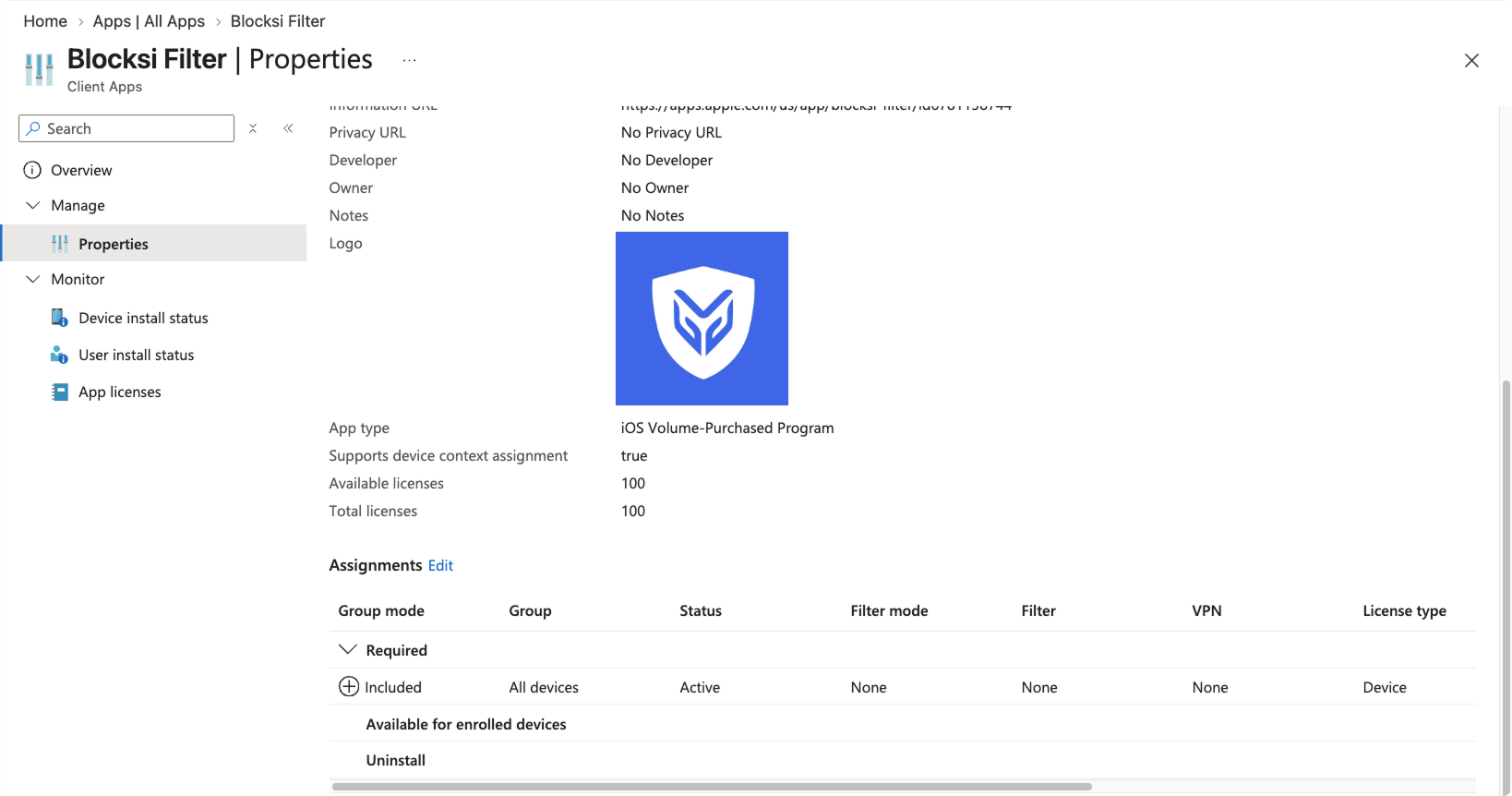
Under Required, click + Add group, then select your target device groups. Assigning the app as Required installs it on the target devices without user interaction.
Note
Note which device groups you assign here. The Blocksi certificate profile and the per-app VPN profile must be assigned to the same device groups.
In the row for the group you added, click the value beneath a column heading to change that setting, then configure the following:
Group mode - Select Included.
Filter mode - Select None.
Filter - Select None.
VPN - Select None.
License type - Select Device licensing.
Uninstall on device removal - Select Yes.
Install as removable - Select No.
Prevent iCloud app backup - (Optional) Select Yes or No.
Note
Leave VPN set to None on the Blocksi Filter app. The VPN column is set to the reference profile on the app records of the managed browsers only.
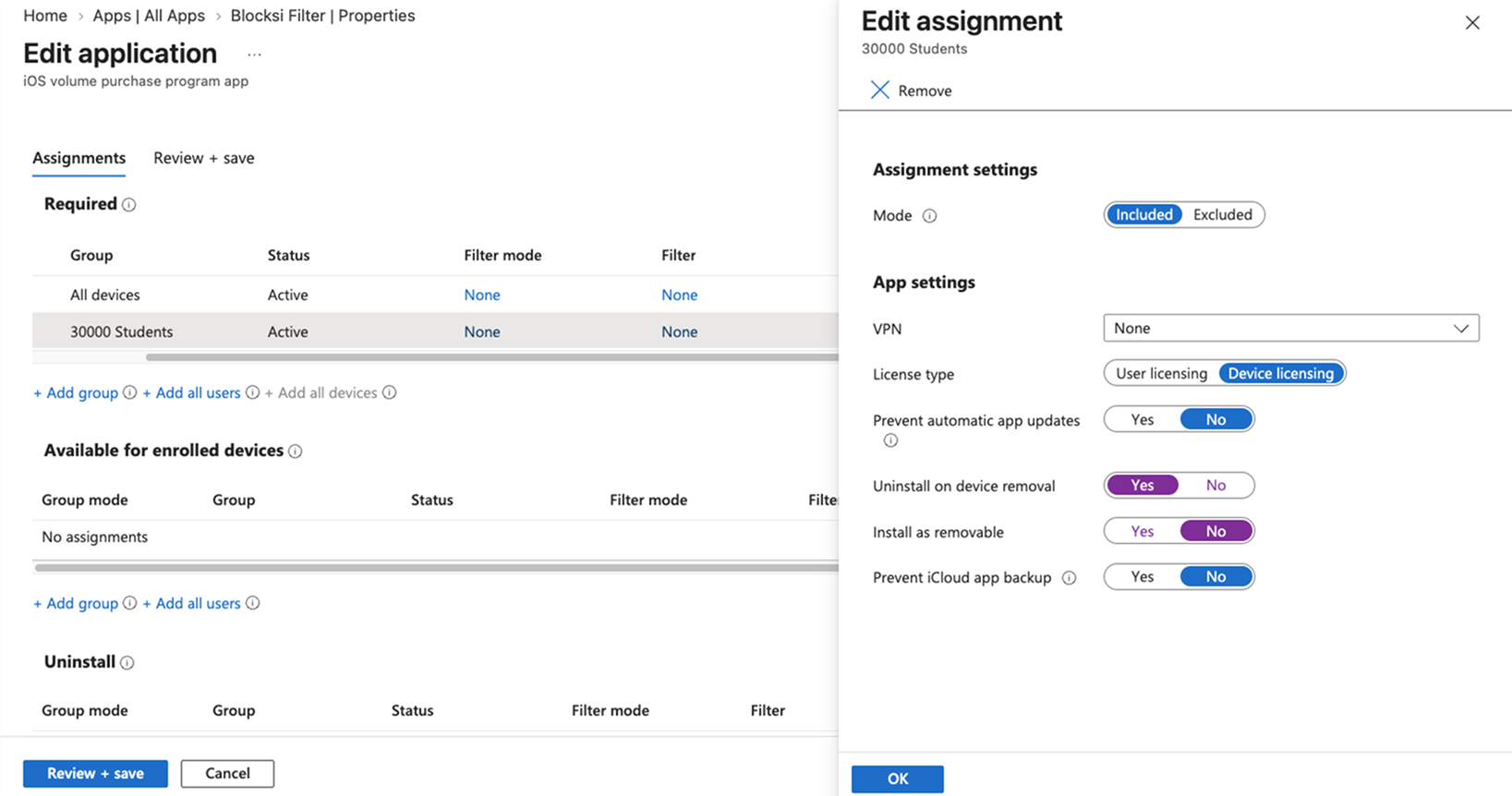
Click OK, then click Review + save.
Click Save.
Important
Wait until the app shows as installed on at least one test device before continuing. The profiles in the following sections refer to the network extension of the app, and filtering cannot start until the app is installed.
Download URLs
The relevant .mobileconfig file can be downloaded using the following link:
Blocksi_Filter_CA.mobileconfig- Delivers the Blocksi certificate.
In Intune, navigate to Devices > Manage Devices > Configuration and select + Create > New Policy. A new panel appears on the right side of the page.
Enter the following properties:
Platform - Select iOS/iPadOS.
Profile Type - Select Templates > Custom.
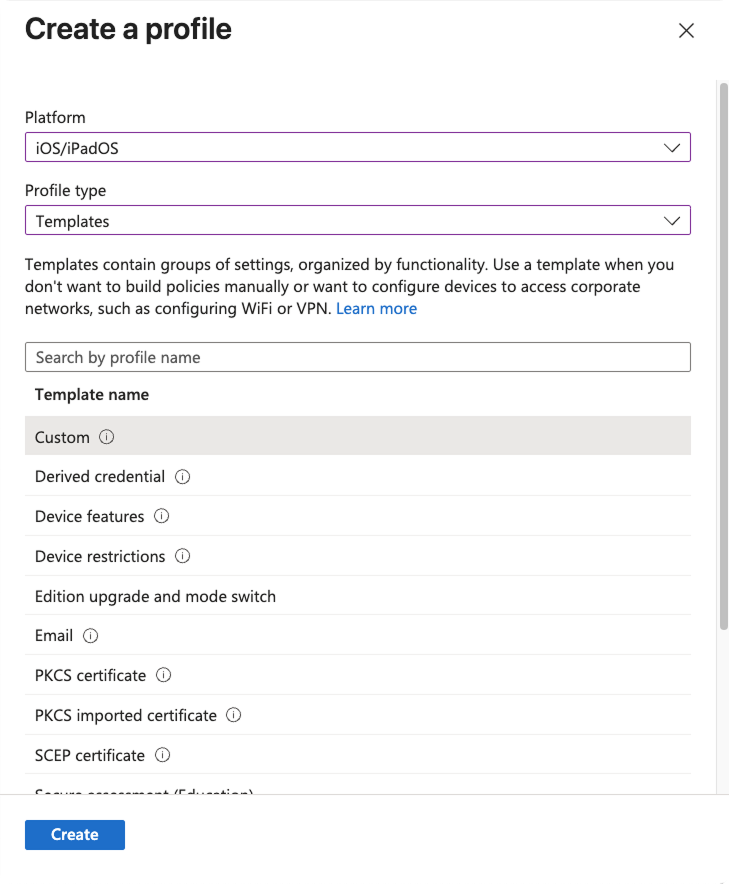
Click Create.
On the Basics tab, enter the following properties:
Name - Enter a name for the profile (e.g., Blocksi Filter - Certificate).
Description - Enter a description for the policy. This setting is optional but recommended.
Note
The Platform and Profile Type values should already be filled out.
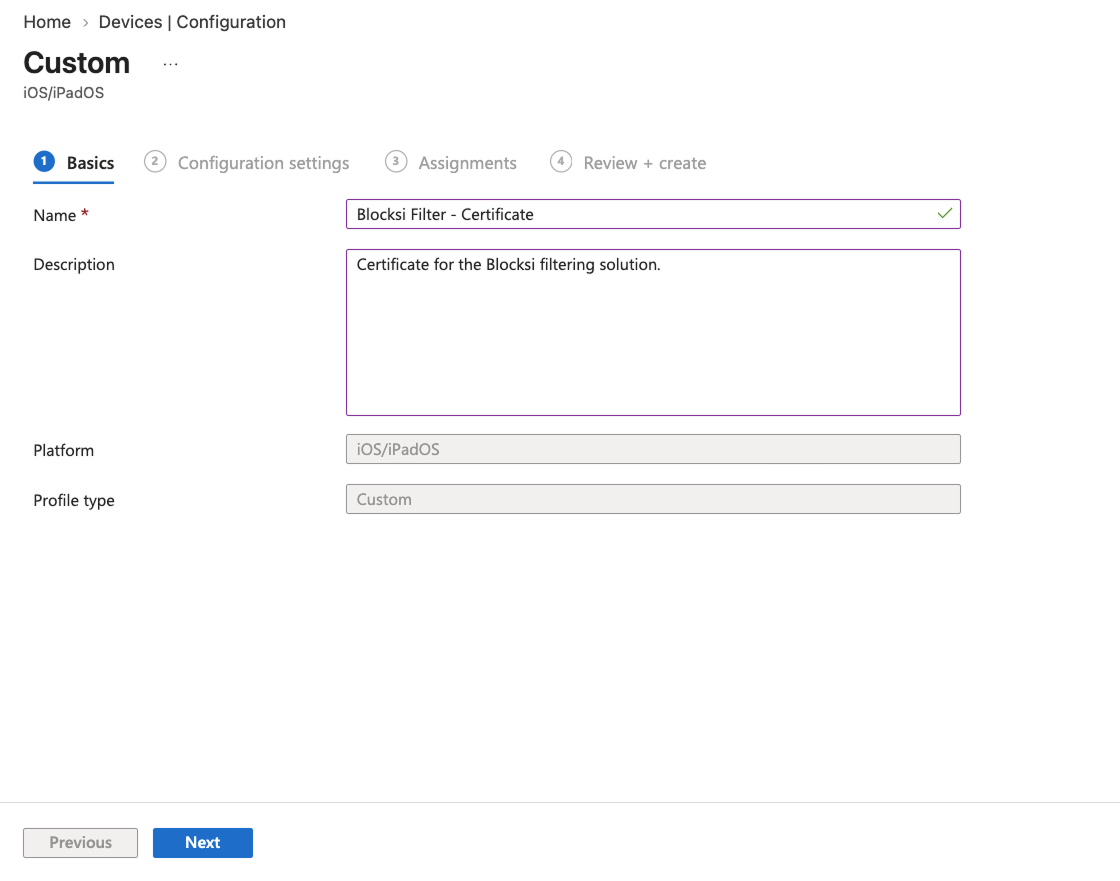
Click Next.
On the Configuration settings tab, configure the following:
Custom configuration profile name - Enter a name for the custom configuration profile (e.g., Blocksi Certificate).
Configuration Profile File - Upload the
Blocksi_Filter_CA.mobileconfigfile that you downloaded.
Review the imported file and click Next.
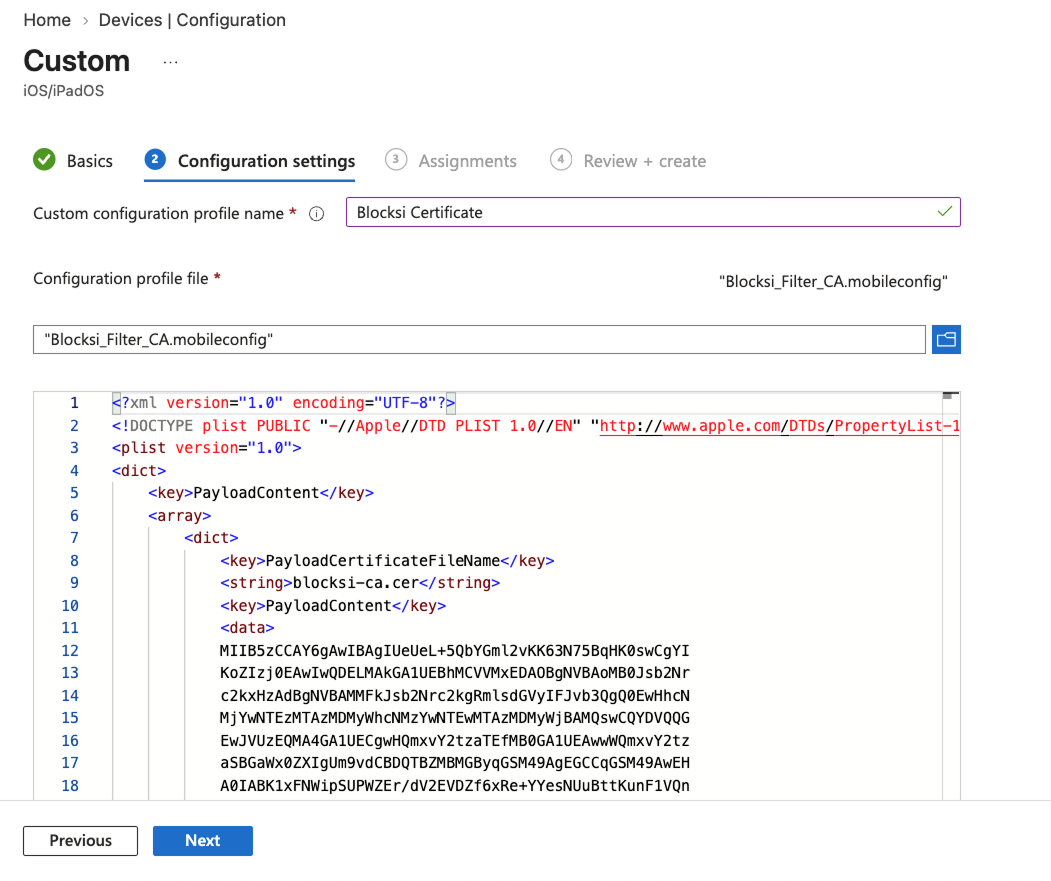
On the Assignments tab, assign the profile to the same device groups you assigned the Blocksi Filter app to, and click Next.
On the Review + create tab, review your settings and click Create. Your changes are saved, the profile is assigned, and the policy appears in the profiles list.
Note
On supervised devices, the certificate is trusted automatically, so it does not need to be enabled manually under Settings > General > About > Certificate Trust Settings.
Filtering is delivered by two VPN profiles that are created in a specific order. The per-app VPN profile is the working filtering configuration and stays on the device permanently. The reference VPN profile is a temporary helper that supplies the identifier tying managed apps to the filter, and it is never meant to stay on a device.
Both profiles carry the same identifier, which you copy from the reference profile into the file that you upload. The reference profile must be assigned to your devices while managed browsers are installed, and must then be unassigned before the per-app VPN profile is uploaded. Complete the following sections in the order given, otherwise both profiles are installed at once and browsing stops.
The reference profile attaches managed browsers, such as Google Chrome, to the filter. Its identifier is also required in the per-app VPN profile, so create the reference profile before you configure the per-app VPN profile.
Important
Type of automatic VPN cannot be changed after the profile is saved. If it is set incorrectly, the profile must be recreated. A recreated profile receives a new identifier, so you must attach each managed browser again. You must also enter the new identifier in the per-app VPN profile and upload the profile again. Refer to the Attaching the VPN to an Installed Managed App and Configuring the Per-App VPN Profile sections.
In Intune, navigate to Devices > Manage Devices > Configuration and select + Create > New Policy. A new panel appears on the right side of the page.
Enter the following properties:
Platform - Select iOS/iPadOS.
Profile Type - Select Templates > VPN.
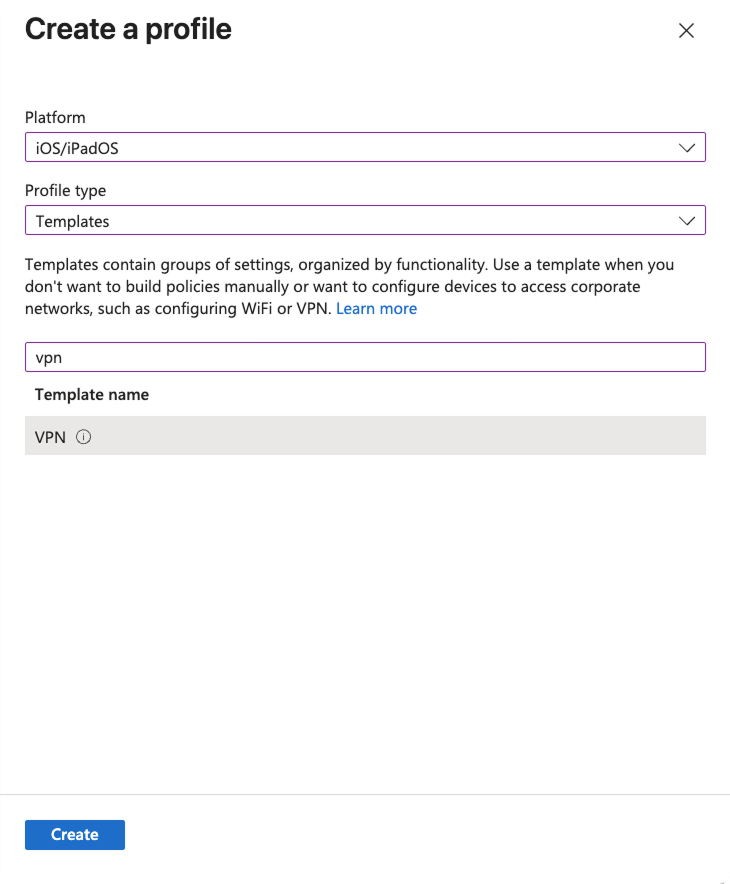
Click Create.
On the Basics tab, enter the following properties:
Name - Enter a name for the profile (e.g., Blocksi Filter - Per-App (reference)).
Description - Enter a description for the policy. This setting is optional but recommended.
Note
The Platform and Profile Type values should already be filled out.
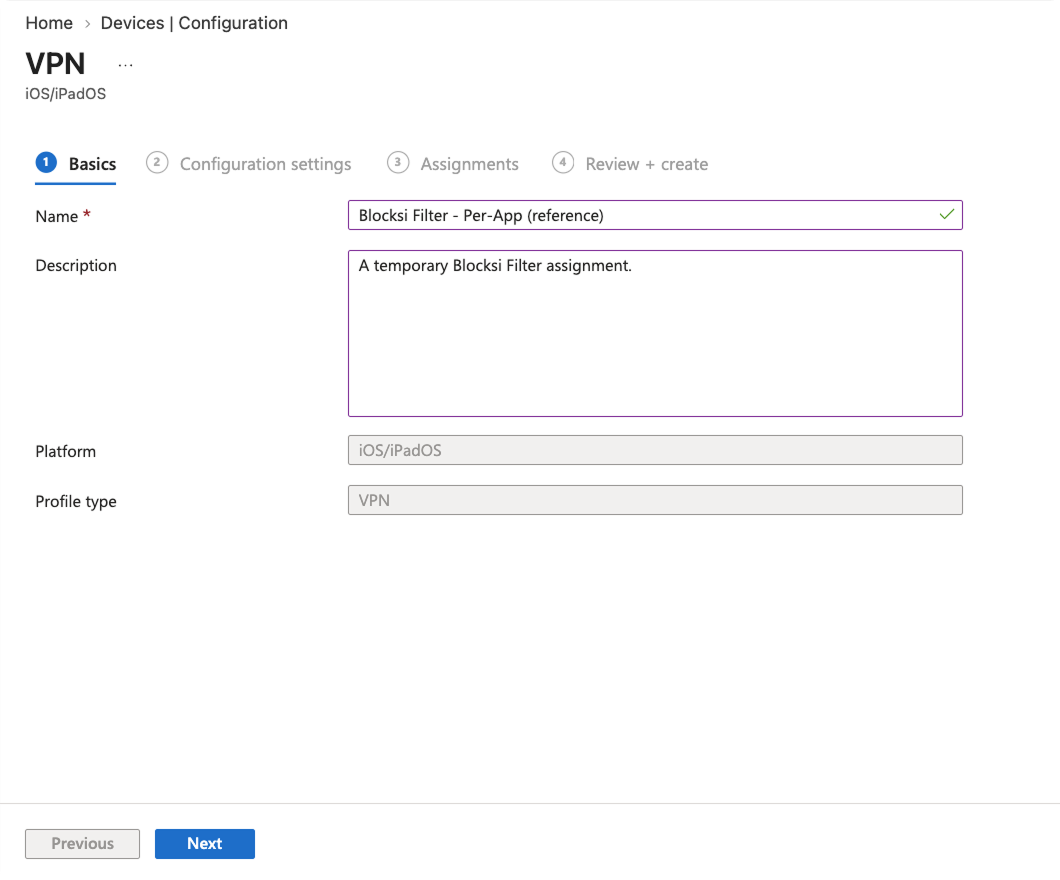
Click Next.
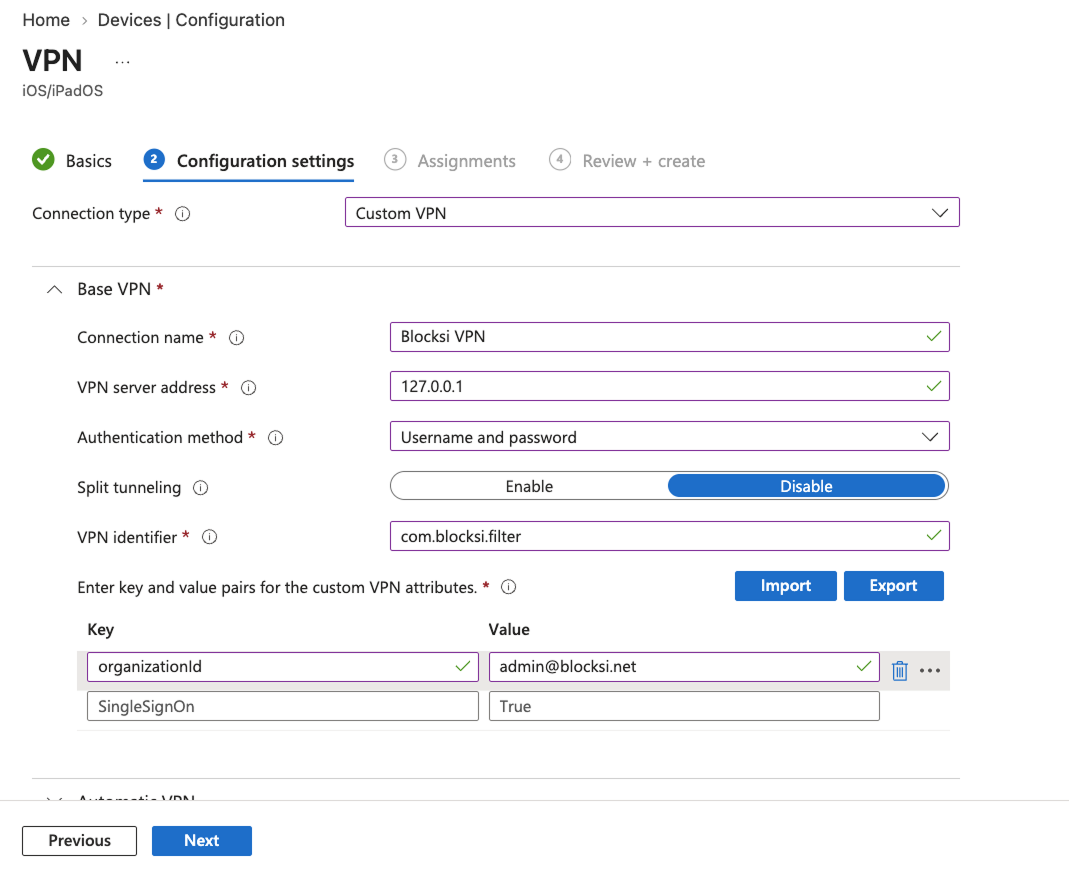
On the Configuration settings tab, set Connection type to Custom VPN. The Base VPN, Automatic VPN and Proxy sections appear.
Under Base VPN, enter the following properties:
Connection name - Enter
Blocksi per-app VPN (reference). End users see this name in Settings.VPN server address - Enter
127.0.0.1. This value is required even though the tunnel is local to the device.Authentication method - Select Username and password, and leave both credentials empty.
Split tunneling - Select Disable.
VPN identifier - Enter
com.blocksi.filter.Key and value pairs - Enter the key
organizationId, with your Blocksi Organization ID as the value.
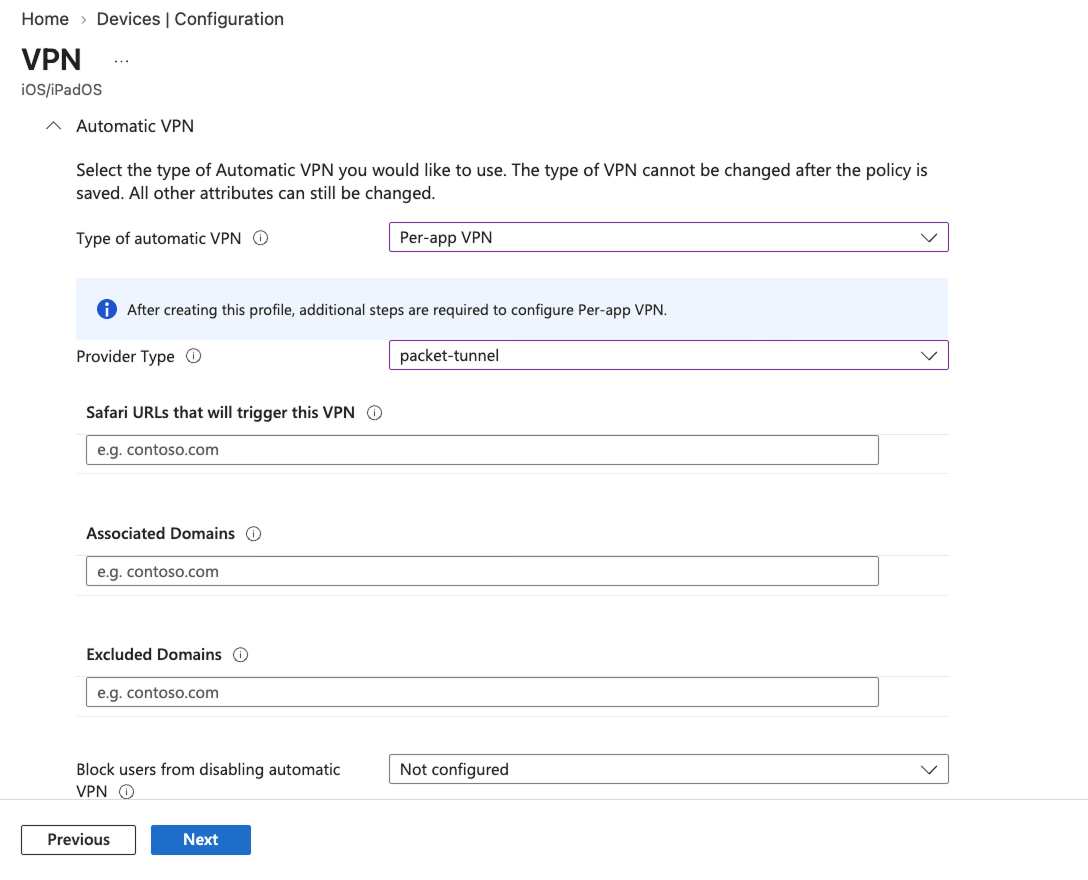
Under Automatic VPN, enter the following properties:
Type of automatic VPN - Select Per-app VPN.
Provider Type - Select packet-tunnel.
Safari URLs that will trigger this VPN, Associated Domains and Excluded Domains - Leave empty.
Block users from disabling automatic VPN - Leave set to Not configured.
Click Next.
On the Assignments tab, assign the profile to the same device groups you assigned the Blocksi Filter app to, and click Next.
On the Review + create tab, review your settings and click Create.
Note
This assignment is temporary. It exists only so that managed browsers can be installed with the attachment in place, and it is removed in the Removing the Reference Profile Assignment section.
In Intune, navigate to Devices > Manage Devices > Configuration and open the reference VPN profile you created.
Read the identifier from the address bar of your browser. It is the value that follows
policyId/:.../PolicySummaryReportBlade/policyId/5be9d8fb-cb1c-42d4-95f0-fac604e667df/policyName/...Record the value exactly as shown, in lower case.
Note
You paste this value into Blocksi_Filter_Intune.mobileconfig in the Configuring the Per-App VPN Profile section.
Safari is covered by the per-app VPN profile and needs nothing further. Other browsers are filtered only if they are installed as managed apps through Intune and attached to the Blocksi Filter connection. Repeat the relevant procedure for each browser that you want filtered.
Every browser that you want filtered must be deployed by Intune. An app that a user installed themselves cannot be attached to the filter.
Important
The reference profile appears in the VPN drop-down list of the Edit assignment panel only after you create it. Refer to the Creating the Reference VPN Profile section.
If the browser is already deployed and managed by Intune, you do not need to add it again. Attach it to the Blocksi Filter connection instead.
In Intune, navigate to Apps > Platforms > iOS/iPadOS and open the app entry for the browser.
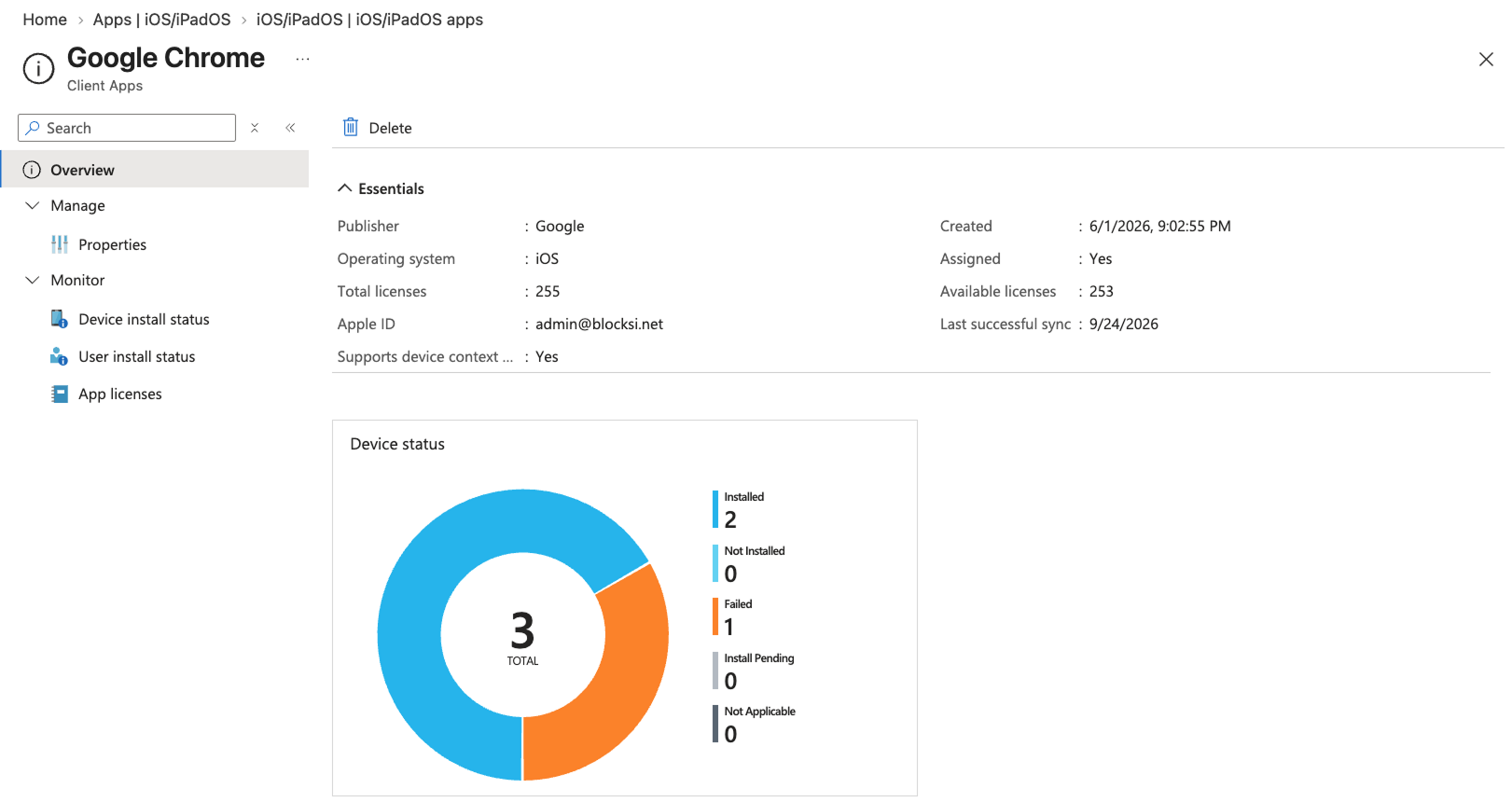
Select Properties, then click Edit next to Assignments.
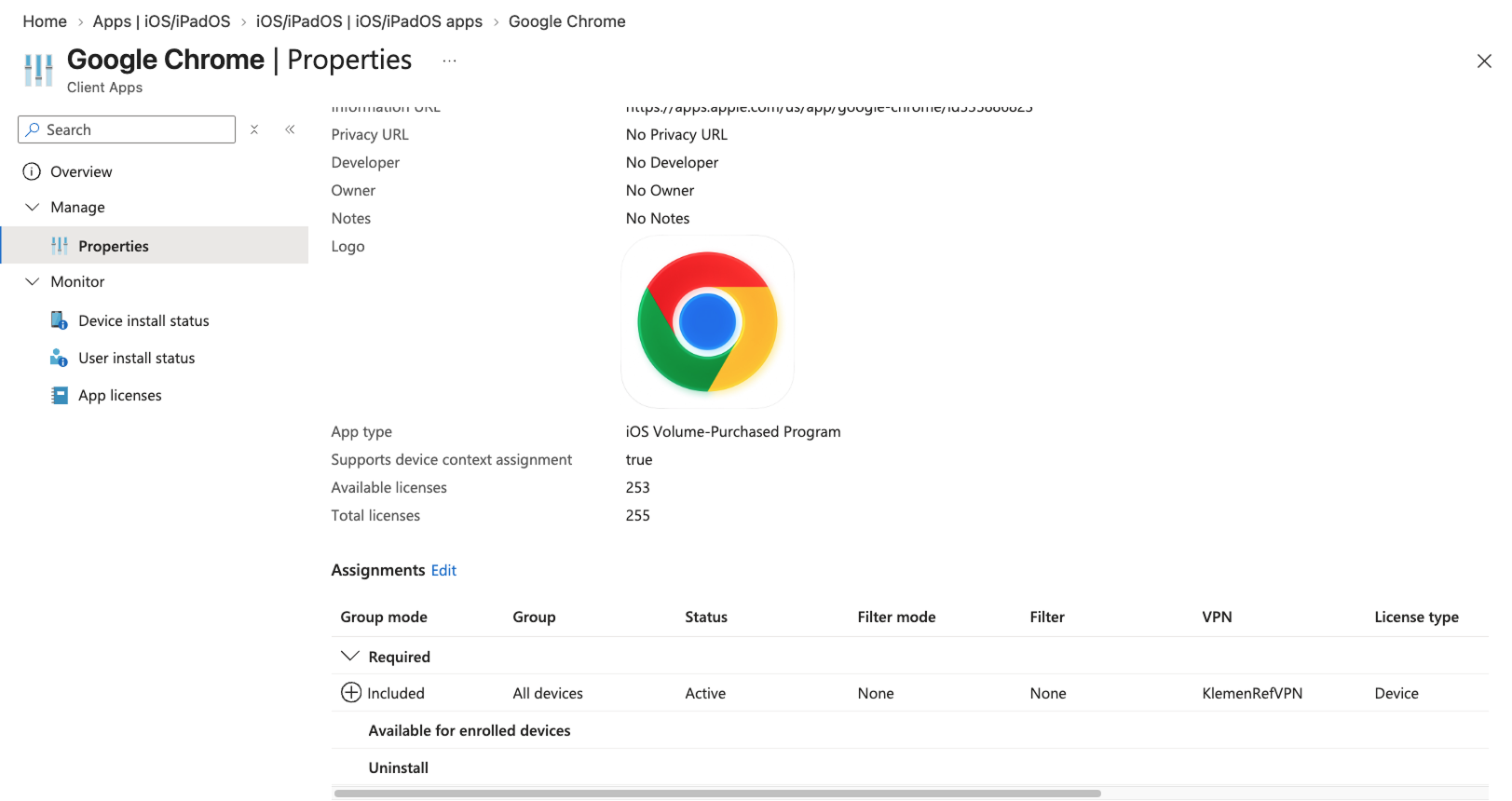
In the row for your target group, click the value in the VPN column. The Edit assignment panel opens.
Set VPN to the Blocksi Per-App VPN reference profile that you created.
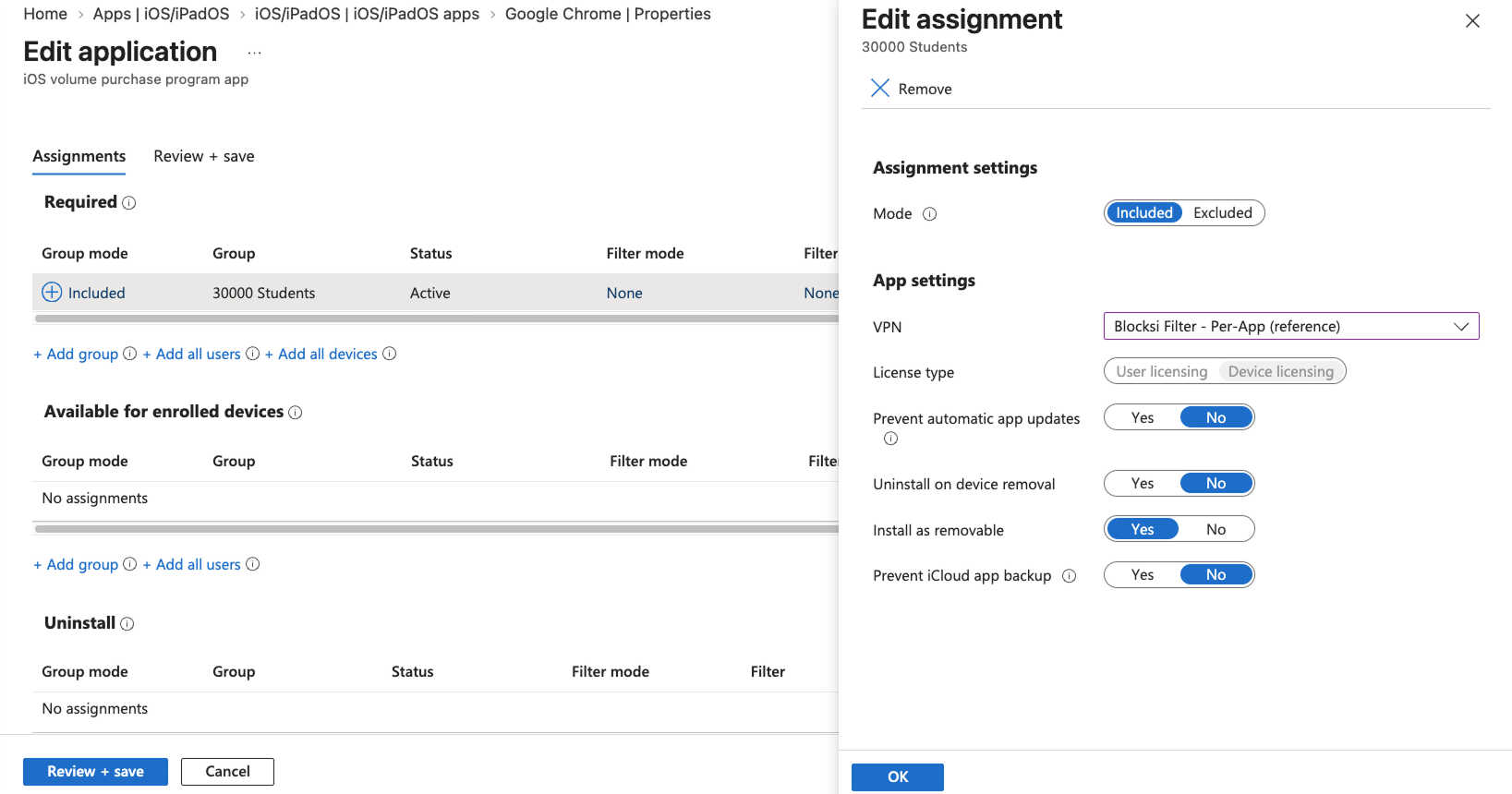
Click OK, then click Review + save.
Click Save.
Note
The attachment is applied when the app is installed. If the browser is already on the device, reinstall it from Intune so that the new setting takes effect. Wait until it shows as installed before continuing.
In Intune, navigate to Apps > Platforms > iOS/iPadOS, then click + Create. The Select app type panel opens to the right.
Select iOS store app from the App type drop-down list, then click Select. The Add App page opens on the App information tab.
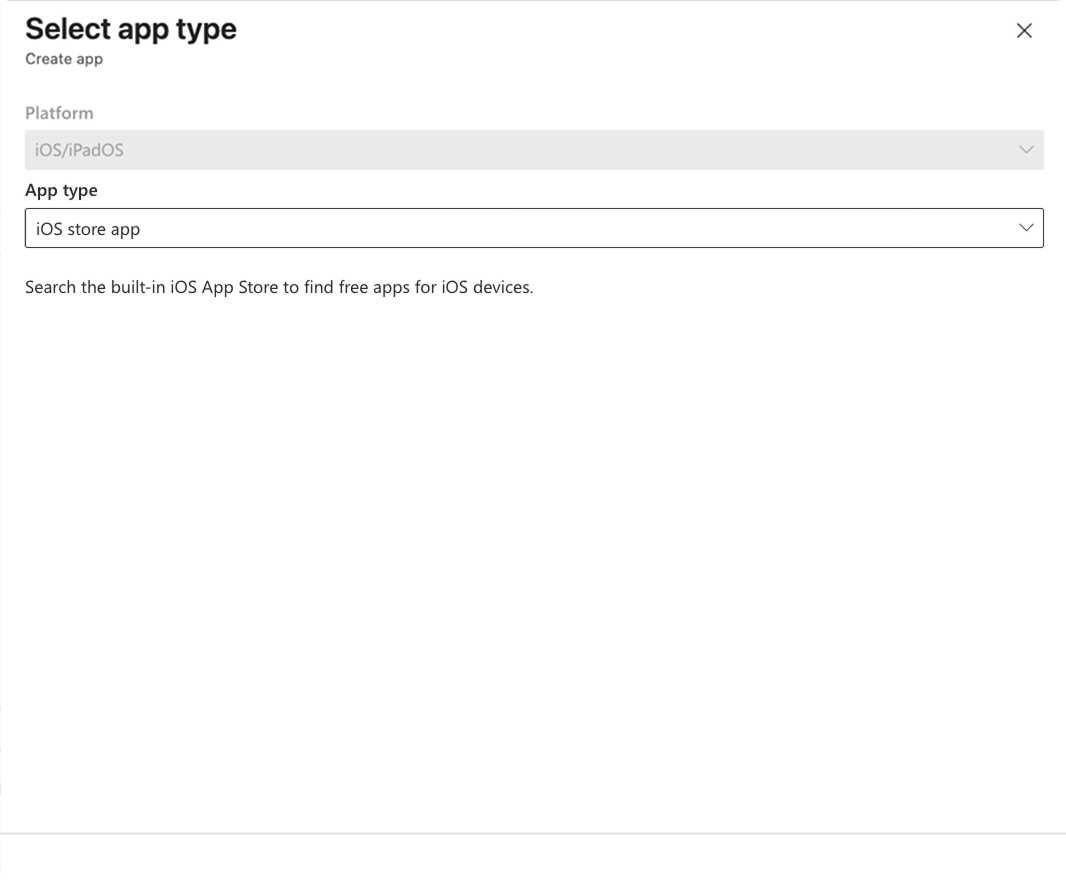
Click Search the App Store. The Search the App Store panel opens.
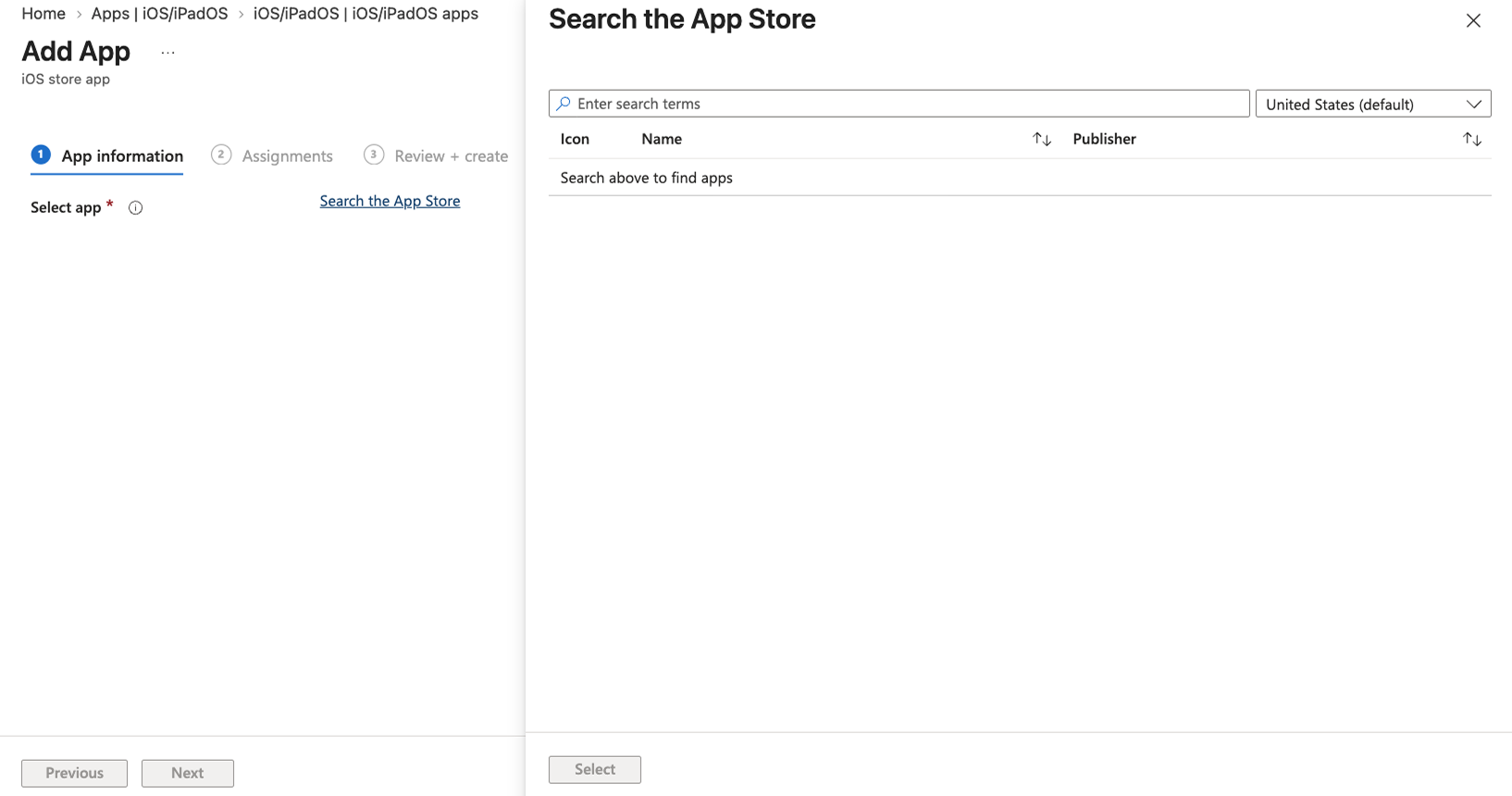
Search for the browser and select it from the list, then click Select.
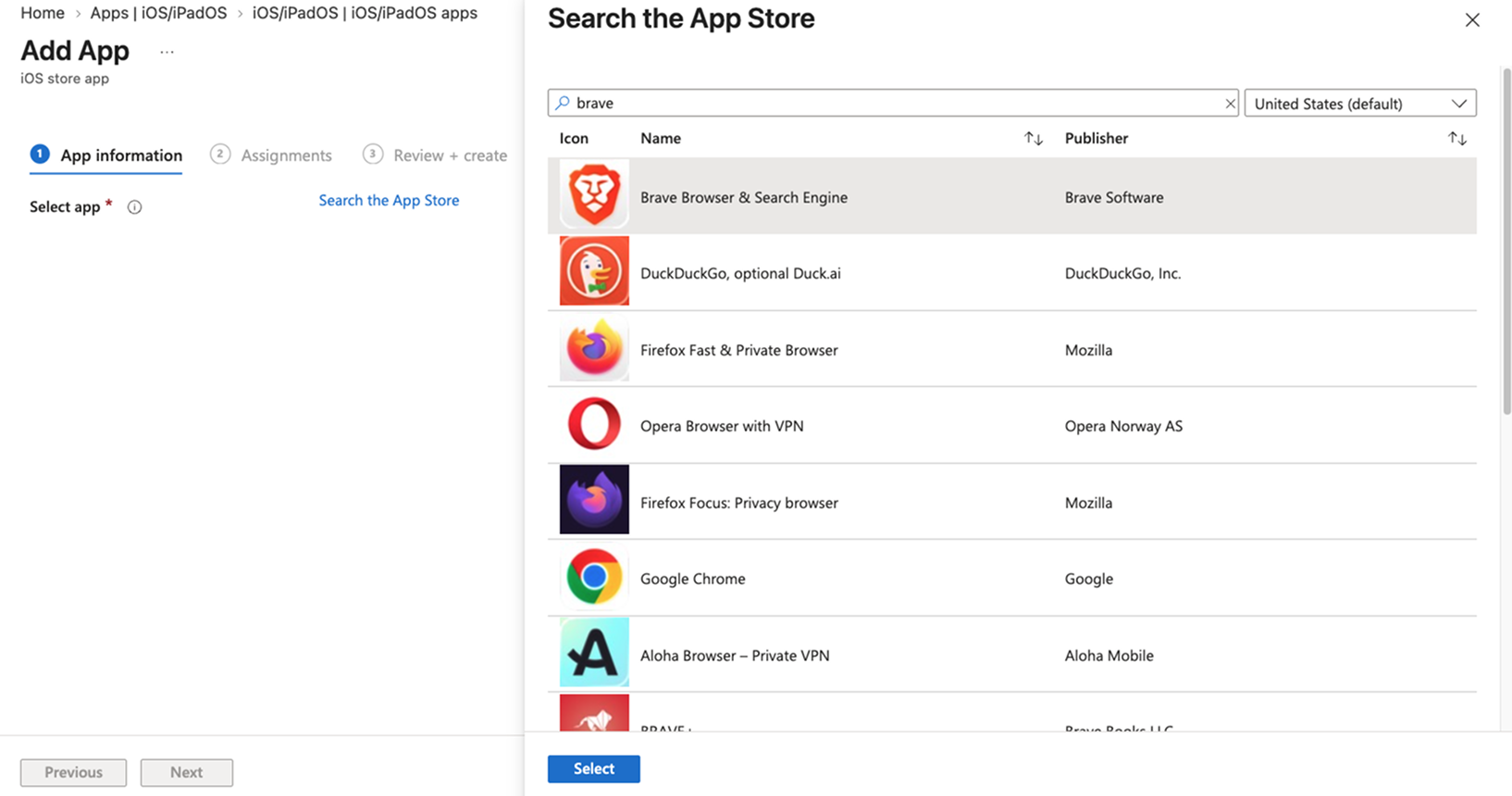
Review the app details that are filled in automatically, such as Name, Description and Publisher, then click Next. The Assignments tab opens.
Under Required or Available for enrolled devices, click + Add group, then select the same device groups you assigned the Blocksi Filter app to.
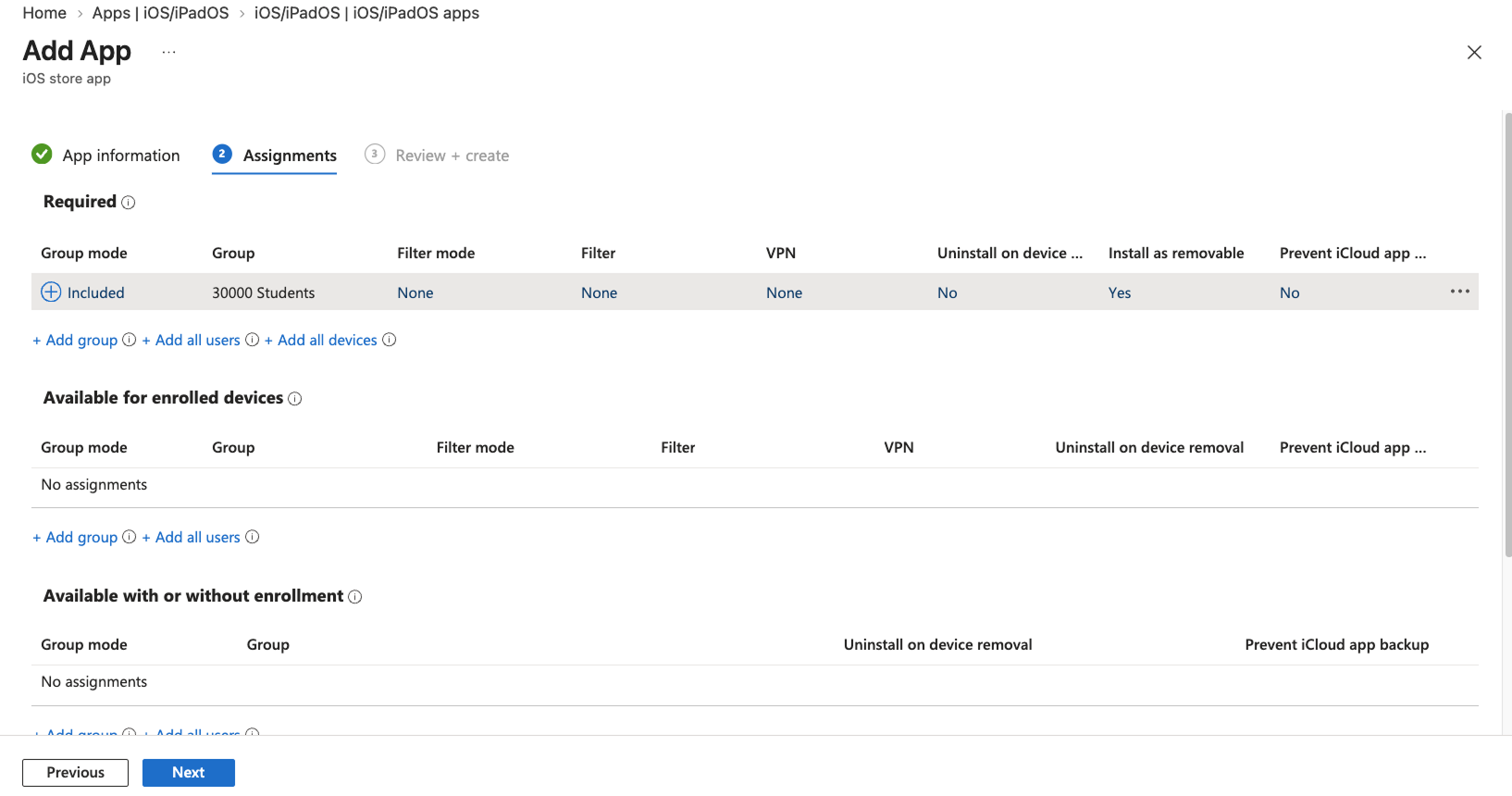
In the row for the group you added, click the value in the VPN column. The Edit assignment panel opens.
Set VPN to the Blocksi Per-App VPN reference profile that you created.
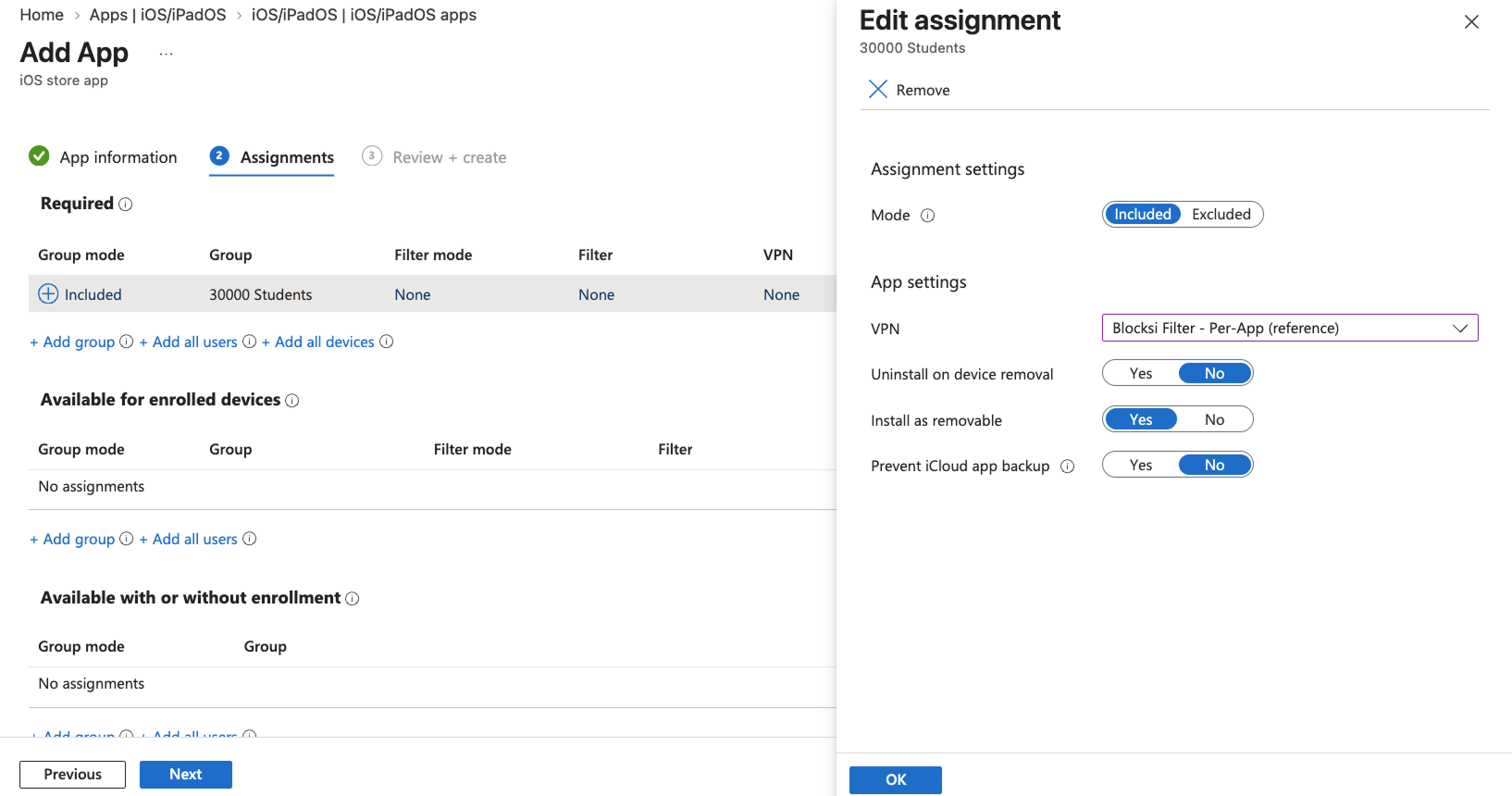
Click OK, then click Next.
On the Review + create tab, review your settings and click Create.
Note
Wait until the browser shows as installed before continuing.
Important
Remove only the assignment. The reference profile itself must stay in Intune and must stay selected in the app assignment of each managed browser. Deleting the profile breaks the attachment on every browser.
In Intune, navigate to Devices > Manage Devices > Configuration and open the reference VPN profile.
Scroll down to Properties, then click Edit next to Assignments.
Remove your target device group.
Click Review + save, then click Save.
Download URLs
The relevant .mobileconfig file can be downloaded using the following link:
Blocksi_Filter_Intune.mobileconfig- Configures Safari filtering and provides the connection for managed apps.
Download the
Blocksi_Filter_Intune.mobileconfigfile.Open the downloaded
.mobileconfigfile using any text or code editor.In the
VendorConfigdict, configure the following keys:organizationId- Replaceadmin@blocksi.netwith your Blocksi Organization ID.adminPassword- Leave the default value, or replace it with a password of your choice. This password protects access to the app details in the Blocksi Filter app.userId- Leave the value set to{{userprincipalname}}. Intune replaces this variable with the primary user of the device.snAnalytics- Leave the value unchanged. This key reports the serial number of the device for analytics only, and is separate from theserialNumberkey used for serial number-based filtering.useDhcpDns- Leave the value set to<true/>. The filter uses the DNS servers provided by your network and falls back to public DNS servers if none are available.
Leave every other value unchanged.
Locate
VPN_UUID_Placeholderand replace it with the identifier that you recorded in the Finding the Profile Identifier section. Enter it in lower case and without braces.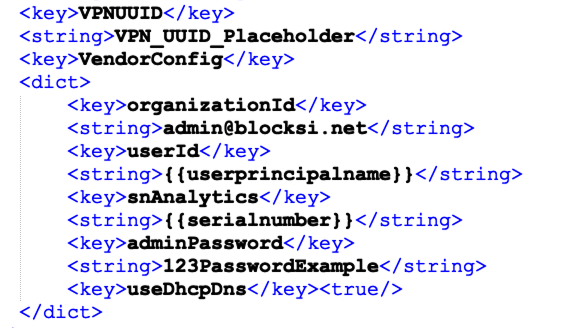
Save the file.
Note
The profile reports the primary user of the device to Blocksi so that activity is attributed correctly. This requires the device to have a primary user in Intune, which means it must be enrolled with user affinity. Devices enrolled without a user, such as shared devices, receive a blanket filtering policy instead.
By default, the profile identifies devices by their primary user. Configure the profile as described in this section when you want the filter to identify devices by serial number instead, such as on shared devices that are not enrolled with user affinity.
Download the
Blocksi_Filter_Intune.mobileconfigfile.Open the downloaded
.mobileconfigfile using any text or code editor.In the
VendorConfigdict, configure the following keys:organizationId- Replaceadmin@blocksi.netwith your Blocksi Organization ID.adminPassword- Leave the default value, or replace it with a password of your choice. This password protects access to the app details in the Blocksi Filter app.userId- Replace the key name withserialNumber, and replace the{{userprincipalname}}value with{{serialnumber}}, so that the two lines read as follows:<key>serialNumber</key> <string>{{serialnumber}}</string>snAnalytics- Leave the value unchanged. This key reports the serial number of the device for analytics only, and is separate from theserialNumberkey used for serial number-based filtering.useDhcpDns- Leave the value set to<true/>. The filter uses the DNS servers provided by your network and falls back to public DNS servers if none are available.
Leave every other value unchanged.
Important
Enter
{{serialnumber}}exactly as shown, in lower case and with double braces. Each MDM uses a different variable name, and Intune does not resolve the variable if the name does not match.Locate
VPN_UUID_Placeholderand replace it with the identifier that you recorded in the Finding the Profile Identifier section. Enter it in lower case and without braces.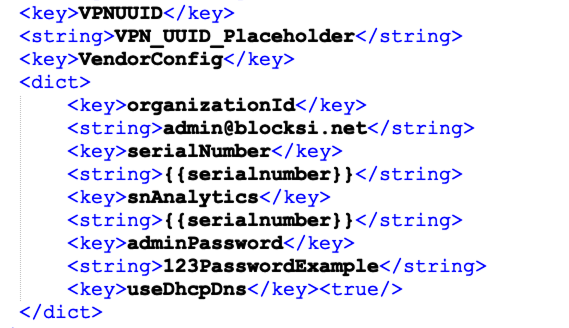
Save the file.
By default, the filter resolves DNS through the DNS servers that DHCP provides on your network. If DHCP does not provide DNS servers, or they do not respond, the filter falls back to built-in public DNS servers. Configure the profile as described in this section when you want the filter to use specific DNS servers instead. You can combine this configuration with the other optional configurations by editing the relevant keys in the same profile.
Download the
Blocksi_Filter_Intune.mobileconfigfile.Open the downloaded
.mobileconfigfile using any text or code editor.In the
VendorConfigdict, configure the following keys:organizationId- Replaceadmin@blocksi.netwith your Blocksi Organization ID.adminPassword- Leave the default value, or replace it with a password of your choice. This password protects access to the app details in the Blocksi Filter app.userId- Leave the value set to{{userprincipalname}}. Intune replaces this variable with the primary user of the device.snAnalytics- Leave the value unchanged. This key reports the serial number of the device for analytics only, and is separate from theserialNumberkey used for serial number-based filtering.useDhcpDns- Leave the value set to<true/>. The filter uses the DNS servers provided by your network and falls back to public DNS servers if none are available.dnsServers- Add thednsServerskey after theuseDhcpDnskey and enter your DNS server addresses as an array, in priority order, as shown in the following example. These servers are used instead of the DHCP DNS servers.<key>dnsServers</key> <array> <string>10.0.0.53:5353</string> <string>[2001:db8::1]:5353</string> </array>
Leave every other value unchanged.
Note
Each
dnsServersentry is an IPv4 or IPv6 address and can include a port. Enclose IPv6 addresses in square brackets when you add a port, as shown in the example.Locate
VPN_UUID_Placeholderand replace it with the identifier that you recorded in the Finding the Profile Identifier section. Enter it in lower case and without braces.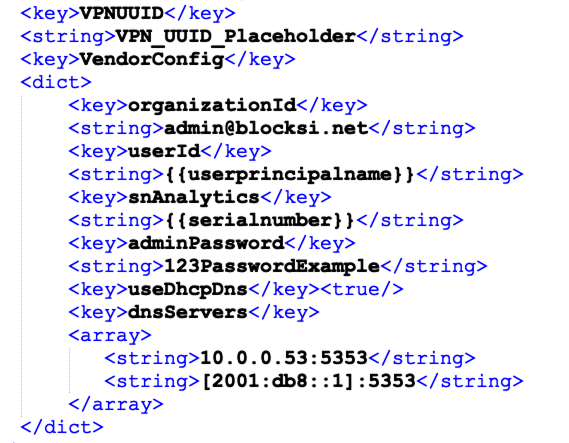
Save the file.
Configure the profile as described in this section when your network uses the captive portal of the Blocksi Appliance. Captive portal detection works only with the Blocksi Appliance, not with captive portals from other providers. When captive portal detection is turned on, the filter detects the Blocksi Appliance captive portal on the network and hands off DNS resolution to the Blocksi DNS-over-HTTPS (DoH) service. You can combine this configuration with the other optional configurations by editing the relevant keys in the same profile.
Download the
Blocksi_Filter_Intune.mobileconfigfile.Open the downloaded
.mobileconfigfile using any text or code editor.In the
VendorConfigdict, configure the following keys:organizationId- Replaceadmin@blocksi.netwith your Blocksi Organization ID.adminPassword- Leave the default value, or replace it with a password of your choice. This password protects access to the app details in the Blocksi Filter app.userId- Leave the value set to{{userprincipalname}}. Intune replaces this variable with the primary user of the device.snAnalytics- Leave the value unchanged. This key reports the serial number of the device for analytics only, and is separate from theserialNumberkey used for serial number-based filtering.useDhcpDns- Leave the value set to<true/>. The filter uses the DNS servers provided by your network and falls back to public DNS servers if none are available.
Leave every other value unchanged.
Add the following lines after the
useDhcpDnskey:<key>capPortalEnabled</key><true/> <key>capPortalHost</key> <string>capportal.blocksi.net</string> <key>capPortalPort</key> <integer>81</integer> <key>capPortalDohUrl</key> <string>https://capportal.blocksi.net/dns-query/normaldns</string>
Enter the lines as shown. The
capPortalDohUrlvalue is the recommended server URL for Blocksi Filter. Refer to the Choosing a Server URL section.Locate
VPN_UUID_Placeholderand replace it with the identifier that you recorded in the Finding the Profile Identifier section. Enter it in lower case and without braces.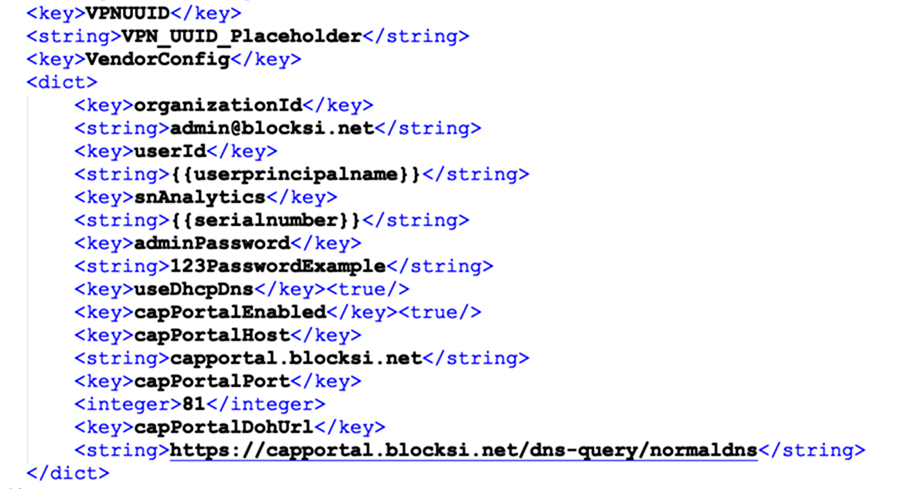
Save the file.
In Intune, navigate to Devices > Manage Devices > Configuration and select + Create > New Policy. A new panel appears on the right side of the page.
Enter the following properties:
Platform - Select iOS/iPadOS.
Profile Type - Select Templates > Custom.
Click Create.
On the Basics tab, enter the following properties:
Name - Enter a name for the profile (e.g., Blocksi Filter - Per-App).
Description - Enter a description for the policy. This setting is optional but recommended.
Note
The Platform and Profile Type values should already be filled out.
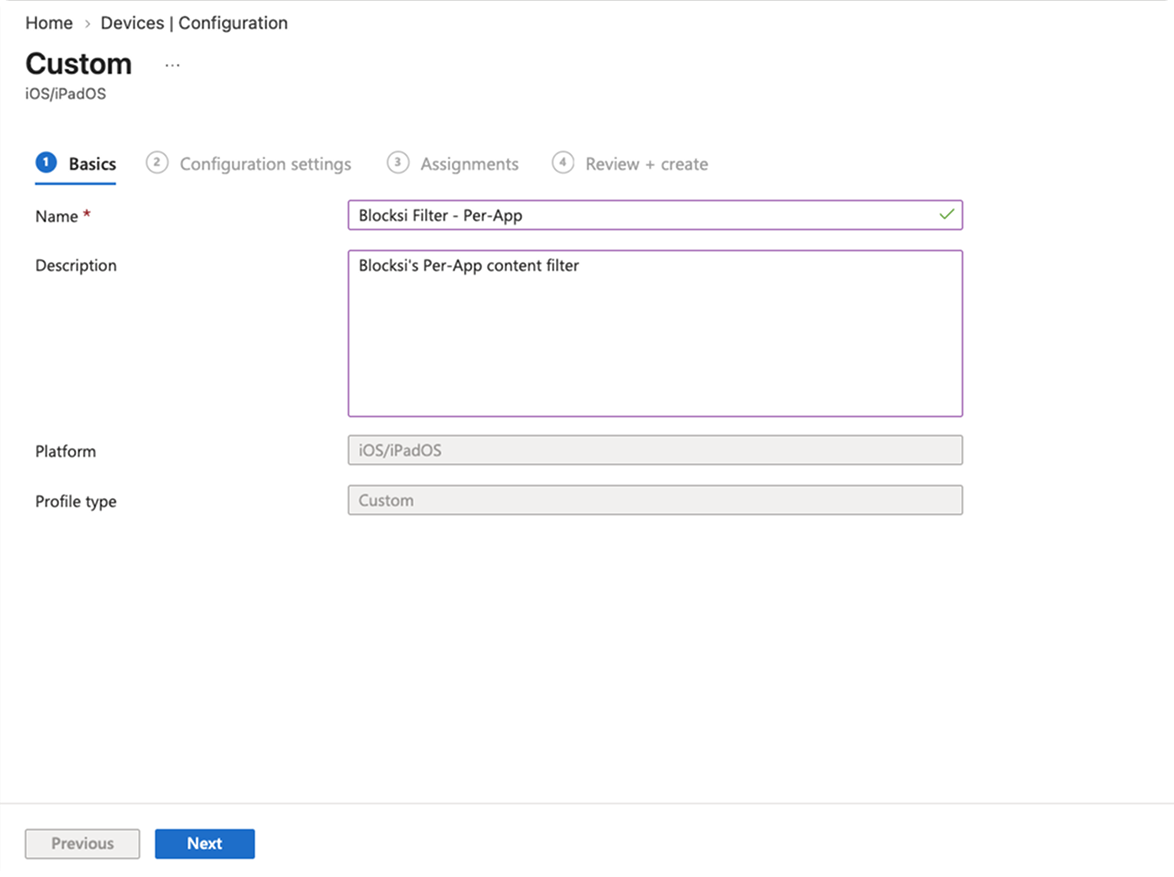
Click Next.
On the Configuration settings tab, configure the following:
Custom configuration profile name - Enter a name for the custom configuration profile (e.g., Blocksi per-app VPN).
Configuration Profile File - Upload the
.mobileconfigfile you configured under the Configuring the Per-App VPN Profile section.
Review the imported file and click Next.
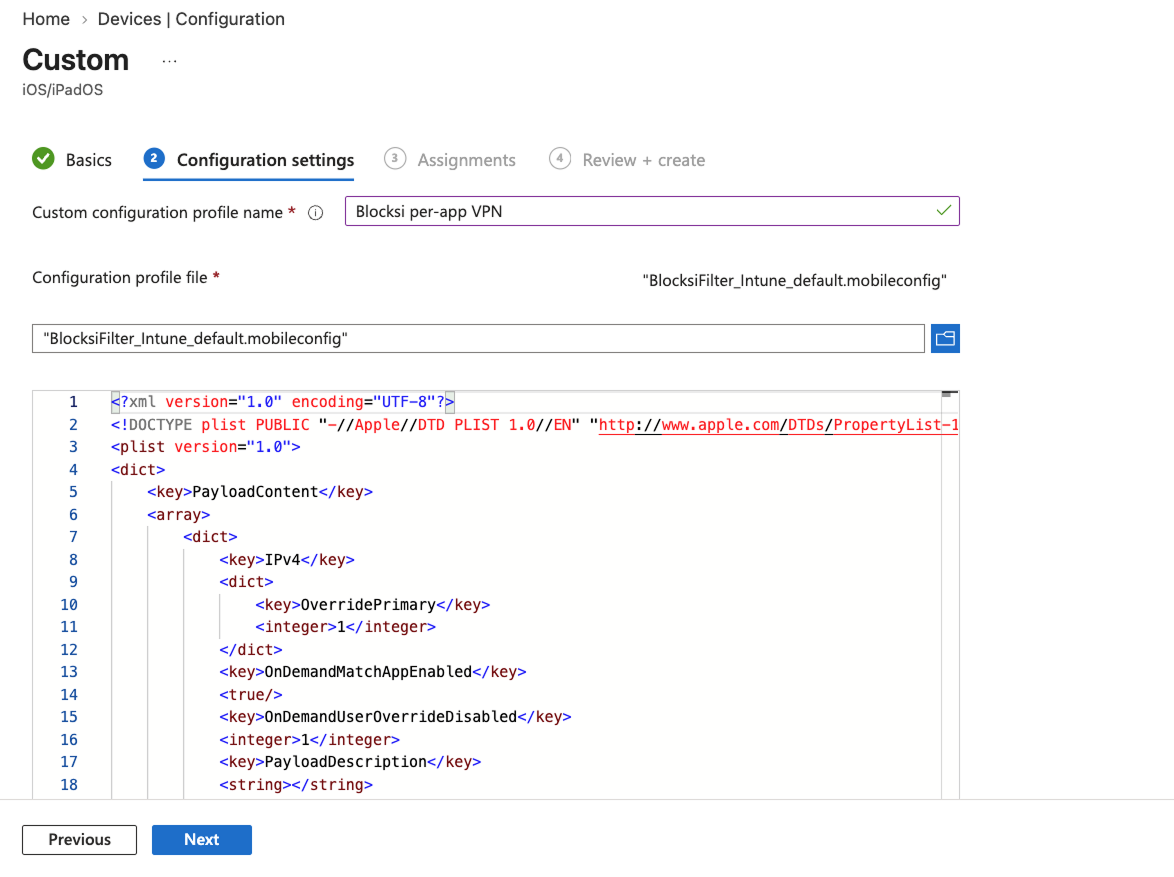
On the Assignments tab, assign the profile to the same device groups you assigned the Blocksi Filter app to, and click Next.
On the Review + create tab, review your settings and click Create. Your changes are saved, the profile is assigned, and the policy appears in the profiles list.
To validate the deployment, verify that the app and profiles are installed on the target device and that filtering is working correctly.
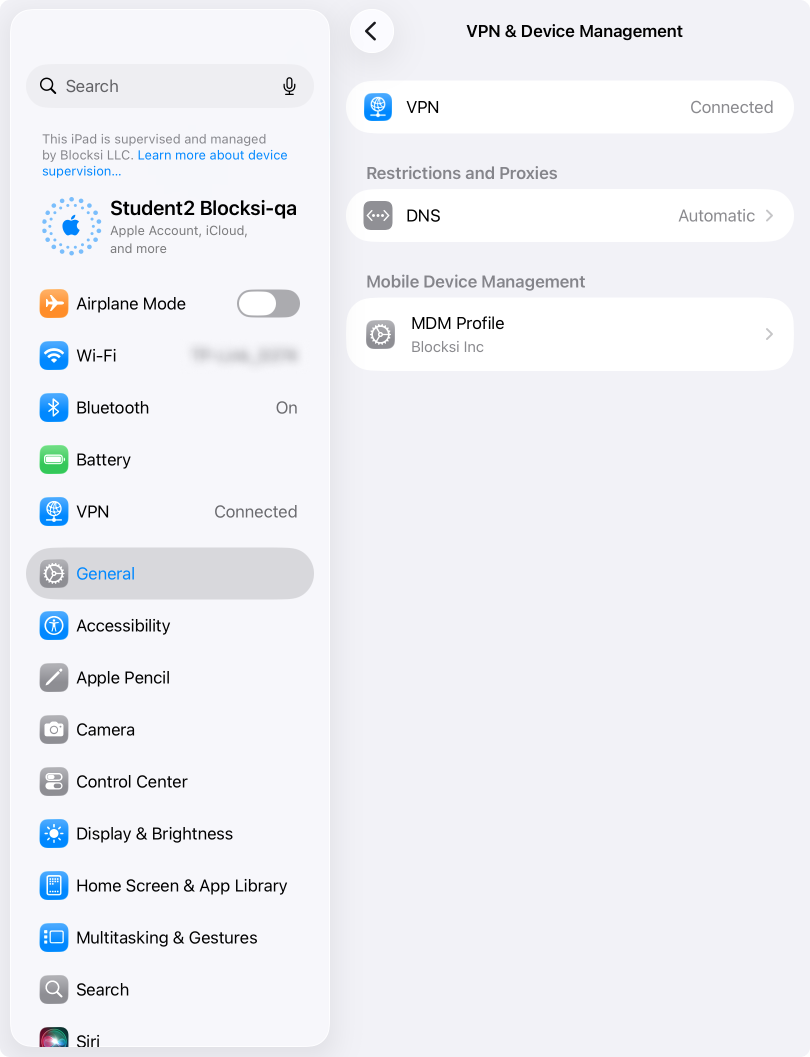
Open Settings on the target device and navigate to General > VPN & Device Management. The Blocksi certificate profile and the per-app VPN profile should both be listed. The reference profile must not appear.
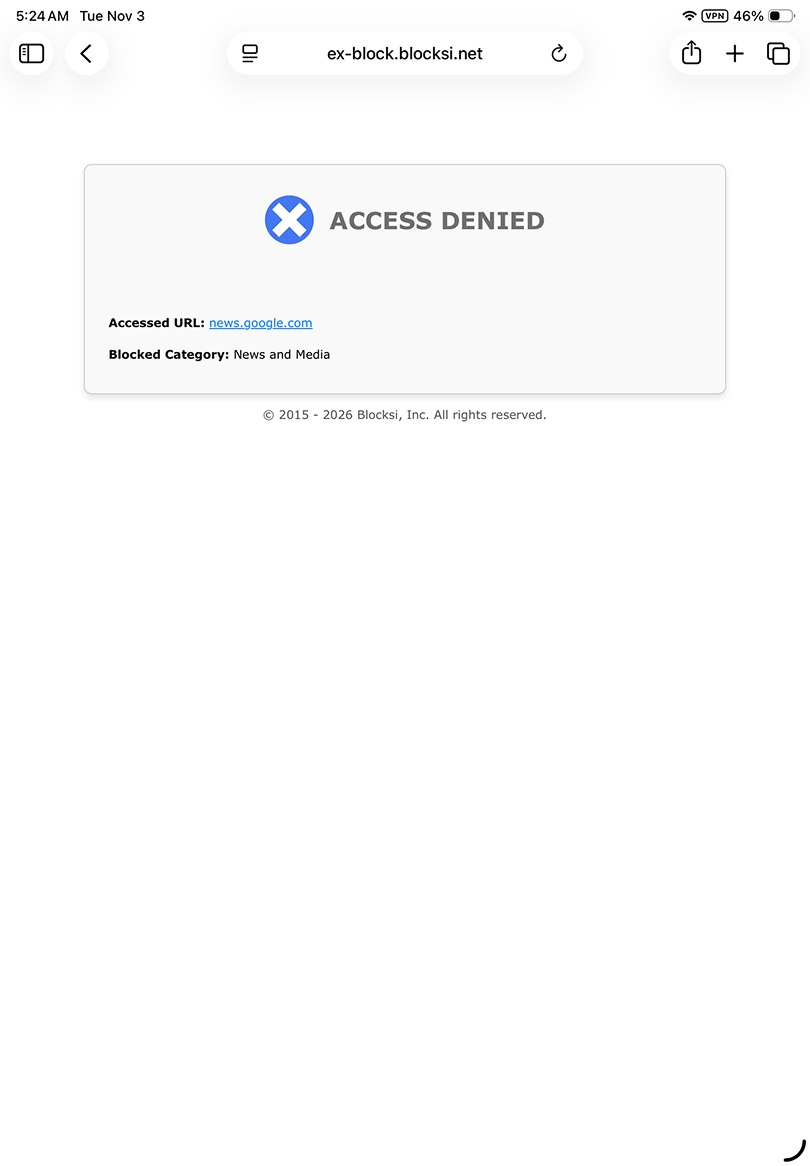
Open Safari on the target device and navigate to a site that your policy allows. The site loads normally.
Navigate to some sites that should be blocked by your policy.
Verify that the Blocksi block page appears, with no certificate warning.
Repeat both checks in each managed browser that you attached to the Blocksi Filter connection.
In Intune, navigate to Devices > Manage Devices > Configuration and open each Blocksi profile. The check-in status should show no errors for the target device.
Open Safari on the target device so that the filter activates.
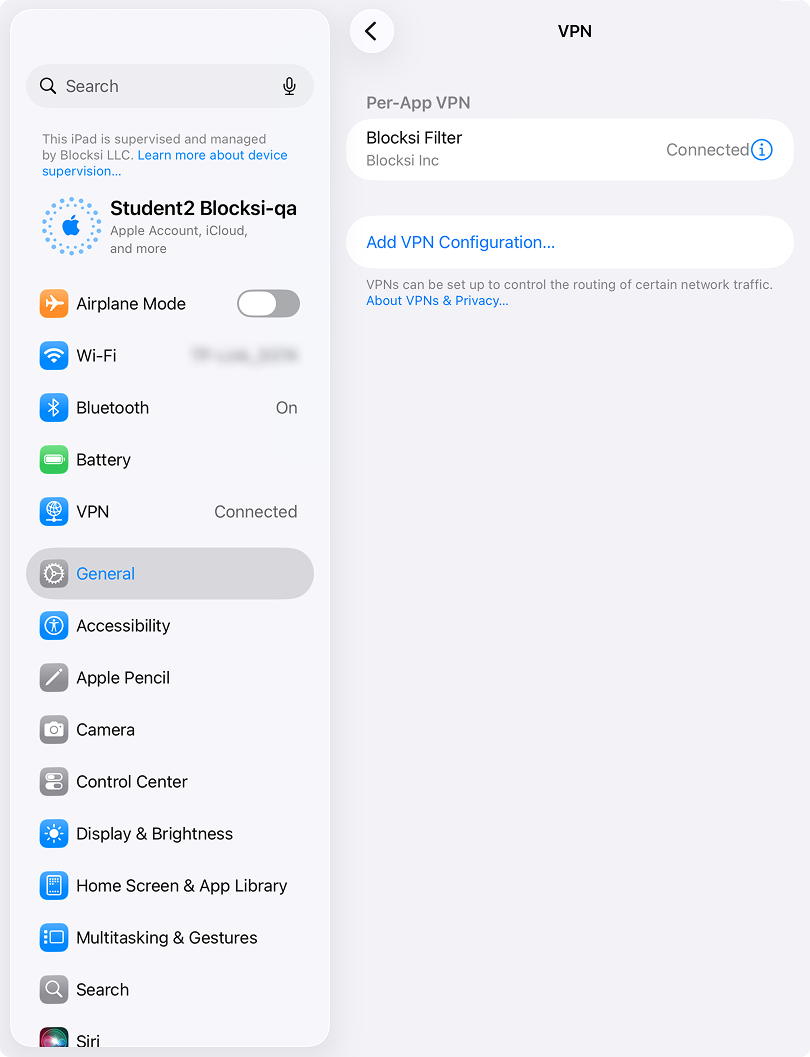
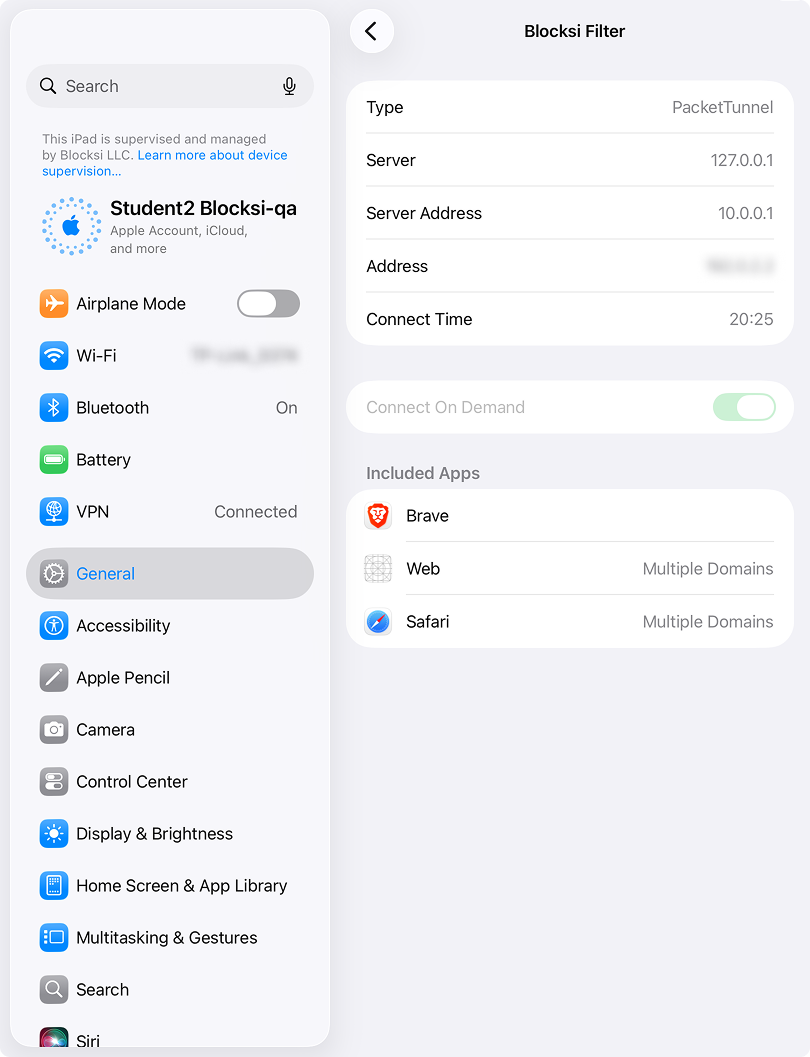
Open Settings on the target device and navigate to VPN > Blocksi Filter. The VPN shows a status of Connected.
Open Safari on the target device so that the filter activates.
Open the Blocksi Filter app. The app should report your organization and the assigned user. Until the filter activates, the app may report that no organization is configured.
Important
If the deployment does not behave as expected, refer to the Troubleshooting article.