Conferencing
The Blocksi Teacher Dashboard includes a conference feature, where teachers can connect with students in real time. Teachers can conduct conferences with students, record them, and view the recordings at a later time. Teachers can hold private one-on-one meetings, meet with small groups in breakout rooms, or run whole-class sessions using different layouts. They can also start a Zoom meeting directly from their class session.
Important
A conference license must be assigned to a teacher before they can use the conference feature.
This section covers how to assign conference licenses to teachers, how to start a conference in class, and how to review conference licensing subscription details. The Conferencing section can be found on the Teacher Dashboard tab.

Conference licenses are assigned exclusively to teachers and allow them to start conferences with students during class sessions. Licenses can be assigned to an individual teacher, multiple teachers, or an entire organizational unit.
Click Dashboard Settings from the Main Menu, then click Teacher Dashboard from its sub-menu. The Teacher Accounts screen appears.
Scroll down to the teacher email list at the bottom of the Teacher Dashboard page.
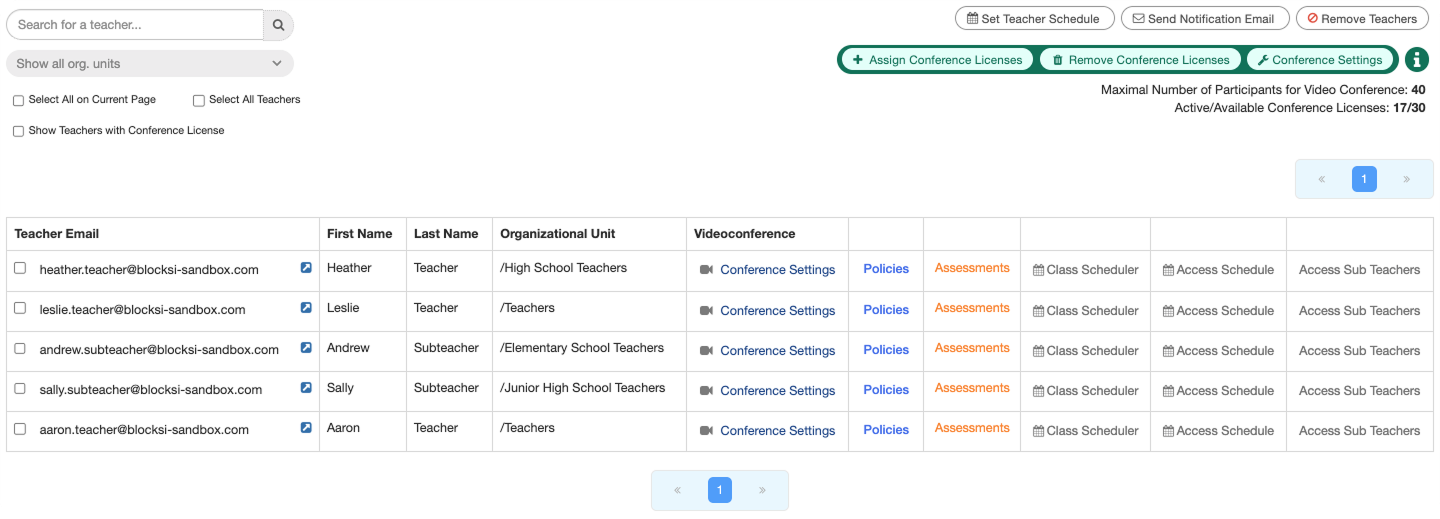
Search for the teacher or teachers you want to assign a conference license to using the search box, making sure to check the checkbox to the left of each email address.
Tip
If you need help searching for teacher accounts, refer to the Searching for a Teacher Account section.
In the Conferencing section, click the
 button to assign a conference license to the selected teachers.
Note
The same procedure can be used to remove a conference license from a teacher by repeating the steps above and clicking the
 button in place of the button.
All teachers with an assigned conference license will appear with a green camera icon in the Conference Settings column.

Conference minutes must be assigned to teachers before they can use the conferencing feature on their Teacher Dashboard. Minutes can be assigned to an individual teacher or multiple teachers at a time.
Important
A conference license must be assigned to a teacher's account before conference minutes can be assigned to them. If you need help assigning a license, refer to the Assigning Conference Licenses to Teachers section.
Click Dashboard Settings from the Main Menu, then click Teacher Dashboard from its sub-menu. The Teacher Accounts screen appears.
Scroll down to the teacher email list at the bottom of the Teacher Dashboard page.
Search for the teacher you want to assign conference minutes to using the search box.
Tip
If you need help searching for teacher accounts, refer to the Searching for a Teacher Account section.
Click the Conference Settings button in the same row as the teacher you want to assign conference minutes to. The Conference Settings window opens.

If a conference license has not yet been assigned to the teacher, the toggle will appear in red. Click the toggle to assign them a license. The Assign Additional Minutes section will no longer be greyed out, allowing you to assign conference minutes.
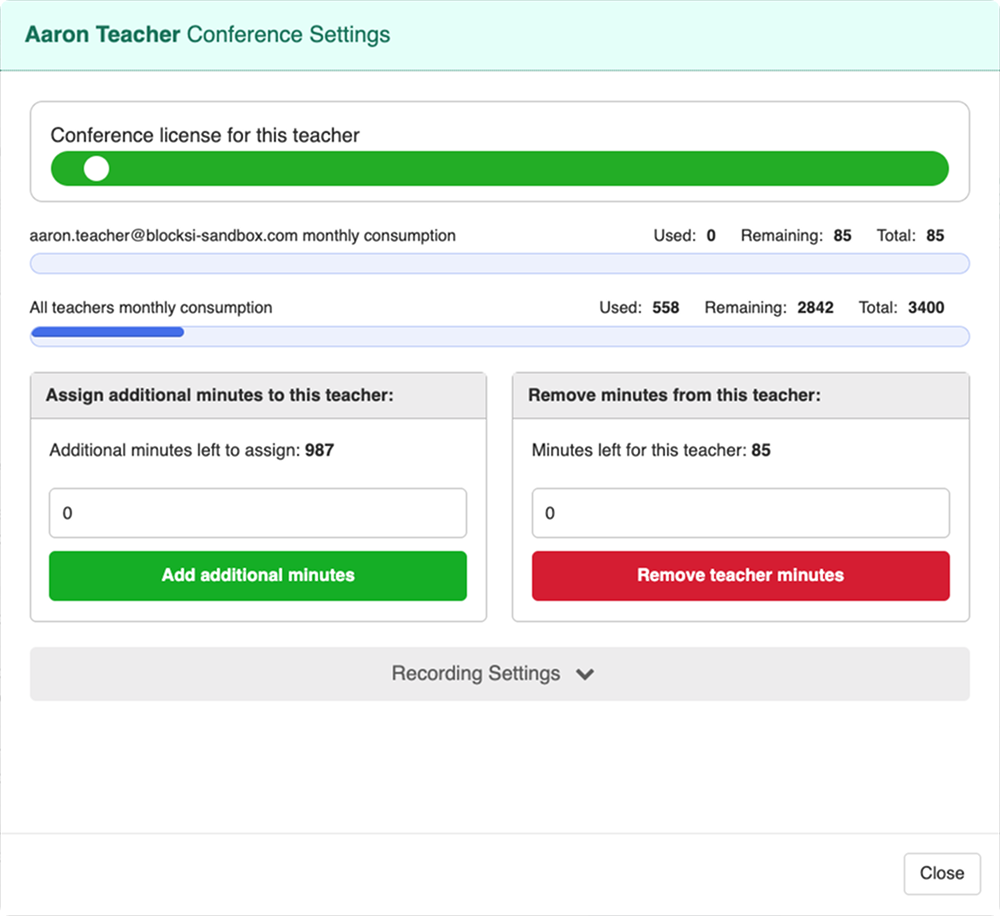
Enter the number of minutes in the Assign Additional Minutes to This Teacher section, then click the Add Additional Minutes button to assign the conference minutes.
Note
To remove assigned minutes from a teacher, repeat the steps above and click the Remove Teacher Minutes button in place of the Add Additional Minutes button after entering the number of minutes you want to remove.
To assign recording minutes instead, repeat the procedure above and expand the additional settings by clicking the Recording Settings button in the Conference Settings window.
Click Dashboard Settings from the Main Menu, then click Teacher Dashboard from its sub-menu. The Teacher Accounts screen appears.
Scroll down to the teacher email list at the bottom of the Teacher Dashboard page.
Search for the teacher or teachers you want to assign conference minutes to using the search box, making sure to check the checkbox to the left of each email address.
Tip
If you need help searching for teacher accounts, refer to the Searching for a Teacher Account section.
In the Conferencing section, click the
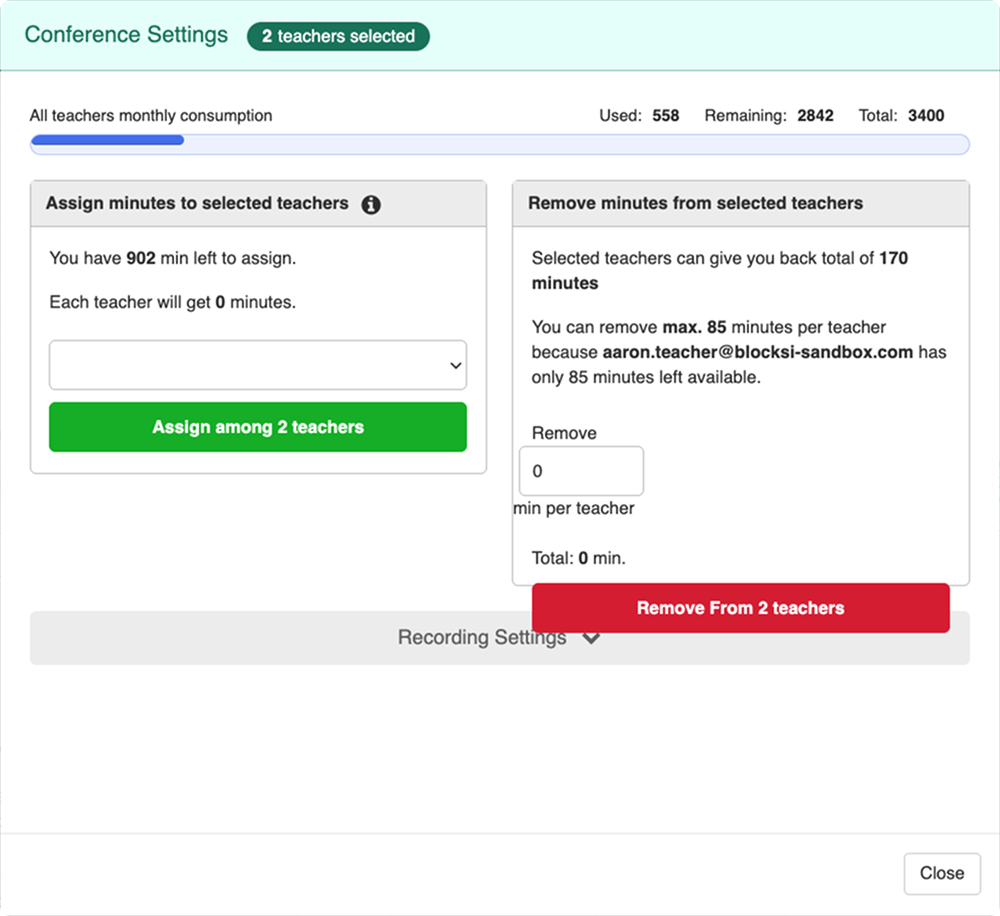
 button to open the Conference Settings window for the selected teachers.
Important
A conference license must be assigned to a teacher's account before conference minutes can be assigned to them. If you need help assigning a license, refer to the Assigning Conference Licenses to Teachers section.
Enter the number of minutes in the Assign Additional Minutes to Selected Teachers section, then click the Assign Among Teachers button to assign the conference minutes.
Note
To remove assigned minutes from the selected teachers, repeat the steps above and click the Remove From Teachers button in place of the Assign Among Teachers button after entering the number of minutes you want to remove.
To assign recording minutes instead, repeat the procedure above and expand the additional settings by clicking the Recording Settings button in the Conference Settings window.
Click Dashboard Settings from the Main Menu, then click Teacher Dashboard from its sub-menu. The Teacher Accounts screen appears.
Scroll down to the teacher email list at the bottom of the Teacher Dashboard page.
In the Conferencing section, click the
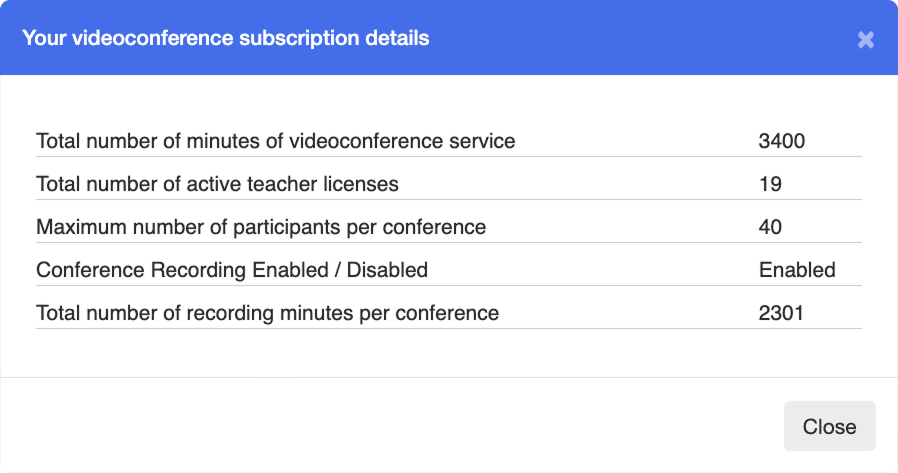
 button. The Your Videoconference Subscription Details window opens, displaying your conference subscription details.