Adding Teacher Accounts
Adding a teacher account authorizes that account to access the Teacher Dashboard with their credentials. Administrators can add teacher accounts manually, import them from a text file, or import them from the following rostering platforms: Google Workspace, OneRoster, Clever, ClassLink, Brightspace, or Canvas.
Important
Teacher Dashboard accounts do not use a Blocksi license and as such do not need to have the Blocksi Enterprise Edition extension deployed to their devices.
Click Dashboard Settings from the Main Menu, then click Teacher Dashboard from its sub-menu. The Teacher Accounts screen appears.
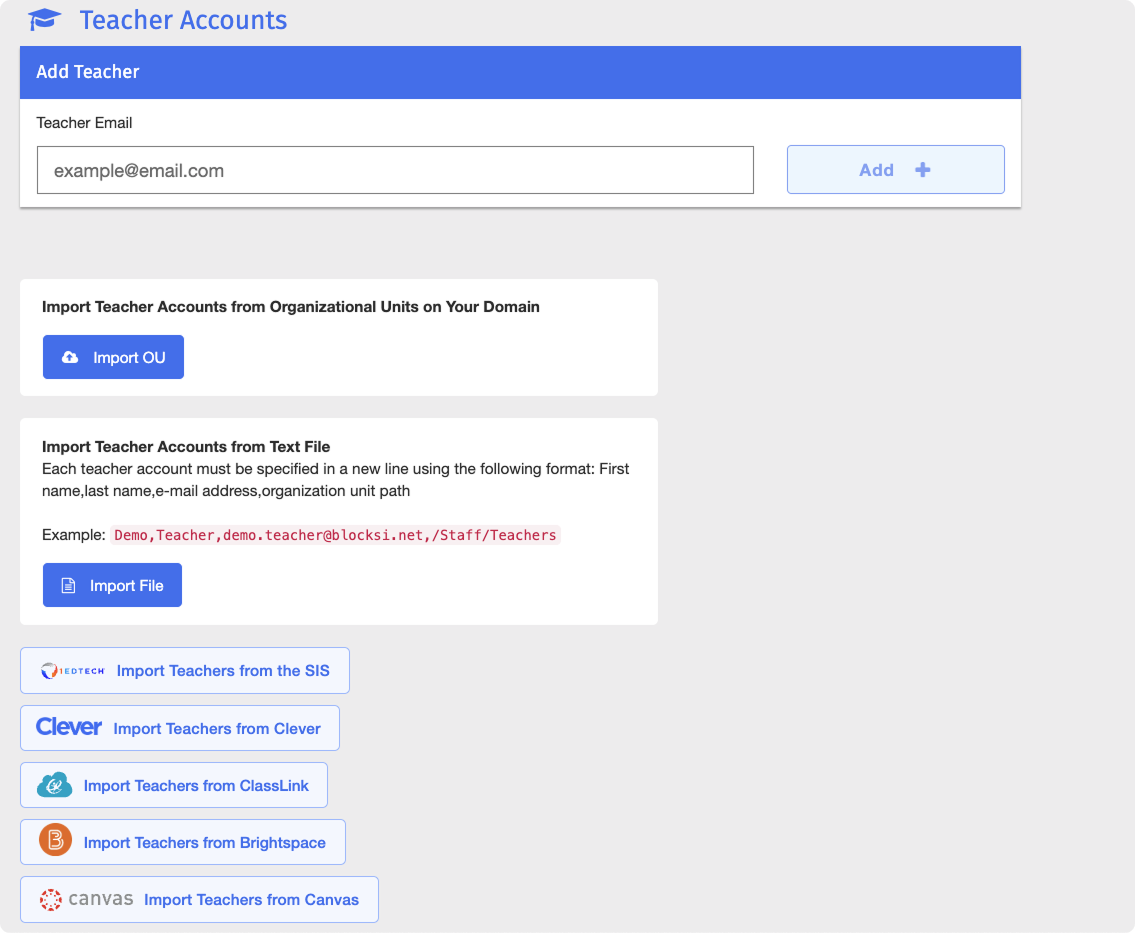
Type the email address of the teacher account to add in the Teacher Email text box in the Add teacher section.
Click the Add + button to add the teacher account. Blocksi adds the new teacher account to the list, which can be found at the bottom of the Teacher Dashboard settings.
Import teacher accounts from a text file, a Google Workspace organizational unit, OneRoster, Clever, ClassLink, Brightspace, or Canvas.
Click Dashboard Settings from the Main Menu, then click Teacher Dashboard from its sub-menu. The Teacher Accounts screen appears.
Under the Import Teacher Accounts from Text File section, click the Import File button.
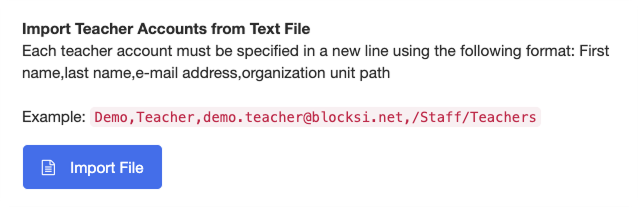
Navigate to the desired folder, select the file, and click Open to complete the import. Teacher accounts are imported and added to the list, which can be found at the bottom of the Teacher Dashboard settings.
Tip
The imported file must be in the .txt file format. You can create .txt files using the Notepad application on your device, or other text editor tools.
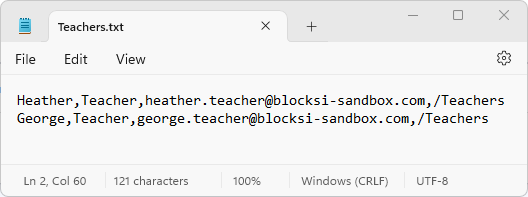
Click Dashboard Settings from the Main Menu, then click Teacher Dashboard from its sub-menu. The Teacher Accounts screen appears.
Under the Import Teacher Accounts from Organizational Units on Your Domain section, click the Import OU button. The Select Organizational Units window appears.

Select the desired organizational units from the list and click the Import Accounts button. Teacher accounts are imported and added to the list, which can be found at the bottom of the Teacher Dashboard settings.
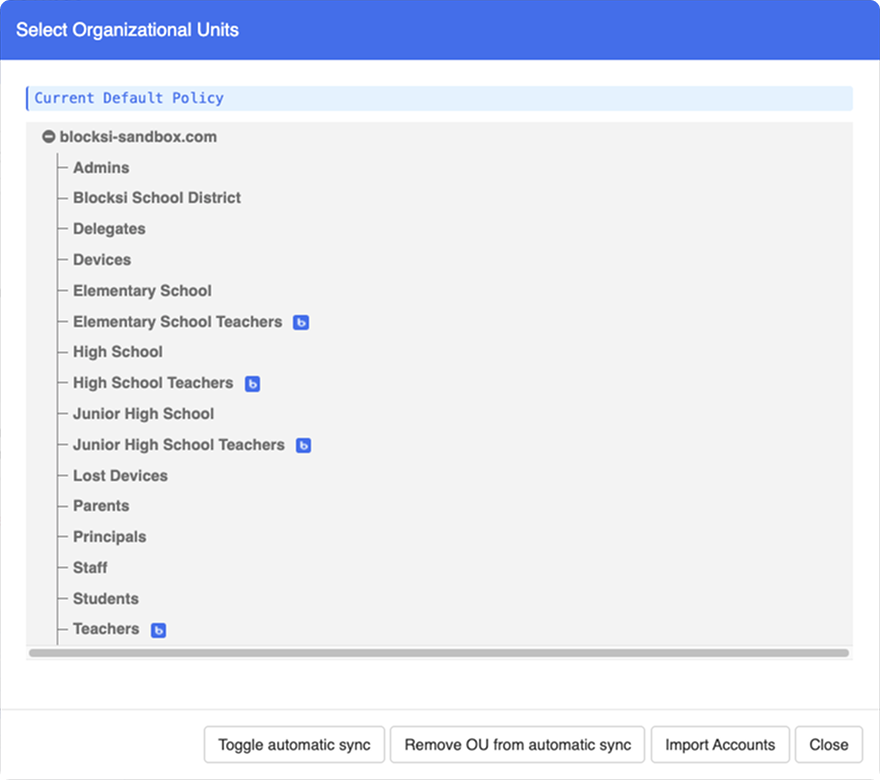
Highlight the desired organizational units and click Toggle automatic sync. The
 icon appears to the right of the organizational unit indicating that automatic sync is enabled.
Important
Automatic synchronization updates teacher accounts on the Admin Dashboard on a regular basis, ensuring that Blocksi synchronizes new teacher accounts and removes deactivated teacher accounts.
Note
When you no longer want to sync an OU, highlight the desired organizational unit and click Remove OU from automatic sync. The
icon is removed, indicating that the organizational unit is no longer synchronizing teacher accounts automatically.
Import teacher accounts from OneRoster (SIS) after the OneRoster integration with Blocksi is complete. See OneRoster (SIS) Integration for more details on integration.
Click Dashboard Settings from the Main Menu, then click Teacher Dashboard from its sub-menu. The Teacher Accounts screen appears.
Click the
 button. A modal window opens, displaying a list of teachers available for import. Each entry shows the teacher's first name, last name, email address, and school.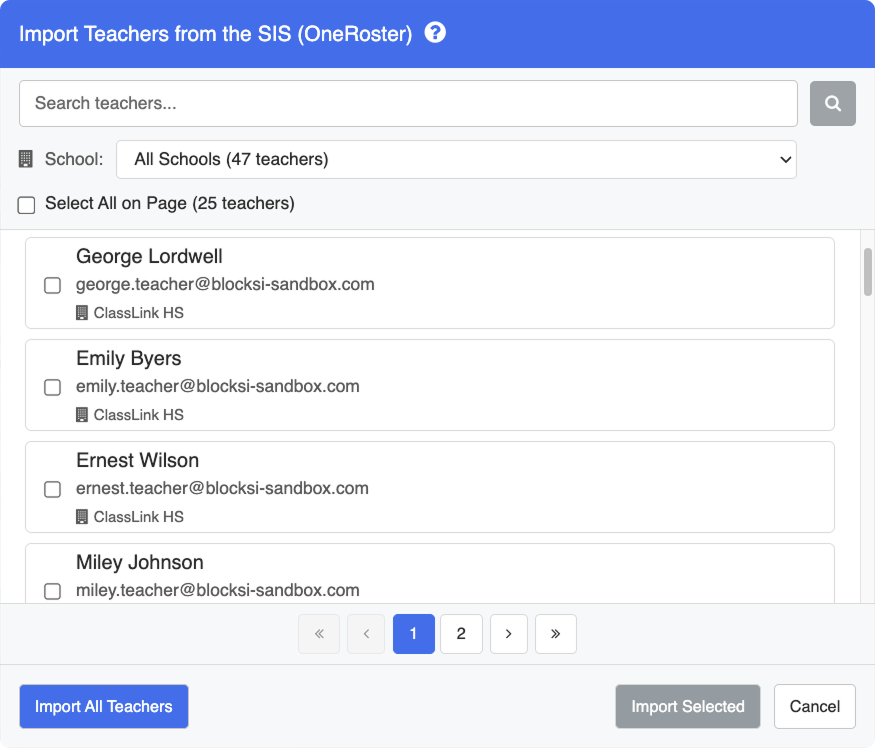
Tip
You can search for a specific teacher using the Search Teachers bar at the top of the modal window by entering their first name, last name, or email address.
You can also filter teachers by school using the school filter, and import all teachers from the selected school by clicking the Import All from School button.
To import all teachers from your SIS, click the Import All Teachers button. Alternatively, to import specific teachers, select each teacher by clicking their name, then click Import Selected.
After the import is complete, a success modal appears showing the number of new teachers added.
Note
Re-importing teachers syncs teacher data with the latest information from your SIS. Existing teacher accounts are updated and new accounts are imported as needed.
Import teacher accounts from Wonde after the Wonde integration with Blocksi is complete. See Wonde Integration for more details on integration.
Click Dashboard Settings from the Main Menu, then click Teacher Dashboard from its sub-menu. The Teacher Accounts screen appears.
Click the
 button. A modal window opens, displaying a list of teachers available for import. Each entry shows the teacher's first name, last name, and email address.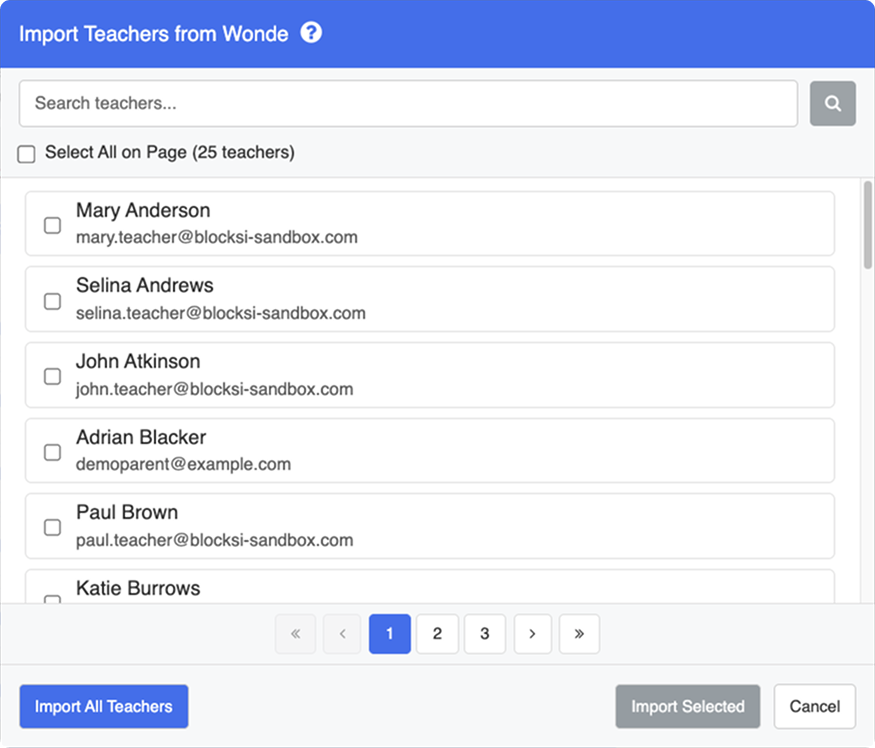
Tip
You can search for a specific teacher using the Search teachers... bar at the top of the modal window by entering their first name, last name, or email address.
You can also filter teachers by school using the school filter, and import all teachers from the selected school by clicking the Import All from School button.
To import all teachers from Wonde, click the Import All Teachers button. Alternatively, to import specific teachers, select each teacher by clicking their name, then click Import Selected.
After the import is complete, a success modal appears showing the number of new teachers added.
Note
Re-importing teachers syncs teacher data with the latest information from your SIS. Existing teacher accounts are updated and new accounts are imported as needed.
Import teacher accounts from Clever after the Clever integration with Blocksi is complete. See Integrating Clever With Blocksi for more details on integration.
Click Dashboard Settings from the Main Menu, then click Teacher Dashboard from its sub-menu. The Teacher Accounts screen appears.
Click the
 button to import the teachers. You are taken to the Clever website.
Sign in to Clever as a district administrator and locate the teachers to import.
Import the desired teachers and return back to the Blocksi Admin Dashboard. Teacher accounts are imported and added to the list, which can be found at the bottom of the Teacher Dashboard settings.
Import teacher accounts from ClassLink after the ClassLink integration with Blocksi is complete. See Integrating ClassLink With Blocksi for more details on integration.
Click Dashboard Settings from the Main Menu, then click Teacher Dashboard from its sub-menu. The Teacher Accounts screen appears.
Click the
 button to import the teachers. You are taken to the ClassLink website.
Sign in to ClassLink as a district administrator and locate the teachers to import.
Import the desired teachers and return back to the Blocksi Admin Dashboard. Teacher accounts are imported and added to the list, which can be found at the bottom of the Teacher Dashboard settings.
Import teacher accounts from Brightspace after the Brightspace integration with Blocksi is complete. See Integrating Brightspace With Blocksi for more details on integration.
Click Dashboard Settings from the Main Menu, then click Teacher Dashboard from its sub-menu. The Teacher Accounts screen appears.
Click the
 button to import the teachers. You are taken to the Brightspace website.
Sign in to Brightspace as a district administrator and locate the teachers to import.
Import the desired teachers and return back to the Blocksi Admin Dashboard. Teacher accounts are imported and added to the list, which can be found at the bottom of the Teacher Dashboard settings.
Import teacher accounts from Canvas after the Canvas integration with Blocksi is complete. See Integrating Canvas With Blocksi for more details on integration.
Click Dashboard Settings from the Main Menu, then click Teacher Dashboard from its sub-menu. The Teacher Accounts screen appears.
Click the
 button to import the teachers. Blocksi imports the teachers from Canvas and a success prompt appears.