Teacher Dashboard General Settings
The General Settings section of the Teacher Dashboard can be accessed by navigating to Dashboard Settings from the Main Menu, then selecting Teacher Dashboard from its sub-menu.
This section allows administrators to customize the functionality and appearance of the Teacher Dashboard, as well as access the Learning Hub Marketplace. In addition, it includes select student-related settings, such as configuring limits on the number of browser tabs allowed on student devices.
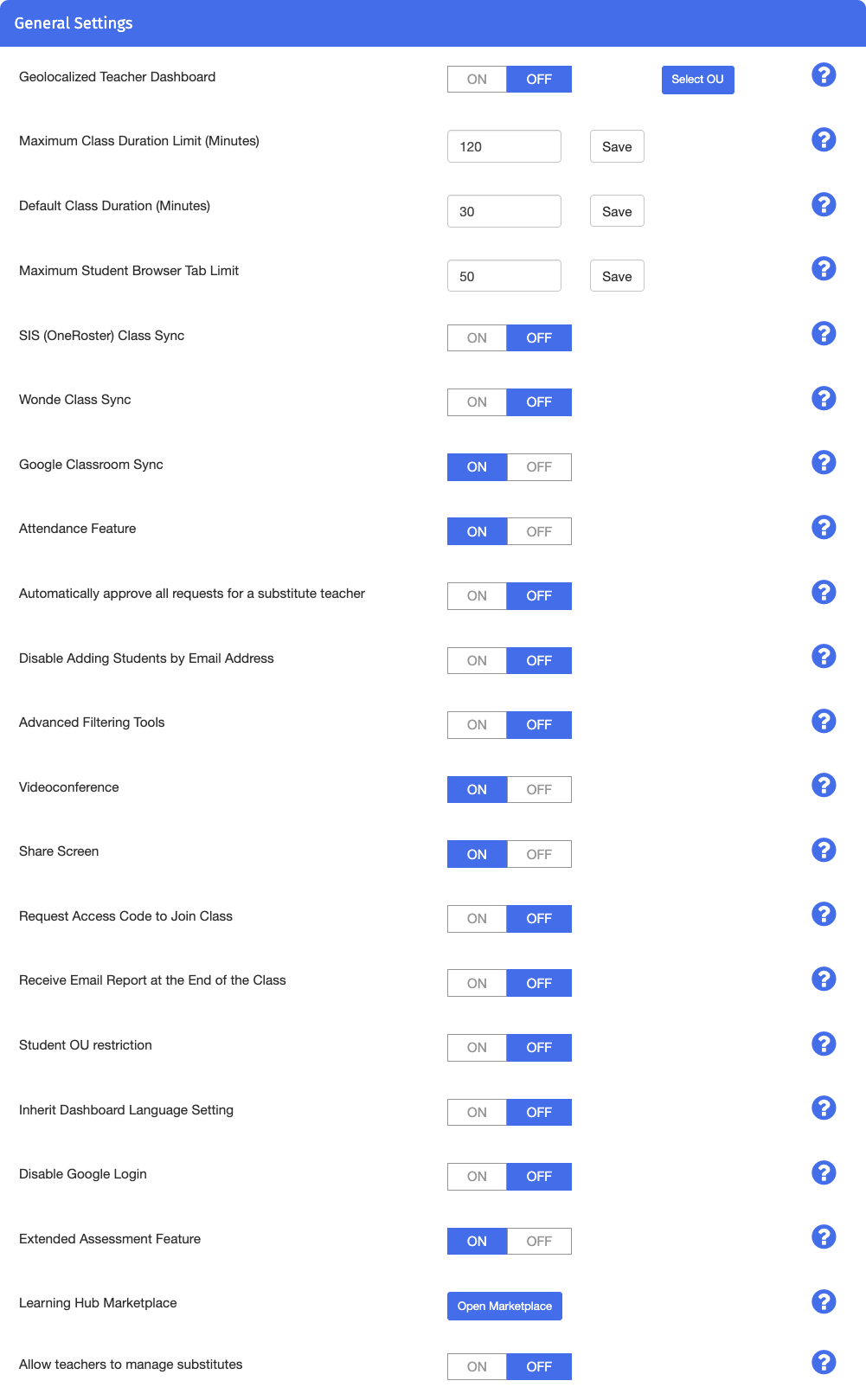
Option | Description |
|---|---|
Geolocalized Teacher Dashboard | Set whether to restrict use of the Teacher Dashboard to in school only. When set to ON, students located out of school cannot be monitored and are shown as out of school on their student tile in class. If Geofencing is not enabled, students are marked in school by default. Indicate which OUs to exclude from the settings. For more information, see Geofencing. |
SIS (OneRoster) Class Sync | Set whether to sync class data for all teachers imported from the SIS (OneRoster). If you set this option to ON, data is synced once per day. |
Wonde Class Sync | Set whether to sync class data for all teachers imported from Wonde. If you set this option to ON, data is synced once per day. |
Google Classroom Sync | Set whether to sync class data for all teachers with a Google classroom account. If you set this option to ON, data is synced once per day. |
Attendance Feature | Indicate whether a teacher can take attendance during class. |
Automatically Approve All Requests for a Substitute Teacher | Set whether to automatically approve requests for substitute teachers. When set to ON, these requests no longer require approval from an administrator or delegate. |
Disable Adding Students by Email Address | Indicate whether a teacher can manually add students to a class by email address. |
Advanced Filtering Tools | Set whether to allow access to all filtering tools on the Teacher Dashboard. If you set this to OFF, teachers cannot create their own filtering policies and cannot use any policies which they previously created themselves. Policies shared by administrators can be used in both cases. |
Videoconference | Indicate whether videoconferencing is allowed on the Teacher Dashboard. |
Share Screen | Indicate whether screen sharing is allowed on the Teacher Dashboard. |
Request Access Code to Join Class | Indicate whether students can enter class with the class access code. If you set this option to ON, students can join their class manually after it has started. |
Receive Email Report at the End of the Class | Set whether to send email analytics reports sent to primary and secondary teachers after class has ended. |
Student OU Restriction | Indicate whether to enable or disable the student OU restriction. If you set this option to OFF, teachers can add students to their classes from any OU. If you set this option to ON, teachers are restricted to the OUs to which they are assigned in the OU setup. |
Inherit Dashboard Language Setting | Indicate whether to inherit the dashboard language setting from the Admin Dashboard. Setting this option to OFF allows teachers to select the language setting directly from the Teacher Dashboard. |
Disable Google Login | Indicate whether to prevent teachers from signing in with Google and importing classes. Set this option to ON if teachers are required to access the dashboard using another SSO option such as Clever or ClassLink. |
Extended Assessment Feature | Set whether teachers can set Assessment timers that run beyond the class duration. If you set this option to OFF, Assessment timers are capped at the class duration and Assessments end with the class. |
Allow Teachers to Manage Substitutes | Set whether teachers can add and remove substitute teachers from their own dashboard. If you set this option to OFF, only administrators can manage substitutes. |
Maximum Class Duration Limit (Minutes) - Indicate the maximum class duration teachers can set, in minutes.
Default Class Duration (Minutes) - Set the default duration of all imported classes, in minutes. Teachers can override the exact duration of each of their classes.
Maximum Student Browser Tab Limit - Set a global maximum tab limit for all students in your domain.
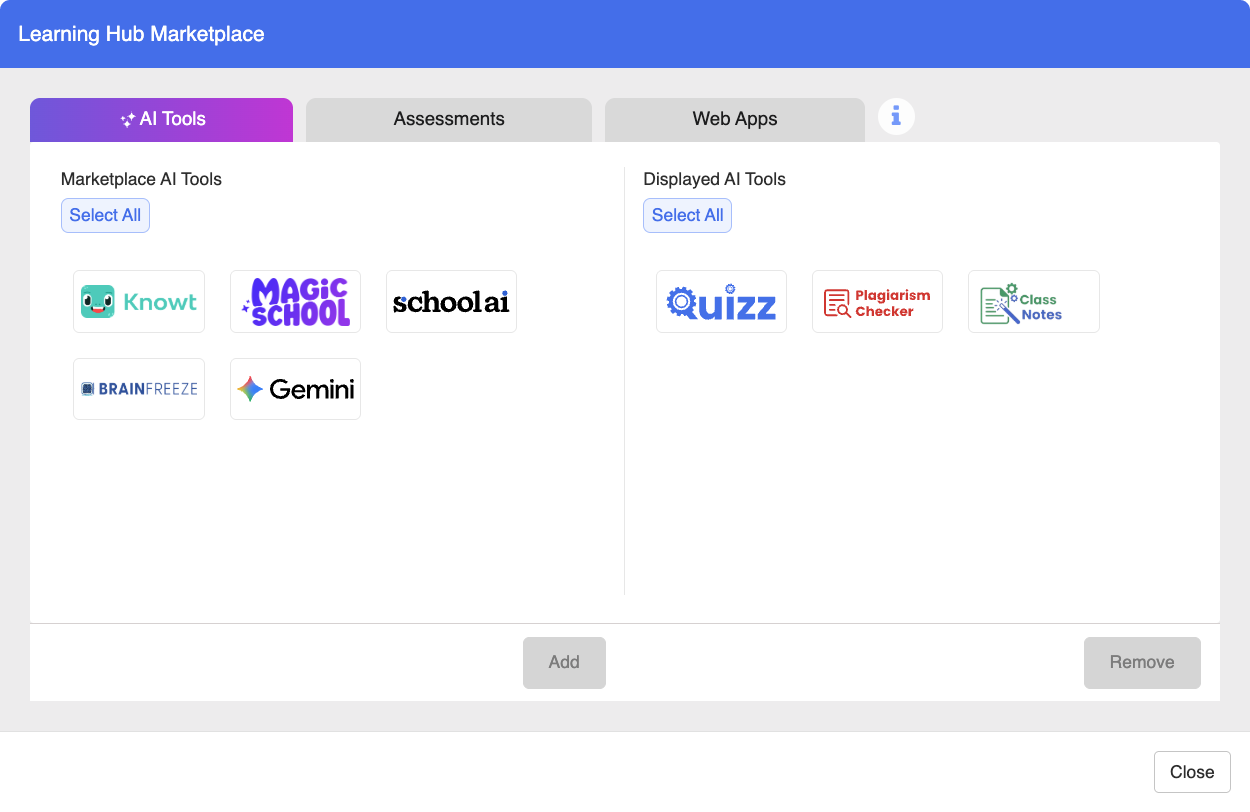
The Learning Hub Marketplace offers a selection of AI tools, Assessments, and Web Apps for administrators to provision for teacher use. Refer to Learning Hub Marketplace to learn more about what it offers and how to use it.
Click Dashboard Settings from the Main Menu, then click Teacher Dashboard from its sub-menu. The Teacher Accounts screen appears.
Scroll down on the Teacher Dashboard screen to view General Settings.
Click the
 button next to the Learning Hub Marketplace setting. The
  tab is opened by default.