YouTube Channel Exception List
The YouTube Channel Exception List allows or blocks entire YouTube channels, regardless of the categories of their videos. Add a channel by its exact name or its full URL, then set it to Allow or Block. Use it when you want to allow trusted educational channels or block channels you do not want students to watch.
Important
The YouTube Keyword Filter has the highest priority of the YouTube filters, followed by the YouTube Channel Exception List, then the YouTube Category Filter. Students can watch videos from allowed channels even if their category is blocked, unless the videos match the YouTube Keyword Filter. If YouTube is blocked in an Application Filter, students cannot access YouTube at all, regardless of the YouTube filters.
To access the YouTube Channel Exception List page, click Content Filtering from the Main Menu, then click Filters from its sub-menu. On the Filters page, click YouTube Channel Exception List listed under YouTube Filters.
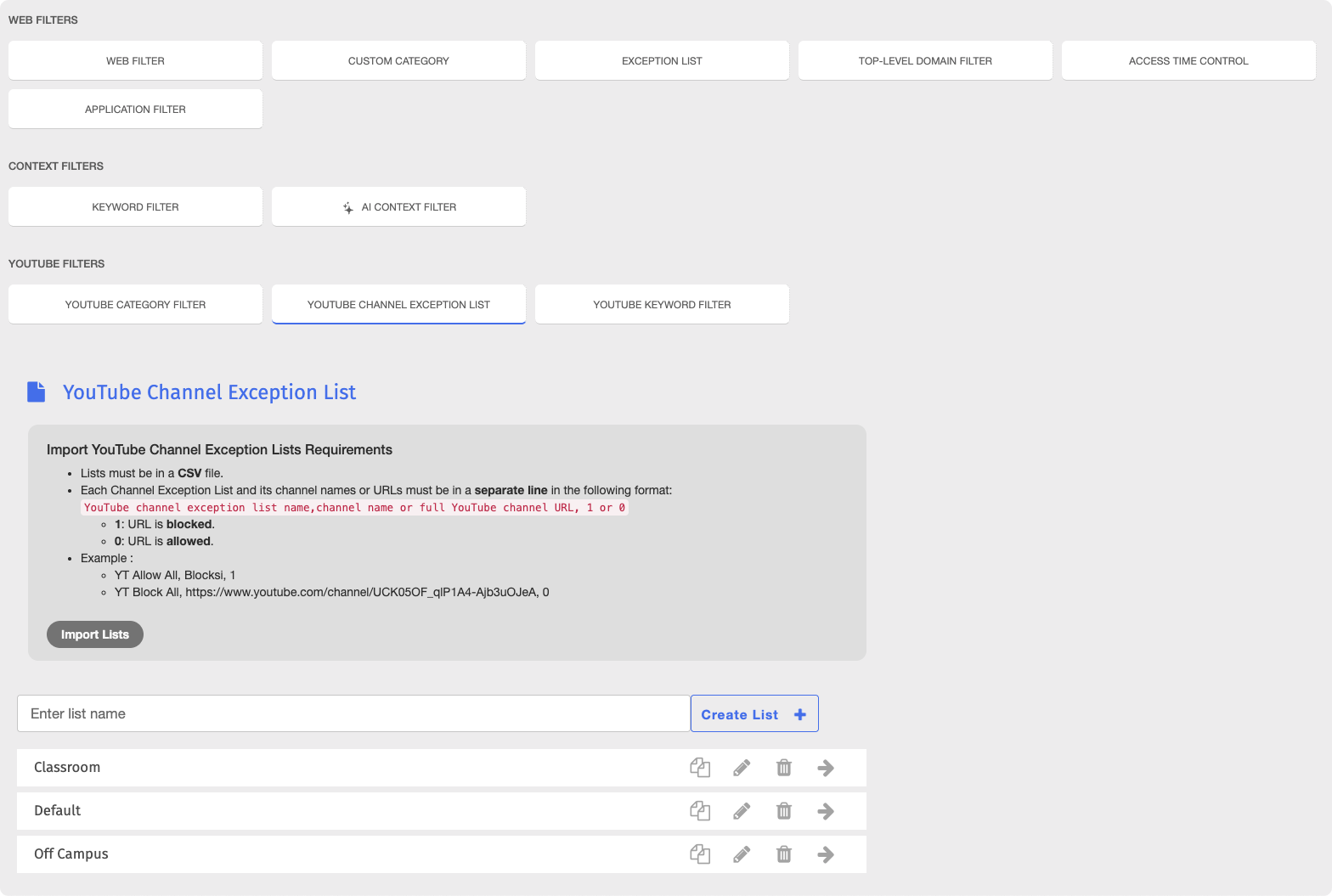
Important
After making any changes to your content filtering or policies, click the  button in the Action Bar at the top of the page to apply the changes.
To set up a YouTube Channel Exception List, create the list, then add the channels you want to allow or block.
Type a name for the list in the Enter list name text box, then click the
 button. The new list appears on the YouTube Channel Exception List page.

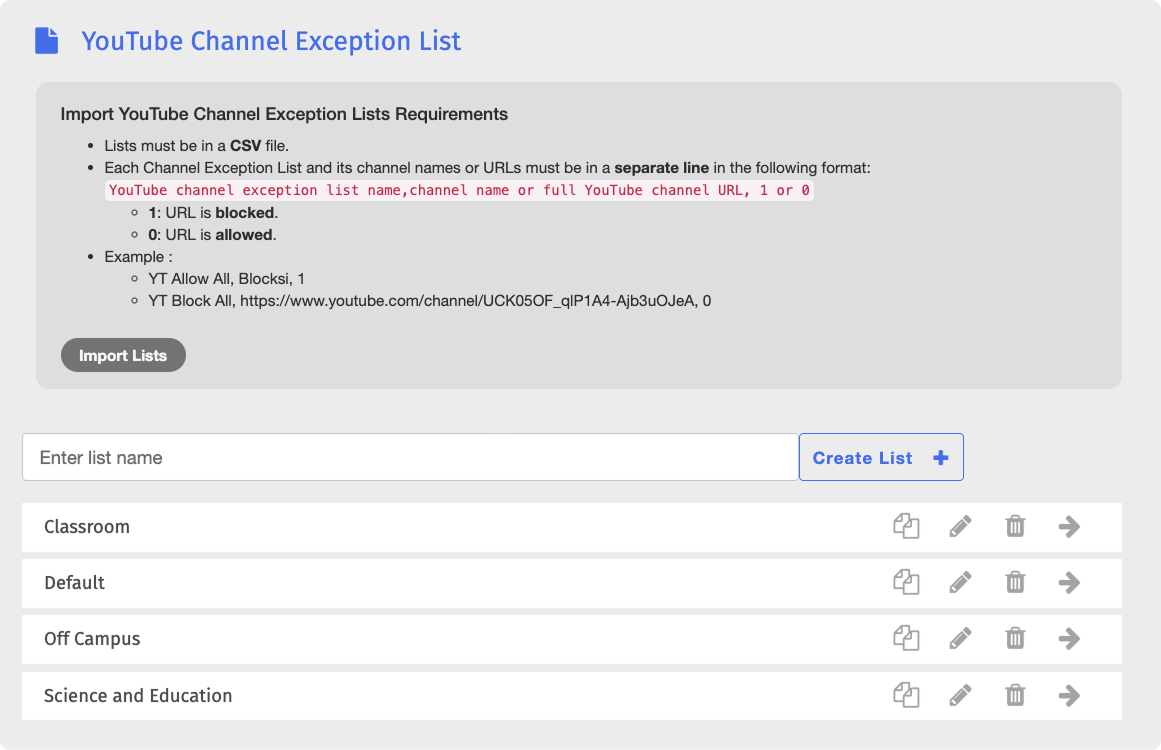
Click the
 button in the same row as the new list. The Edit YouTube Channel Exception List page opens.
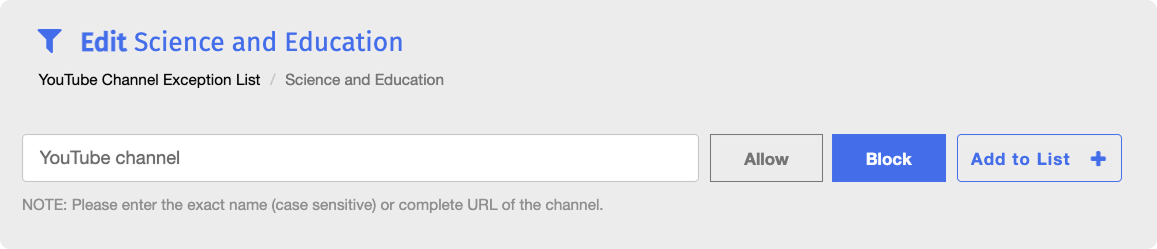
Type the exact name or the full URL of a channel in the YouTube channel text box, click Block or Allow, then click the
 button. The channel is added to the list.
Important
Channel names are case-sensitive. For example,
TEDdoes not match a channel namedTed.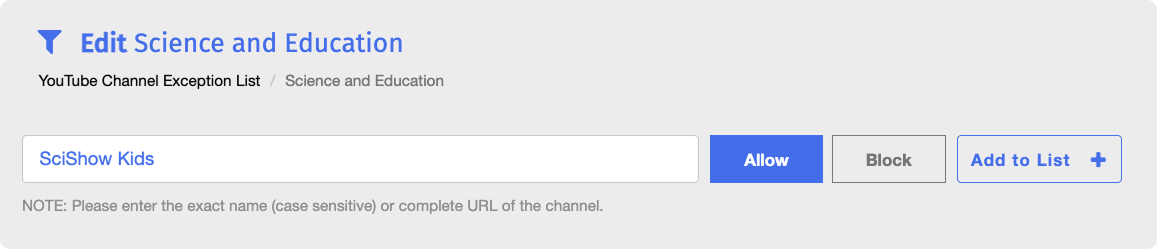
Repeat step 3 for each channel you want to add.
You can manage the channels in a YouTube Channel Exception List by adding new ones to an existing list or deleting them.
Click the button next to a list on the YouTube Channel Exception List page to open the Edit YouTube Channel Exception List page.
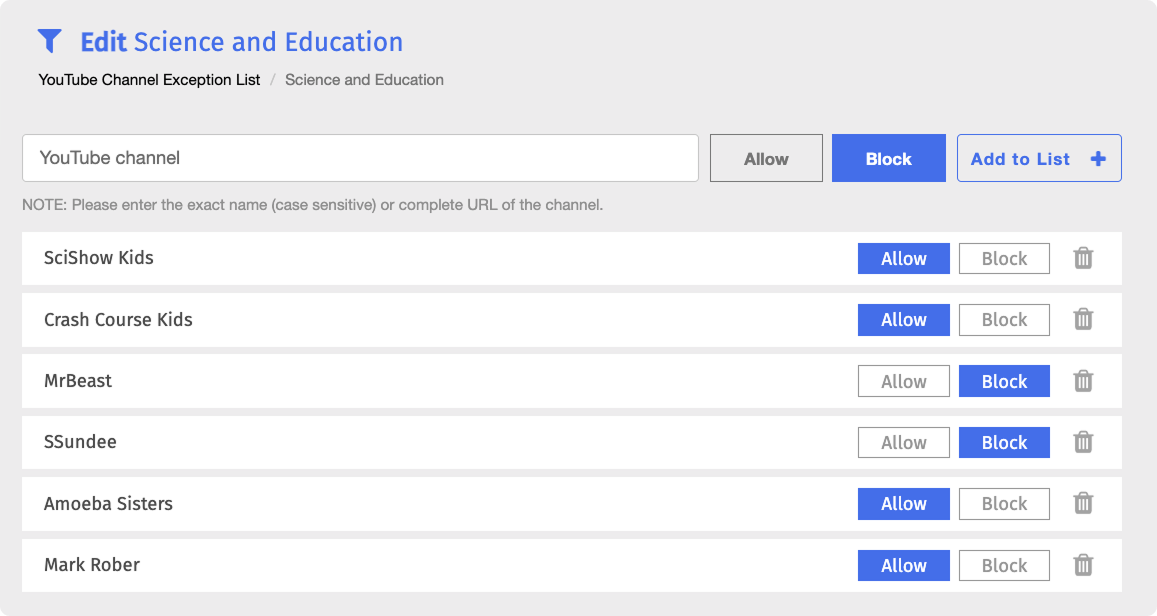
On the Edit YouTube Channel Exception List page, type the exact name or the full URL of a channel in the YouTube channel text box, click Block or Allow, then click the button. The channel is added to the bottom of the list.
Important
Channel names are case-sensitive. For example, TED does not match a channel named Ted.
Note
You can switch an existing channel between Block and Allow by clicking the corresponding button in its row. The change is saved immediately.
On the Edit YouTube Channel Exception List page, locate the channel to delete and click the
 button to the right of it.
Click OK in the confirmation window. The channel is permanently removed from the list.
You can manage your YouTube Channel Exception Lists by renaming, duplicating, or deleting them. All of these actions can be performed directly on the YouTube Channel Exception List page.
On the YouTube Channel Exception List page, locate the list to rename and click its name. The list name opens in an editable text box.

Make your changes, then click the Save button.
On the YouTube Channel Exception List page, locate the list to duplicate and click the
 button. The Duplicate List window opens.
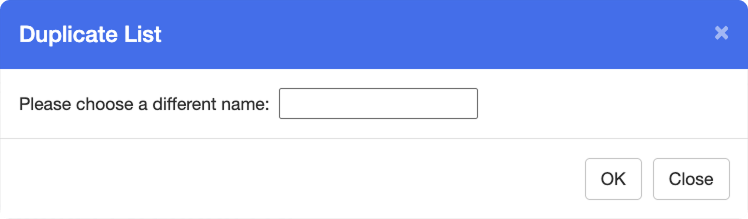
Enter a name for the new list in the text box, then click OK. The new list appears on the YouTube Channel Exception List page.
Note
The duplicate is an exact copy of the original, including all of its allowed and blocked channels. The original YouTube Channel Exception List is not removed upon duplicating.
Warning
Deleting a YouTube Channel Exception List is a permanent action. Deleted lists, along with their channels, cannot be recovered.
On the YouTube Channel Exception List page, locate the list to delete and click the
button to the right of it.Click OK in the confirmation window. The YouTube Channel Exception List is permanently removed from the list.
You can import YouTube Channel Exception Lists to create several lists at once, or export an existing YouTube Channel Exception List to keep a record of it.
All imports and exports use CSV files.
You can import one or more YouTube Channel Exception Lists at once from a single CSV file. Each imported list appears on the YouTube Channel Exception List page alongside your manually created lists.
Prerequisites
The CSV file name must contain only letters and numbers, with no spaces or special characters.
Each YouTube Channel Exception List and all of its channels must be written in a single line, in the following format: YouTube channel exception list name,channel name or full YouTube channel URL,1 or 0,channel name or full YouTube channel URL,1 or 0, ...
Use 1 to block a channel and 0 to allow it. To import several lists at once, write each list in its own line.
For example, the following imports two YouTube Channel Exception Lists. The first allows Khan Academy and TED-Ed, and blocks Fortnite and Roblox. The second allows National Geographic and blocks one channel by its URL.
Middle School Channels,Khan Academy,0,TED-Ed,0,Fortnite,1,Roblox,1
High School Channels,National Geographic,0,https://www.youtube.com/channel/UC3gNmTGu-TTbFPpfSs5kNkg,1

On the YouTube Channel Exception List page, under Import YouTube Channel Exception Lists Requirements, click the
 button. A file browser window opens.
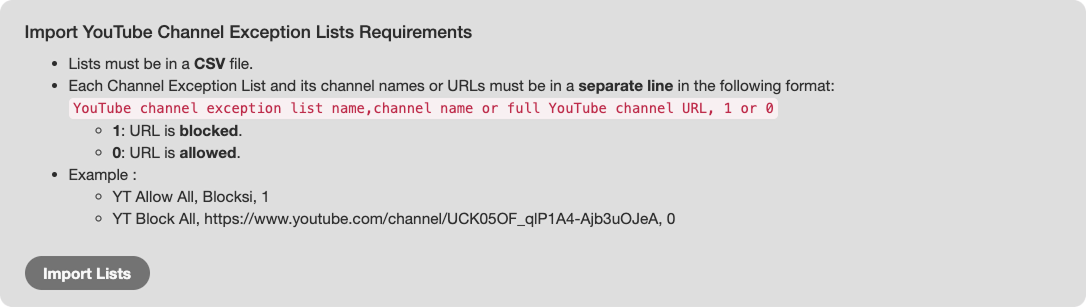
Select a CSV file on your device, then click Open. The imported YouTube Channel Exception Lists appear on the YouTube Channel Exception List page.
You can export a single YouTube Channel Exception List to a CSV file. Unlike the import file, the exported file does not include the list name, and each channel is written in its own line in the following format: channel name, channel ID, 1 or 0
channel name - The name of the channel.
channel ID - The channel’s unique YouTube ID.
1 or 0 - Whether the channel is blocked or allowed.
1blocks the channel,0allows it.
Tip
The channel ID is the most reliable way to check that the correct channel was added, because channel names are case-sensitive and can change, while the ID stays the same. To see which channel an entry points to, open youtube.com/channel/[CHANNEL_ID] in your browser, replacing [CHANNEL_ID] with the ID from the exported file. For example, youtube.com/channel/UCsT0YIqwnpJCM-mx7-gSA4Q opens the TEDx Talks channel.
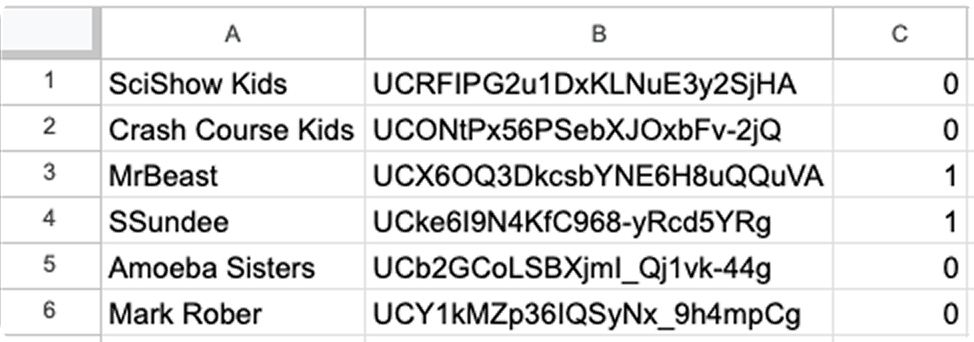
On the YouTube Channel Exception List page, locate the list and click the  button to the right of it. The list’s channels are exported to a CSV file, which is downloaded to your device.