YouTube Keyword Filter
The YouTube Keyword Filter blocks YouTube videos based on the words in their title and description. Add the words you want to restrict, and students cannot watch videos whose title or description includes them. Use it when you want to block videos on a specific topic, whatever channel or category they belong to.
Important
The YouTube Keyword Filter has the highest priority of the YouTube filters, followed by the YouTube Channel Exception List, then the YouTube Category Filter. Students cannot watch videos that match a keyword, even if their channel or category is allowed.
The filter only checks a video’s title and description, not what is said or shown in the video itself. Keywords match whole words only. For example, the keyword cat blocks videos containing the word cat, but not videos containing education.
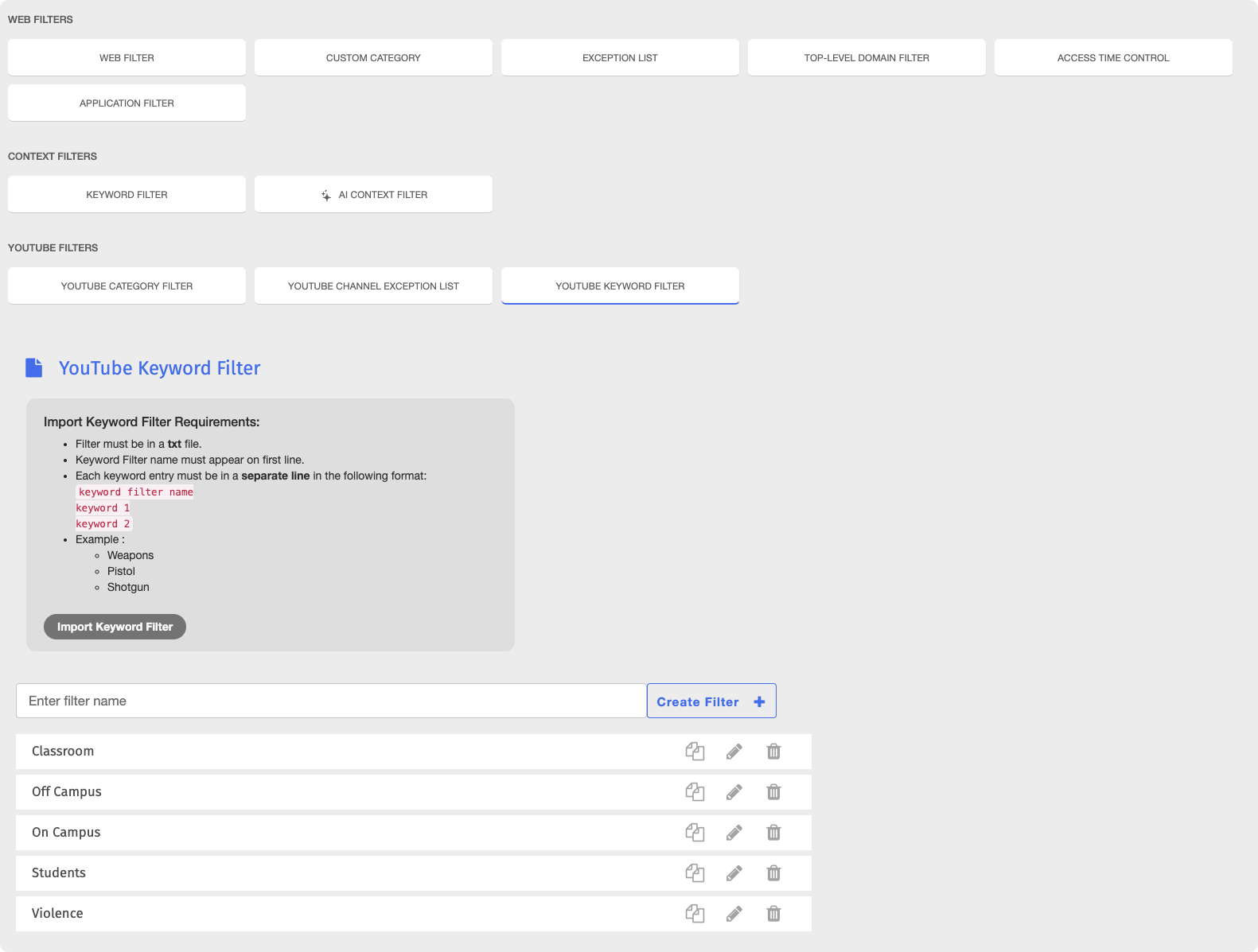
To access the YouTube Keyword Filter page, click Content Filtering from the Main Menu, then click Filters from its sub-menu. On the Filters page, click YouTube Keyword Filter listed under YouTube Filters.
Important
After making any changes to your content filtering or policies, click the  button in the Action Bar at the top of the page to apply the changes.
To set up a YouTube Keyword Filter, create the filter, then add the keywords you want to block.
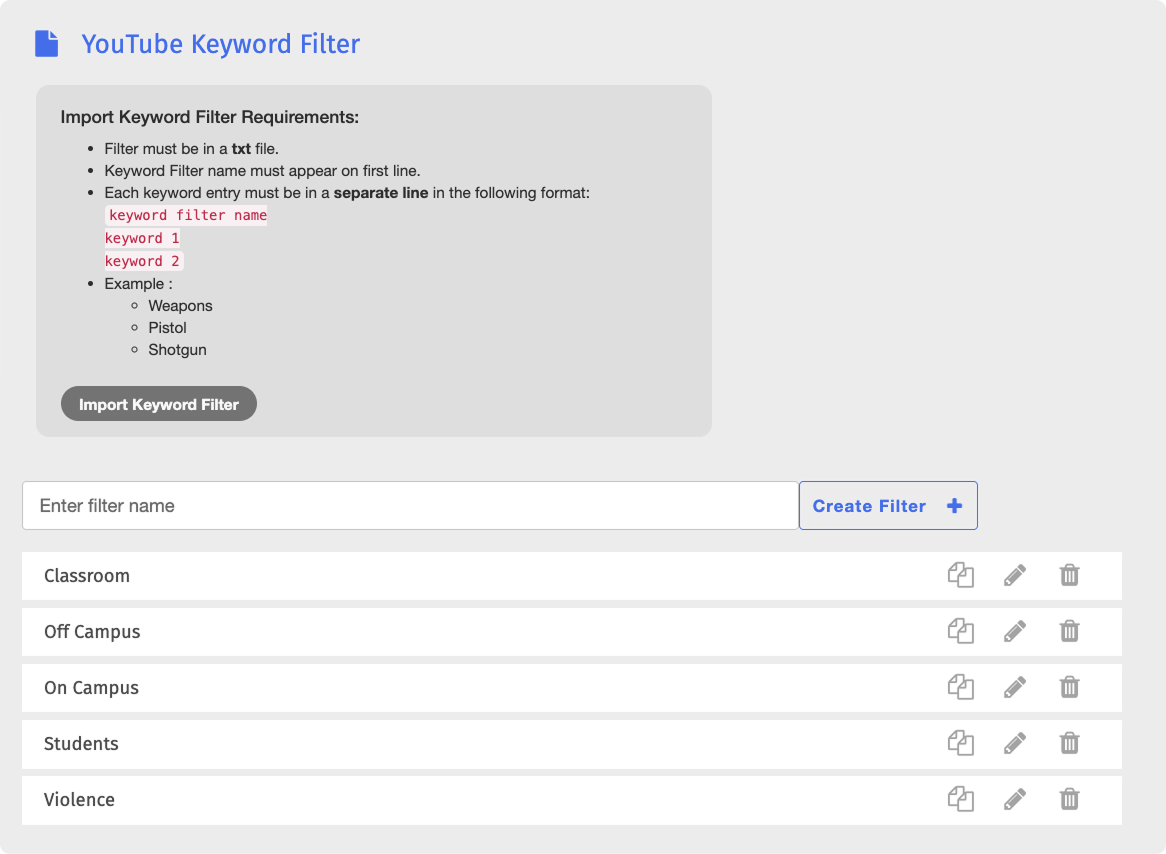
Type a name for the filter in the Enter filter name text box, then click the
 button. The new filter appears on the YouTube Keyword Filter page.

Click the
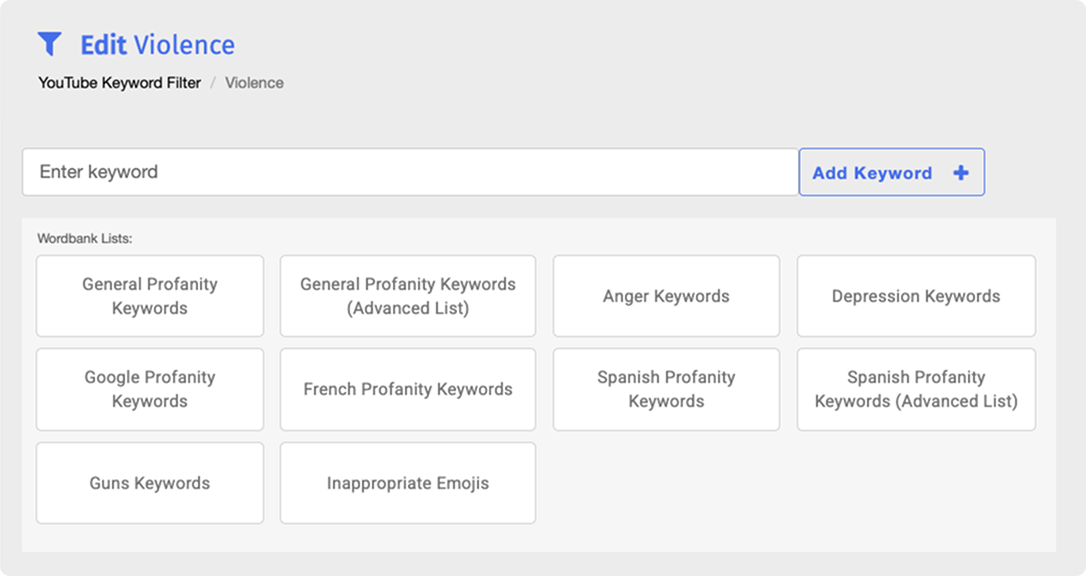
 button in the same row as the new filter. The Edit YouTube Keyword Filter page opens.
Add keywords to the filter in one of the following ways:
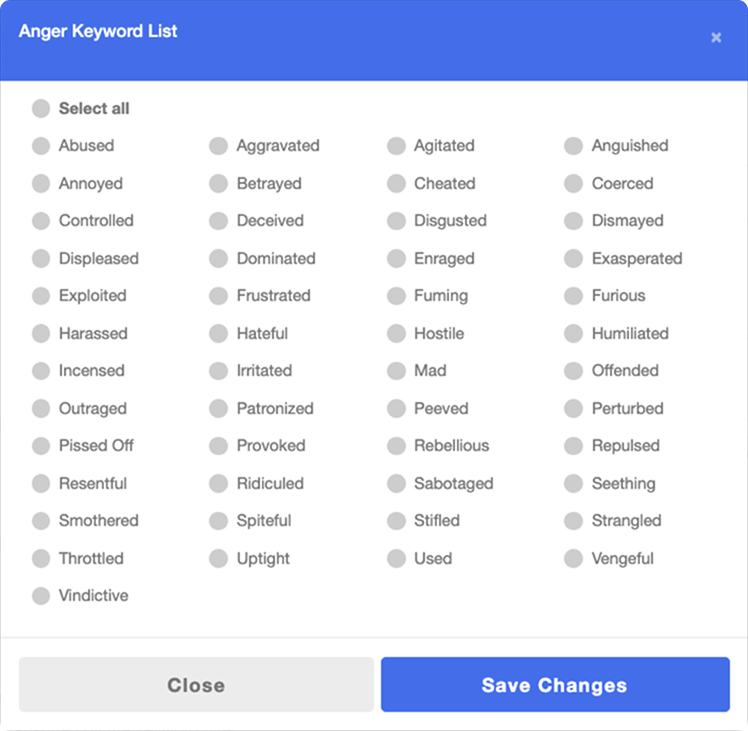
Under Wordbank Lists, click the list you want to use. In the window that opens, select the keywords you want to add, or select the Select all option, then click the
 button.
Type a keyword in the Enter keyword text box, then click the
 button.

New keywords appear at the end of the keyword list. Refer to the Adding Keywords From a Wordbank List to an Existing Filter section to see the available Wordbank Lists.
Repeat step 3 for each keyword or Wordbank List you want to add.
You can manage the keywords in a YouTube Keyword Filter by adding keywords from a Wordbank List, adding your own keywords, or deleting them.
Click the button next to a filter on the YouTube Keyword Filter page to open the Edit YouTube Keyword Filter page.
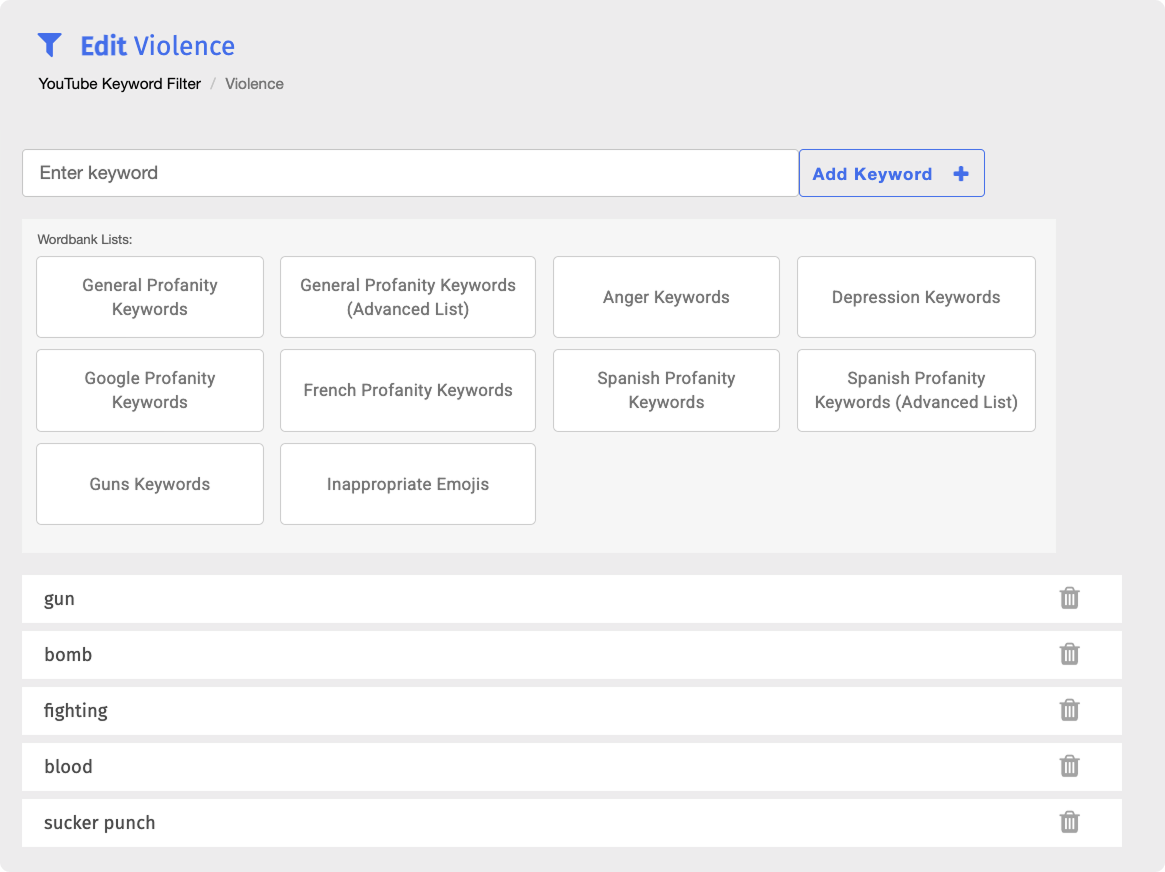
Blocksi provides preconfigured Wordbank Lists that you can add to a YouTube Keyword Filter. The following Wordbank Lists are available:
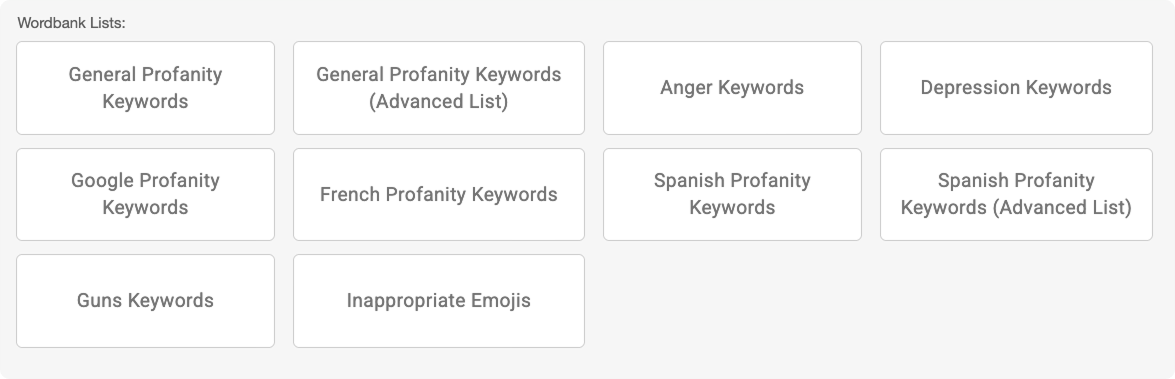
On the Edit YouTube Keyword Filter page, click the list you want to use under Wordbank Lists. A window opens with the keywords in that list.
Select the keywords you want to add, or select the Select all option to add the entire list.
Click the
button. The selected keywords appear at the end of the keyword list.
On the Edit YouTube Keyword Filter page, type a keyword in the Enter keyword text box, then click the button. The keyword appears at the end of the keyword list.
On the Edit YouTube Keyword Filter page, locate the keyword to delete and click the
 button to the right of it.
Click OK in the confirmation window. The keyword is permanently removed from the filter.
You can manage your YouTube Keyword Filters by renaming, duplicating, or deleting them. All of these actions can be performed directly on the YouTube Keyword Filter page.
On the YouTube Keyword Filter page, locate the filter to rename and click its name. The filter name opens in an editable text box.

Make your changes, then click the Save button.
On the YouTube Keyword Filter page, locate the filter to duplicate and click the
 button. The Duplicate Filter window opens.
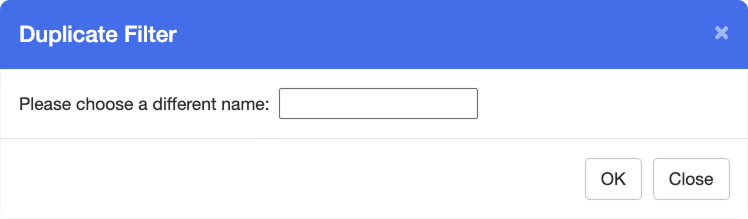
Enter a name for the new filter in the text box, then click OK. The new filter appears on the YouTube Keyword Filter page.
Note
The duplicate is a copy of the original, including all of its keywords. The original YouTube Keyword Filter is not removed upon duplicating.
Warning
Deleting a YouTube Keyword Filter is a permanent action. Deleted filters, along with their keywords, cannot be recovered.
On the YouTube Keyword Filter page, locate the filter to delete and click the
button to the right of it.Click OK in the confirmation window. The YouTube Keyword Filter is permanently removed from the list.
You can import an entire YouTube Keyword Filter, including its name and all of its keywords. The imported filter appears on the YouTube Keyword Filter page alongside your manually created filters.
Prerequisites
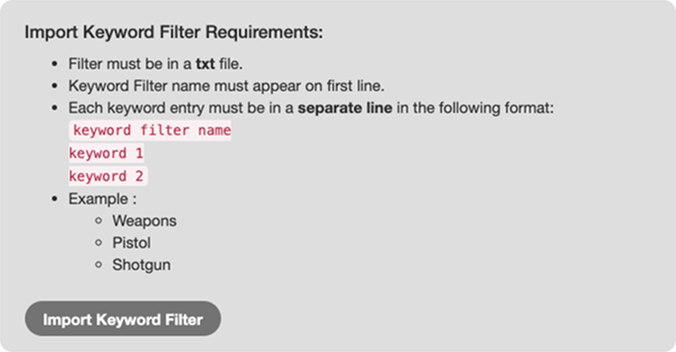
The file must be a TXT file.
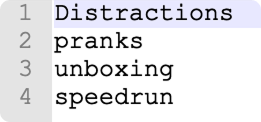
The name of the YouTube Keyword Filter must be on the first line of the file, and each keyword must be on its own line below it.
For example, the following creates a YouTube Keyword Filter named Distractions containing three keywords.
Distractions
pranks
unboxing
speedrun
On the YouTube Keyword Filter page, click the
 button in the section above the list of filters. A file browser window opens.
Select a TXT file on your device, then click Open. The imported filter appears on the YouTube Keyword Filter page.