Student Messaging
The Messaging function, accessible via the Teacher Dashboard, facilitates communication between teachers and students. To maintain a focused learning environment, messaging is restricted to teacher-student interactions only — students cannot message one another. Teachers can send messages to the entire class, target specific groups, or engage in one-on-one conversations with individual students.
Important
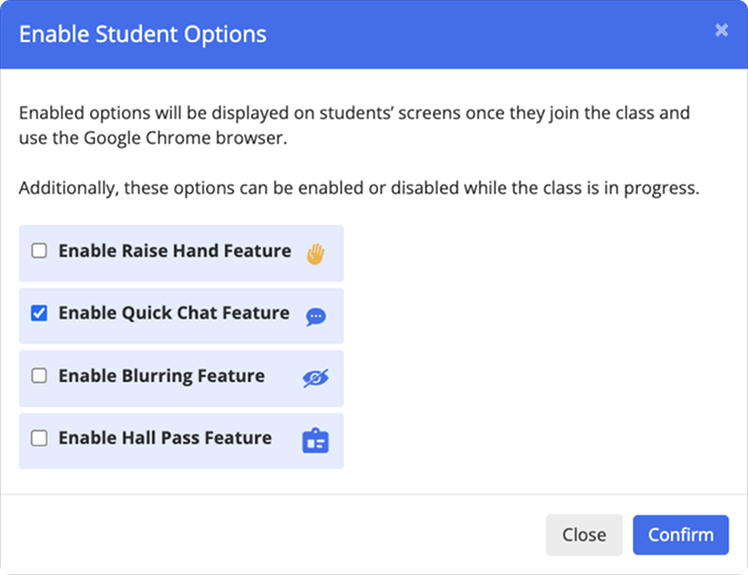
Students can only initiate and reply to messages if the Quick Chat feature is enabled in the Student Options menu. Refer to the Enabling Quick Chat section for help with enabling this feature.
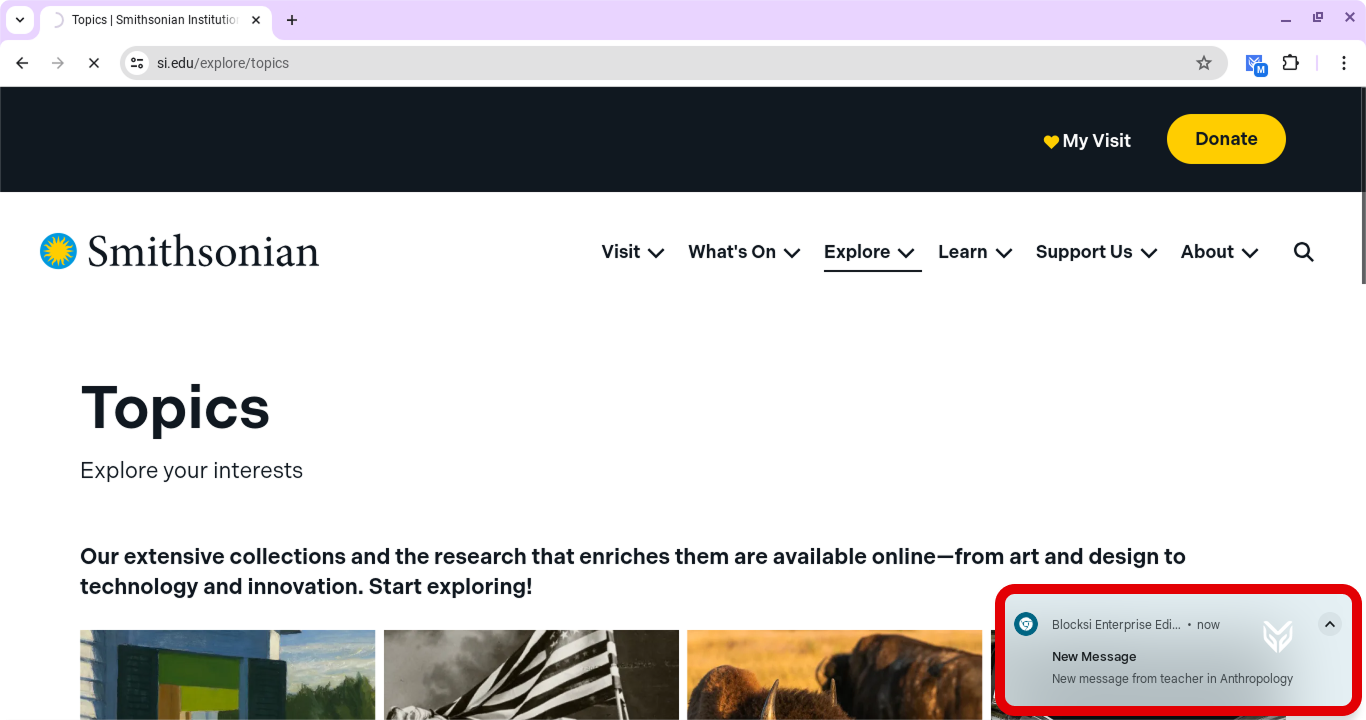
Students receive messages during active class sessions as Chrome notifications in the bottom right corner of their browser.
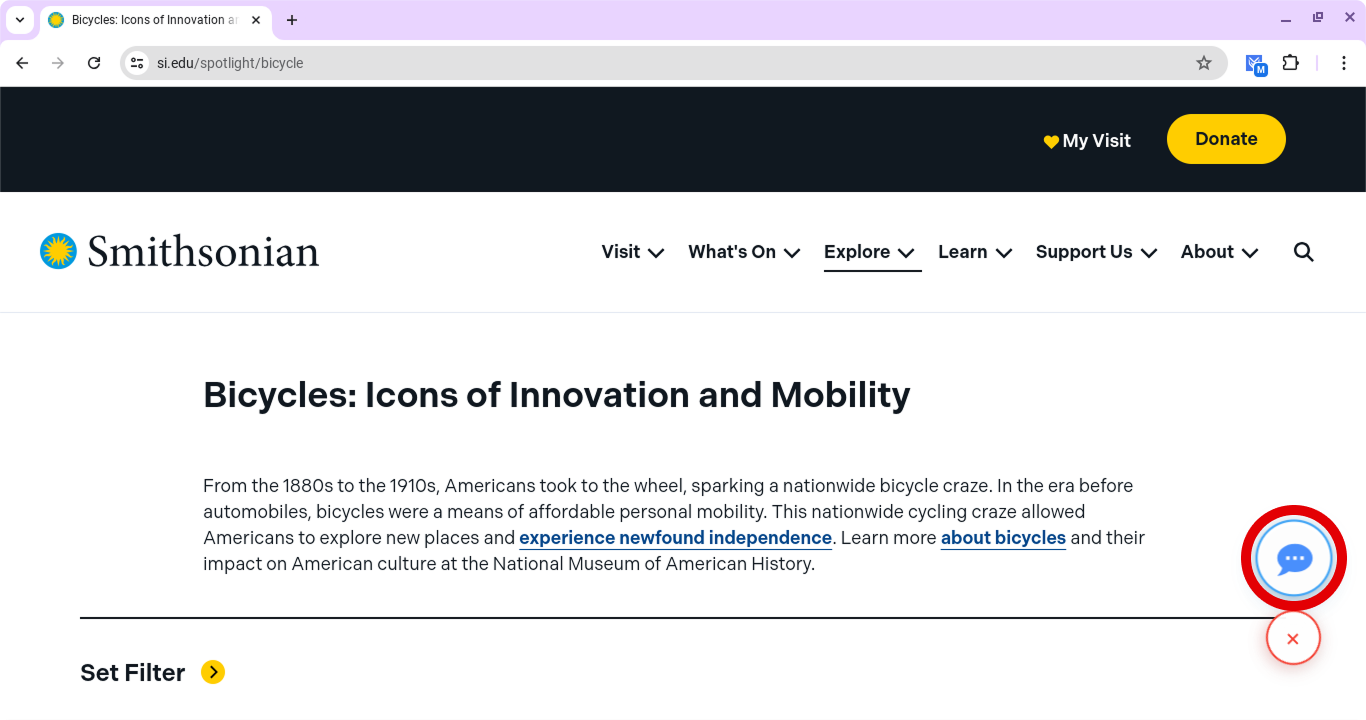
They can view a message by clicking the notification or by accessing the messaging feature via the  button in the lower right corner of their screen, then clicking the
  button. Alternatively, students can click the extension icon in the top right corner of their browser.
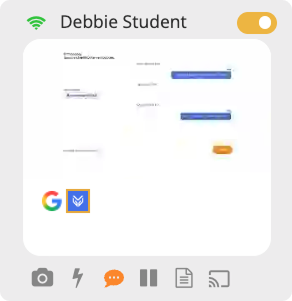
When a student sends a message, the chat bubble icon under their student tile will blink and turn orange to alert you.
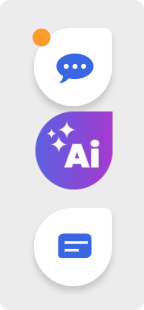
Additionally, a new message indicator will appear directly above the AI Hub icon in the class view on the Teacher Dashboard.
Navigate to the class in which you want to enable the Quick Chat feature by clicking on the class tile.
Click the Student Options button in the class header. The Enable Student Options window opens.

Tip
The class header can be found at the top of the individual class view on the Teacher Dashboard. It displays the class name, class length, active policy, and other class details.

Check the Enable Quick Chat Feature option, then click Confirm to save your changes.
This section covers how to send messages to a class from the Teacher Dashboard, as well as how students can message their teacher in return.
Click the
button in the bottom right corner of the screen. A menu appears.Click the
button in the menu. The Blocksi Chat window opens in a new tab.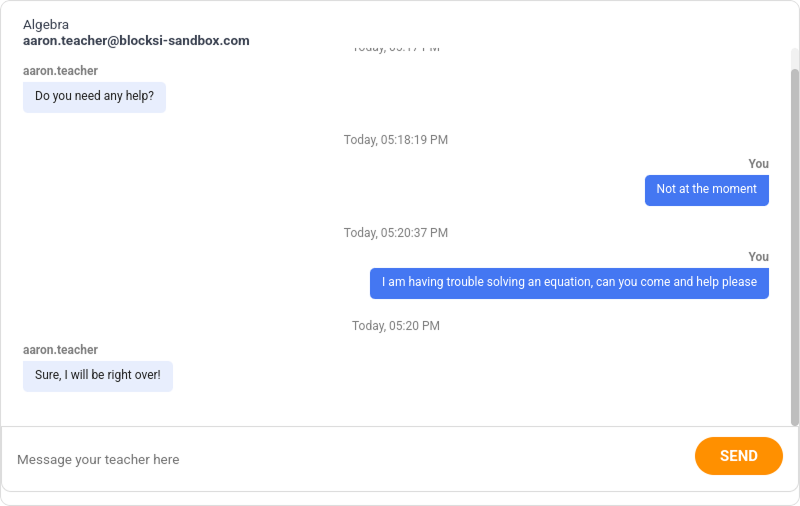
Important
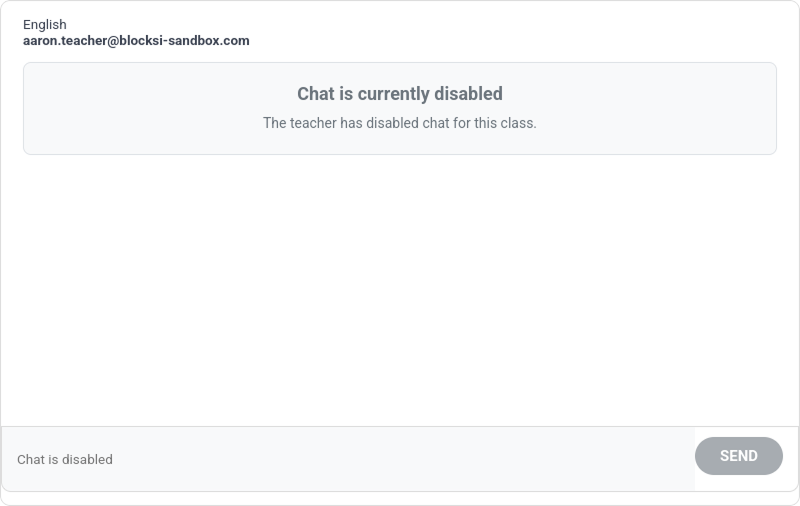
If the Quick Chat feature is disabled on the Teacher Dashboard, students will be presented with the following screen instead of the Blocksi Chat window.
Type your message in the Message Your Teacher Here text box.
Click the Send button to send the message to the teacher. The teacher will be alerted of the new message on their Teacher Dashboard.
Teachers can either message individual students or send a message to the whole class or a specific group of students.
Tip
You can quickly switch between chats with individual students by clicking their names on the left-hand side of the chat window. You can also search for a specific student using the Search Student field in the chat window.
Ensure the class session is currently active.
Tip
If you need help starting a class, refer to the Starting and Stopping a Class section.
Click the
 button in the quick actions section of the Teacher Dashboard. A messaging window opens.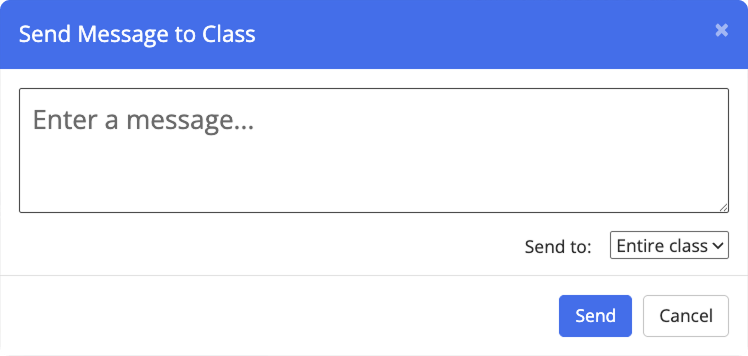
Type your message in the Enter a Message text box.
Click the Send to send the message to the entire class.
Tip
To message a specific group of students, select a group from the Send To drop-down list before clicking Send.
The message is sent and appears in the bottom right corner of the students' screens.
Ensure the class session is currently active.
Tip
If you need help starting a class, refer to the Starting and Stopping a Class section.
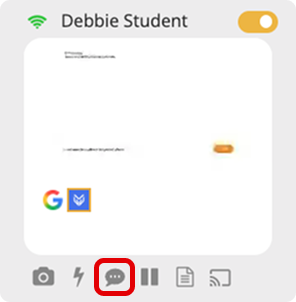
Click the chat bubble icon under the specific student's tile.
The chat window opens next to the AI Hub icon, displaying all active conversations, as shown in the image below.
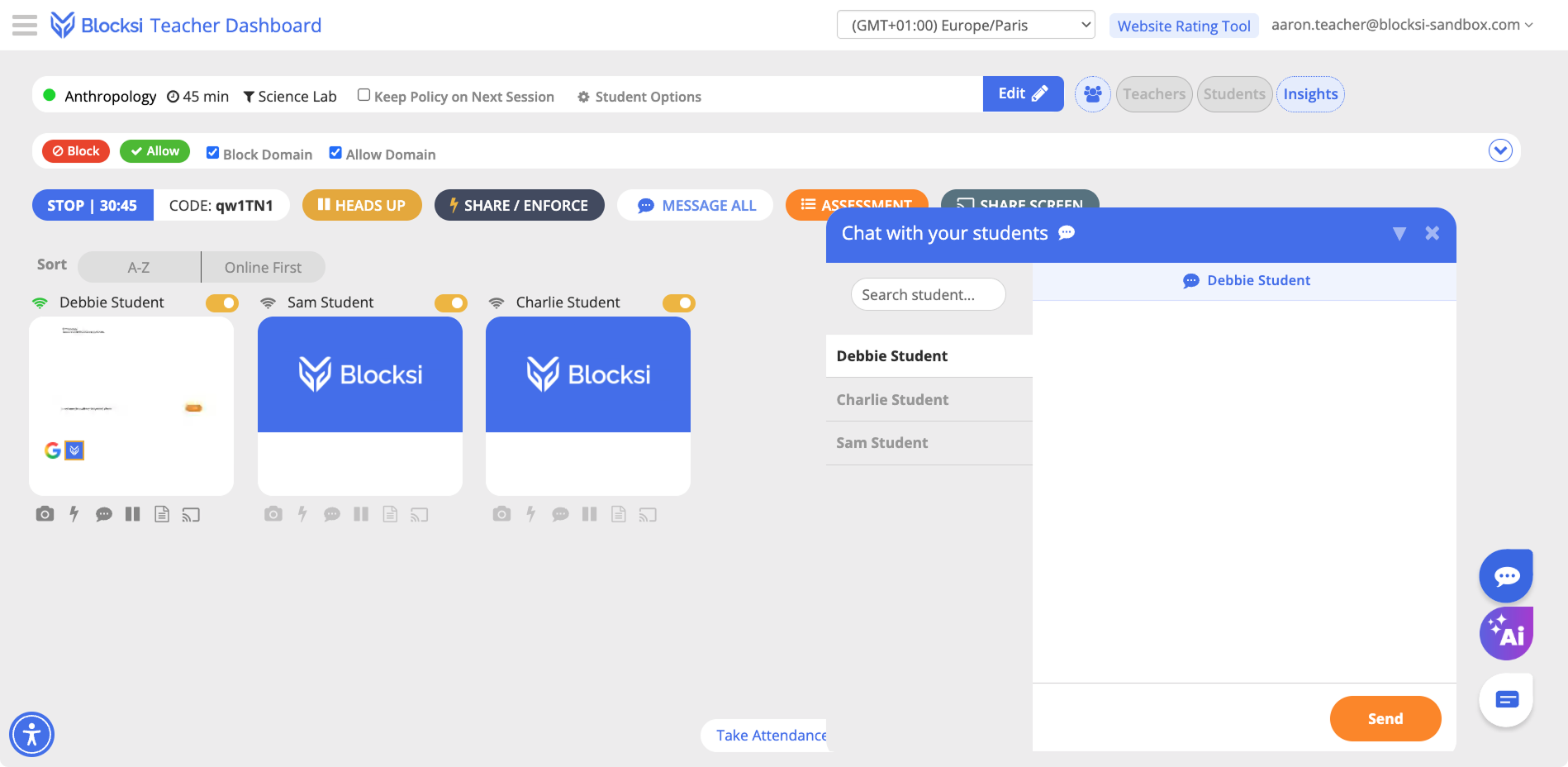
Select the student you want to message from the chat window, type your message in the text box, then click the Send button.
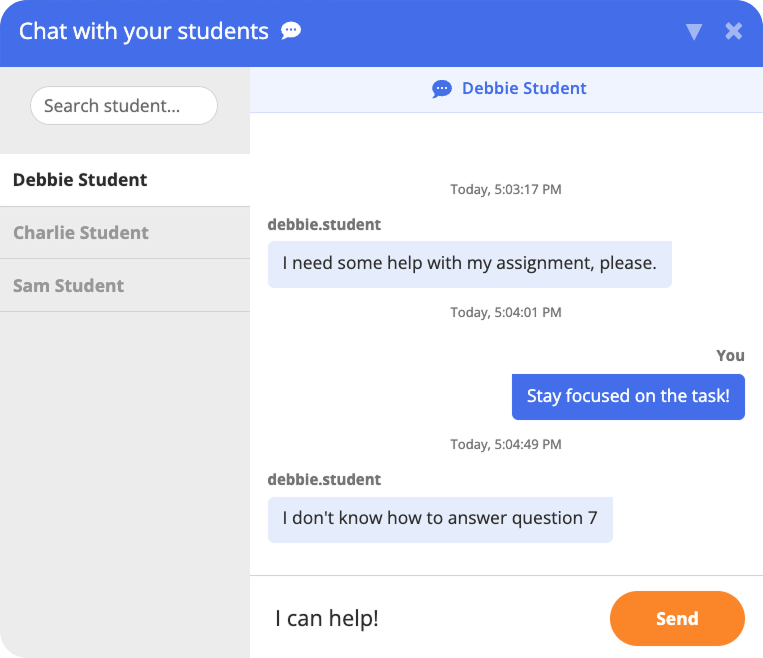
The message is sent and appears in the bottom right corner of that student's screen.