Heads Up
Use Heads Up mode to direct the entire class, a group of students, or an individual student to a page instructing them to pay attention. While Heads Up mode is active, students cannot access any websites, open new tabs, or exit the mode. This feature is especially useful for locking down student devices and ensuring students remain engaged with the active class session rather than being distracted by other content.
Heads Up mode can be applied to the entire class, a specific group of students, or an individual student for a set period of time, making it a flexible tool for managing student attention at any level.
Ensure the class session is currently active.
Click the
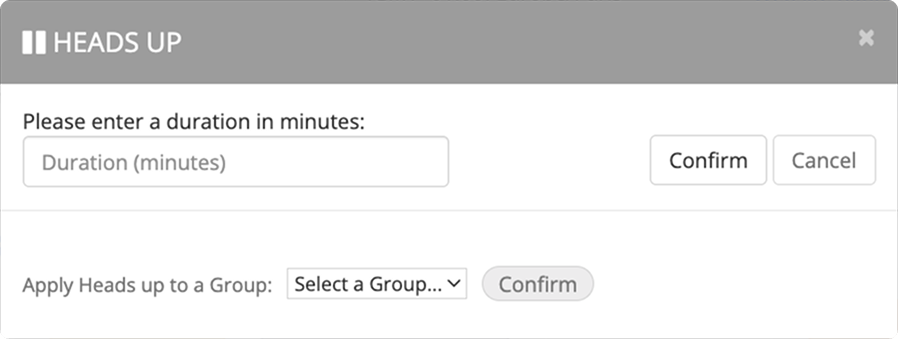
 button from the quick actions section of the Teacher Dashboard. A modal window opens.
Type the duration of the Heads Up feature in the text box and click Confirm.
Tip
To apply Heads Up mode to a specific group of students, select a group from the Select a Group drop-down list next to the Apply Heads Up to a Group label and click Confirm.
Tip
You can end Heads Up mode prematurely by clicking the  button.
Ensure the class session is currently active.
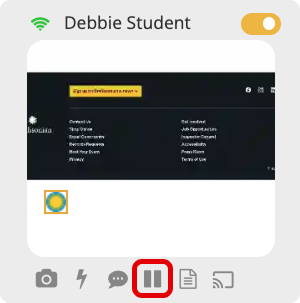
Click the Heads Up button under the student's tile. A modal window opens.
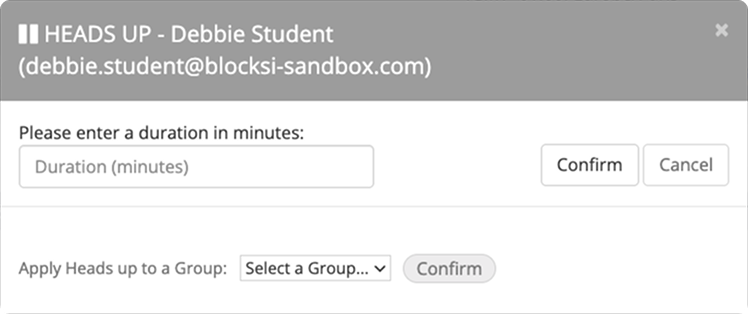
Enter the duration of Heads Up mode in the text box and click Confirm.
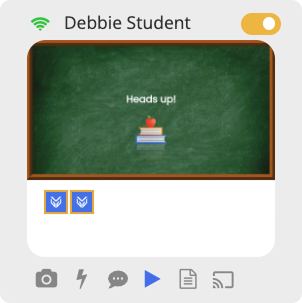
The Heads Up button under the student's tile changes appearance while the mode is active, as shown in the image below.
Tip
You can end Heads Up mode prematurely by clicking the highlighted play button under the student's tile.