Managing Substitute Teachers
You can add and remove substitute teachers if allowed by your administrator. A substitute teacher has the same access to your Teacher Dashboard as you do, except that they cannot import or schedule classes.
Substitute teachers must be validated by your Blocksi administrator or a delegate before they can access the Teacher Dashboard. Your administrator can turn this option off, in which case no validation is needed.
You can add up to three substitute teachers.
Important
Substitute teachers cannot be added while a class is in session.
Click SUBSTITUTE TEACHERS. The Substitute Teachers window opens.
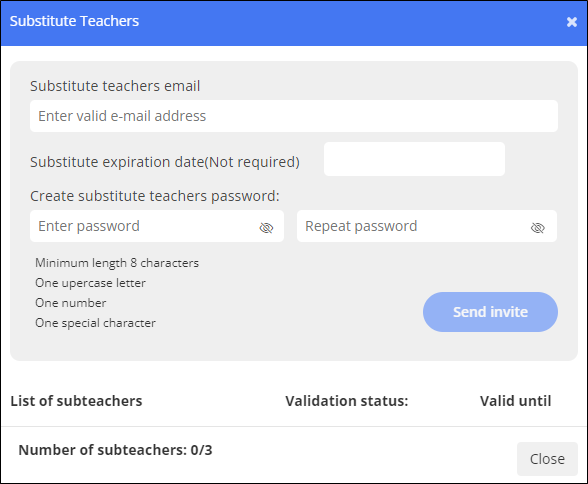
Type the substitute teacher's email address in the text box.
Type a date on which the substitute's access to the Teacher Dashboard ends. This is an optional field. If you leave it empty, the substitute has access for an unlimited timeframe.
Type a password that the substitute will use to sign in to the dashboard and confirm it in the text box to the right.
Click Send Invite. Blocksi sends an invite to the email address you entered in step 3.
Note
Substitute teachers must be validated by either the Admin or the Delegate.
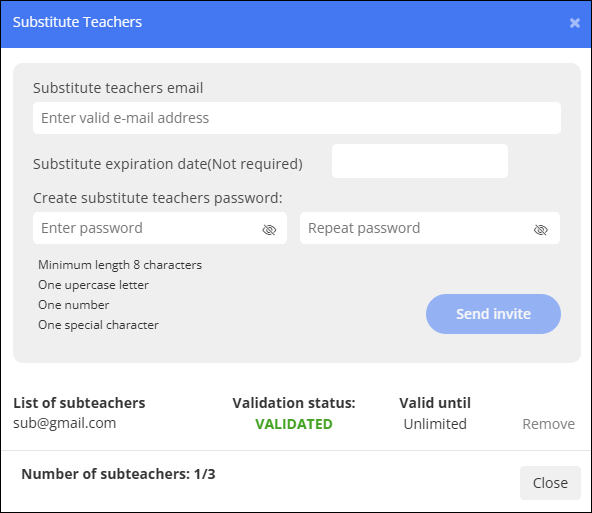
After the admin or delegate validates the substitute, the window changes to reflect the validation and a Remove link is added to the right of the validation status, as shown below.
Click SUBSTITUTE TEACHERS. The Substitute Teachers window opens.
Click the Remove link to the right. The substitute teacher can no longer access the Teacher Dashboard.
After you add a substitute teacher and Blocksi validates them, you need to provide them with the following instructions for accessing the Teacher Dashboard.
Go to teacher.blocksi.net. The following page appears.
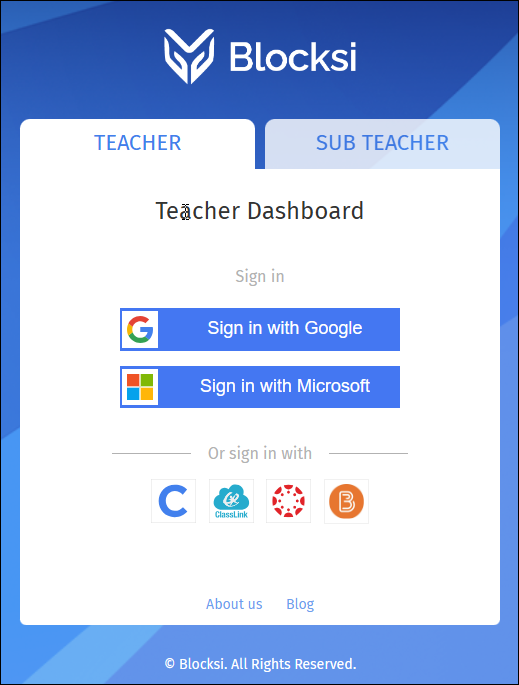
Click the SUB TEACHER tab. The Substitute Teacher sign in page appears.
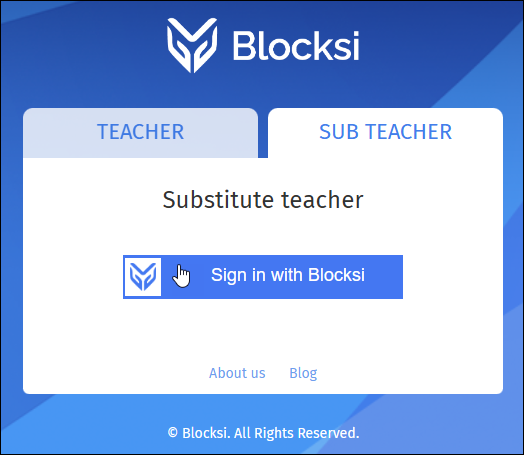
Click Sign in with Blocksi. The SUBSTITUTE TEACHER LOGIN page appears.
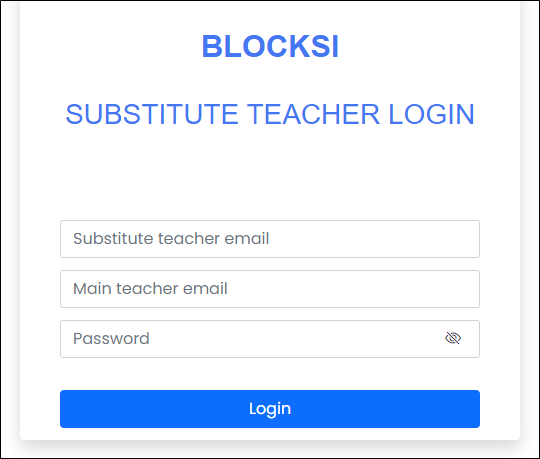
Type your email address in the Substitute teacher email text box.
Type your main teacher's email address in the Main teacher email text box.
Type your password in the Password text box.
Click Login. You are taken to the Teacher Dashboard.