Acknowledging Alerts and Adding Notes
You can acknowledge alerts on different devices.
Click Student Safety from the Main Menu and then click Alerts from its sub-menu. The Alerts screen appears.
Click Logs on the Alerts page or click All Reported Alerts from the Configure Alerts page to access the logs.
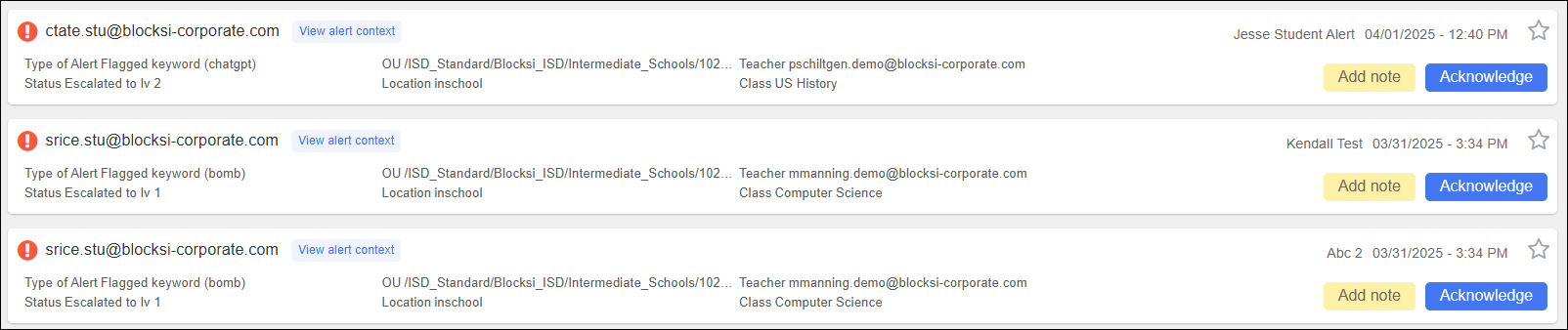
Locate the alert to acknowledge, and click the Acknowledge button to the far right of the alert. The button is removed and replaced by your name and the date and time at which you acknowledged the alert.
Note
Anyone who has had an email added to an alert notification can acknowledge the alert from their computer or mobile device.
Open your email alert on your computer or mobile device. Alerts now include whether the alert was triggered by email, chat, Google Docs, or an image, the source IP address, and the time at which the alert occurred.
Click the Acknowledge button to acknowledge that you have seen and read the alert.
Note
Acknowledging an alert closes the alert on your dashboard.
Add notes to alerts.
Click Student Safety from the Main Menu and then click Alerts from its sub-menu. The Alerts screen appears.
Click Logs on the Alerts page or click All Reported Alerts from the Configure Alerts page to access the logs.
Locate the alert to which to add a note.
Click Add Note. The Add Note window opens.
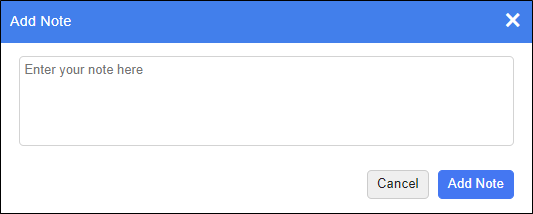
Type the note in the text box and click Add Note to add the note. The note is saved with the alert in the log.
View all notes associated with an alert.
Click Student Safety from the Main Menu and then click Alerts from its sub-menu. The Alerts screen appears.
Click Logs on the Alerts page. A listing of all alerts appears.
Click the View All Notes link to the right of the alert name. The All Notes window opens.
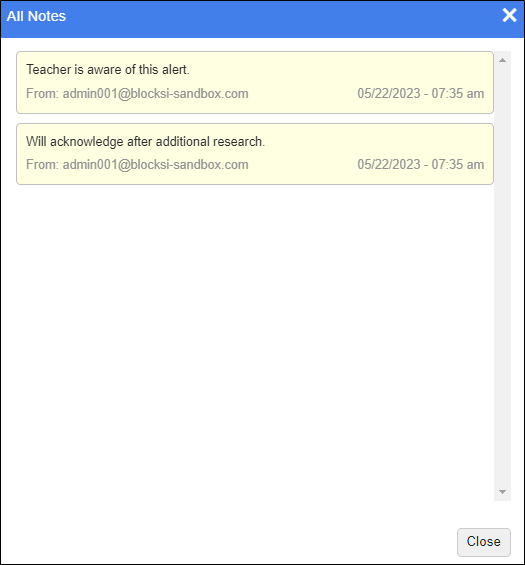
Click Close to remove the window.