Alerts Overview
Blocksi Alerts is a powerful tool that can send live notifications to school administrators and delegates when harmful behavior is detected on students' Google Workspace Gmail, Google Docs, Google Drive, Google Chat, and YouTube categories.
Cyberbullying
Web categories
Profanity/Swearing
YouTube categories
Signs of depression/anxiety/low self-esteem
Nudity/Mild/explicit sexual content
Signs of self-harm/suicidal thoughts
Inappropriate behavior/content
Violence
Hate speech
Alcohol/drug-related content
Keywords
Phishing
Student safety
Security Risk
Unethical
Adult/Mature Content
Bandwidth Consuming
Business
Personal
Unrated
You turn alerts on and off whenever you need to.
Click Student Safety from the Main Menu and then click Alerts from its sub-menu. The Alerts screen appears.
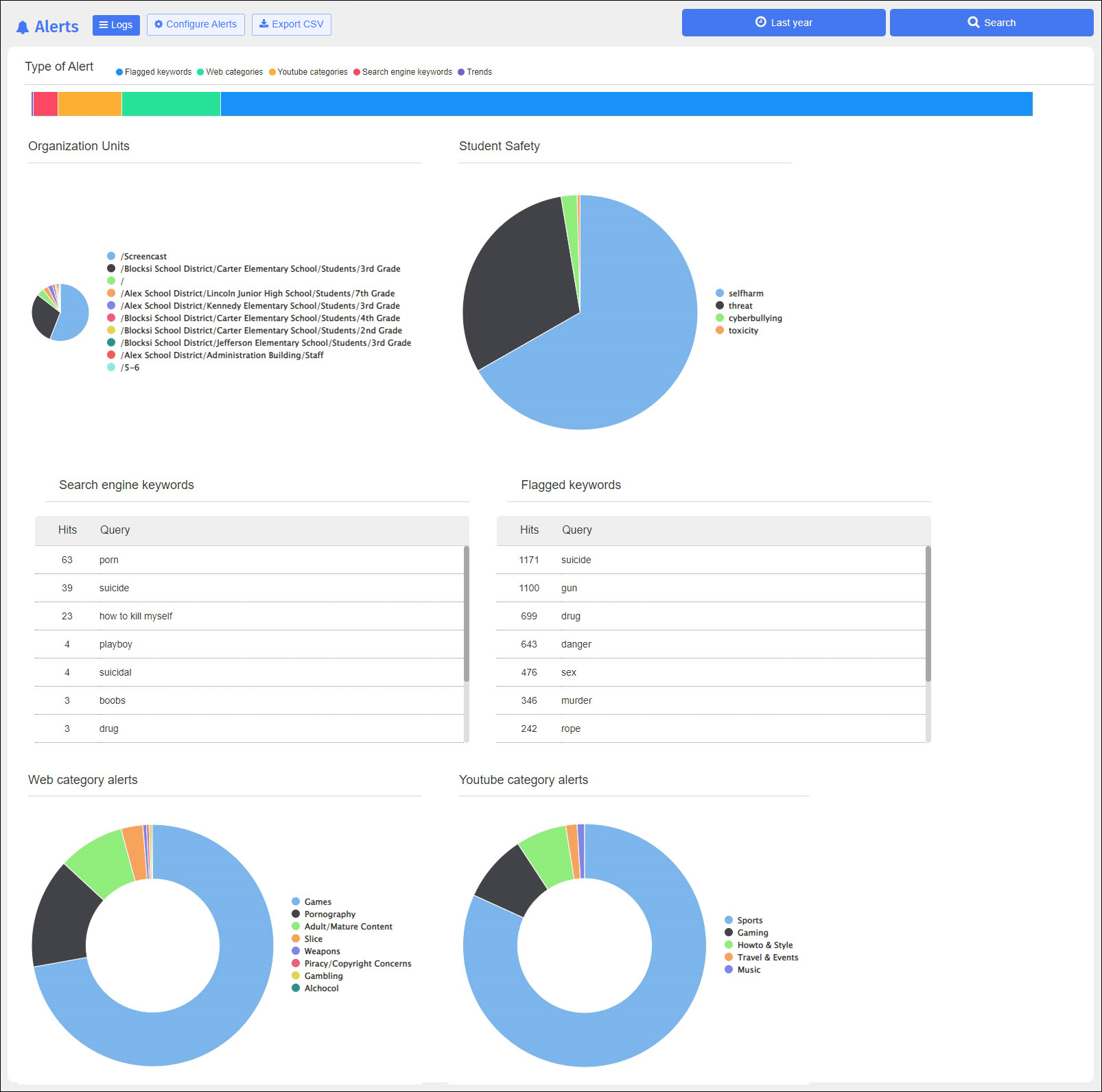
Click Configure Alerts. The Alerts > Configure Alerts screen appears.
Look for the alert to turn on or off.
Click the ON button to turn the alert off or click the OFF button to turn the alert on.
Organizational Units
Student Safety
Search Engine Keywords
Flagged Keywords
Web Categories
YouTube Categories
Blocksi uses three levels of severity to identify alerts: informational, warning, and critical. These levels are user-defined.
Informational
Informational alerts appear with a yellow icon in the alert list, as shown below.

Warning
Warning alerts appear with an orange icon in the alert list, as shown below.

Critical
Critical alerts appear with a red icon in the alert list, as shown below.

Note
The alerts shown above are for example purposes only; the district defines what constitutes an information, warning, and critical alert.
Alert Details
See the image below for descriptions of the parts of the alert message.

Alerts can be either Open or Closed.
Alert status is determined by whether the alert is acknowledged: Open alerts are those that users have not acknowledged; Closed alerts are those that users have acknowledged.
Type of Alert
Alerts by Organizational Unit
Student Safety Chart
Search Engine Keywords
Flagged Keywords
Web Category Alerts