Alerts Log
Use combinations of sorting and searching criteria to narrow down the alerts log to produce specific results.
Click Student Safety from the Main Menu and then click Alerts from its sub-menu. The Alerts screen appears.
Click Logs on the Alerts page or click the All Reported Alerts -> button on the Configure Alerts page. A listing of all alerts appears. The eye icon and number indicate how many times the alert was viewed.
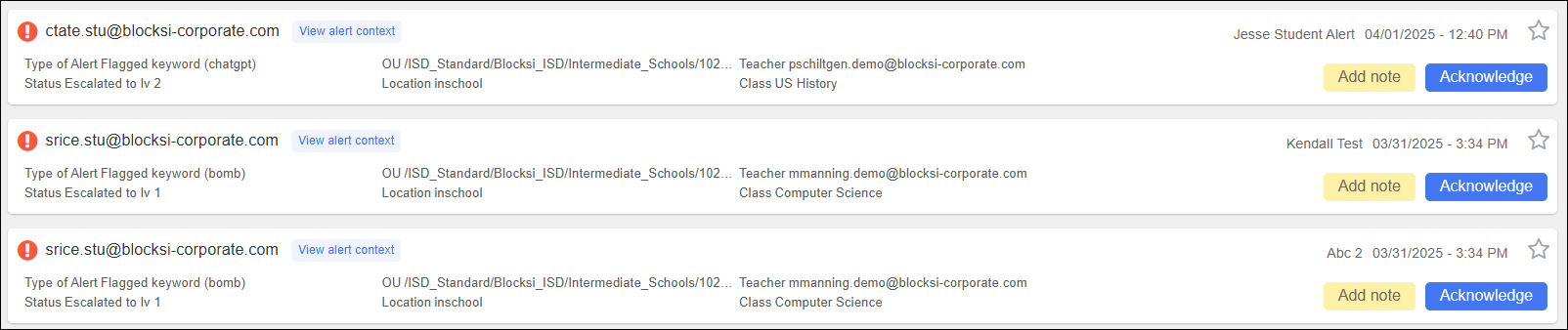
Select a status to sort the log. Click Open to show only open warning alerts and click Closed to show only acknowledged warning alerts.
Click Descending or Ascending in the Sort by Date list in the upper right-hand corner of the screen to sort the log entries by descending or ascending date of occurrence.
Searching the Alerts Log
Search the alerts log by student email, organizational unit, student safety category, search engine and flagged keywords, and Web and YouTube categories
Click Student Safety from the Main Menu and then click Alerts from its sub-menu. The Alerts screen appears.
Click Logs on the Alerts page or click the All Reported Alerts -> button on the Configure Alerts page. A listing of all alerts appears. The eye icon and number indicate how many times the alert was viewed.
Click the Search Options link. The following search window opens.
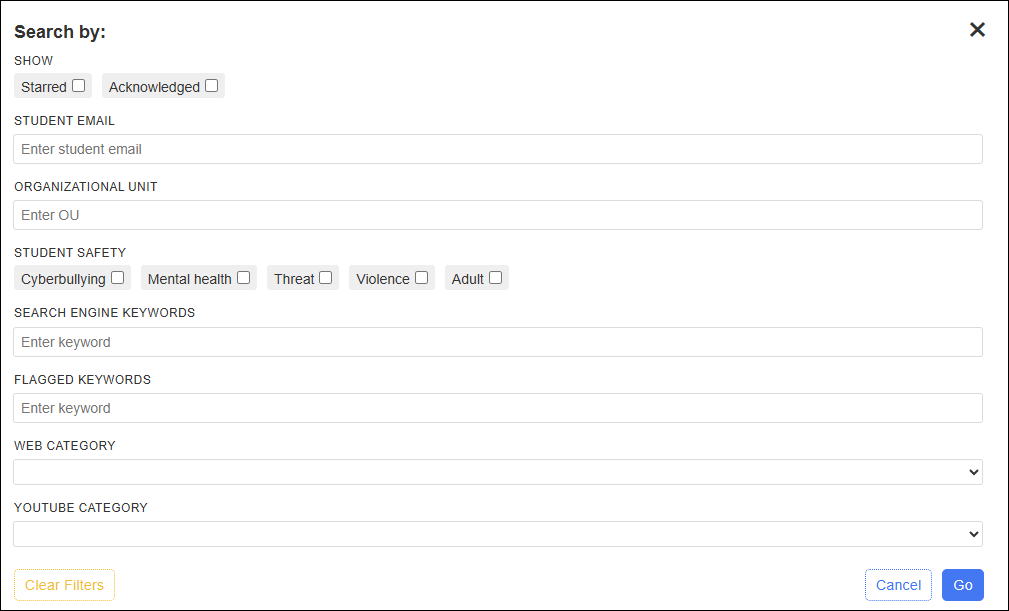
Type or select the criteria to search by.
Click Go. The log refreshes to display only those alerts that match the criteria you entered.
The Blocksi Delegate Dashboard keeps a comprehensive log of all alerts. The alerts log categorizes the alerts by severity and status.
Click Student Safety from the Main Menu and then click Alerts from its sub-menu. The Alerts screen appears.
Click Logs on the Alerts page or click the All Reported Alerts -> button on the Configure Alerts page. A listing of all alerts appears. The eye icon and number indicate how many times the alert was viewed.
Export alert reports in a CSV file to keep for your records.
Click Student Safety from the Main Menu and then click Alerts from its sub-menu. The Alerts screen appears.
Click Logs on the Alerts page or click the All Reported Alerts -> button on the Configure Alerts page. A listing of all alerts appears. The eye icon and number indicate how many times the alert was viewed.
Click the Export CSV link to the right of the Search Options link. The Export CSV window opens.
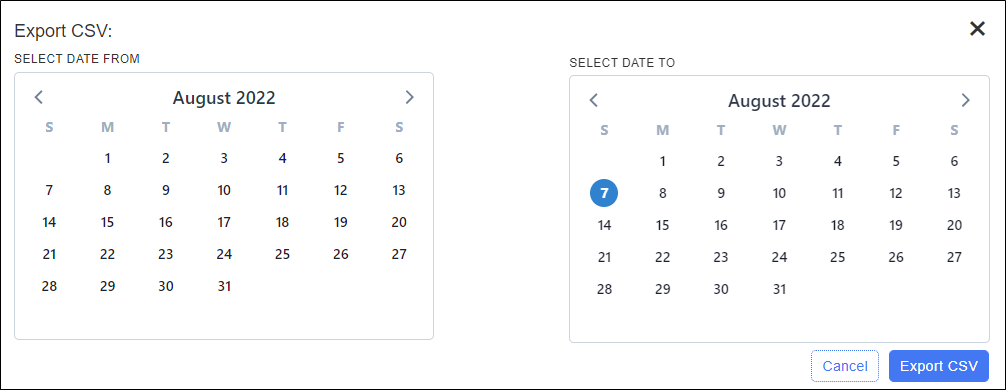
Select the from and to dates for the report from the calendars and click Export CSV. Blocksi generates an alerts log which appears in the lower left-hand corner of your screen in your spreadsheet program. Click it to open and save it.