Alert Context
Blocksi provides context surrounding alerts to help you learn what the student was doing before and after the alert.
Click Student Safety from the Main Menu and then click Alerts from its sub-menu. The Alerts screen appears.
Click Logs on the Alerts page or click the All Reported Alerts -> button on the Configure Alerts page. A listing of all alerts appears. The eye icon and number indicate how many times the alert was viewed.
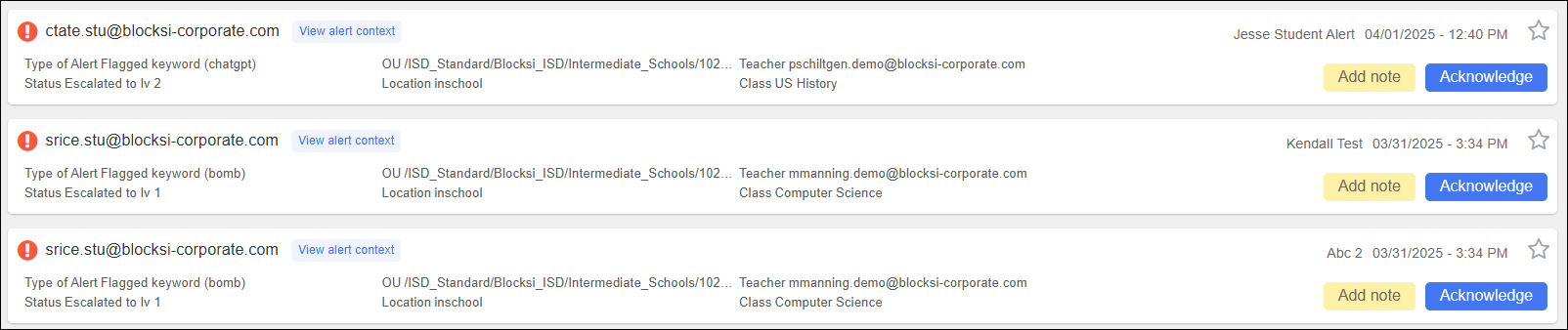
Click the View Alert Context link to the right of the alert name. The Alert Context window opens.
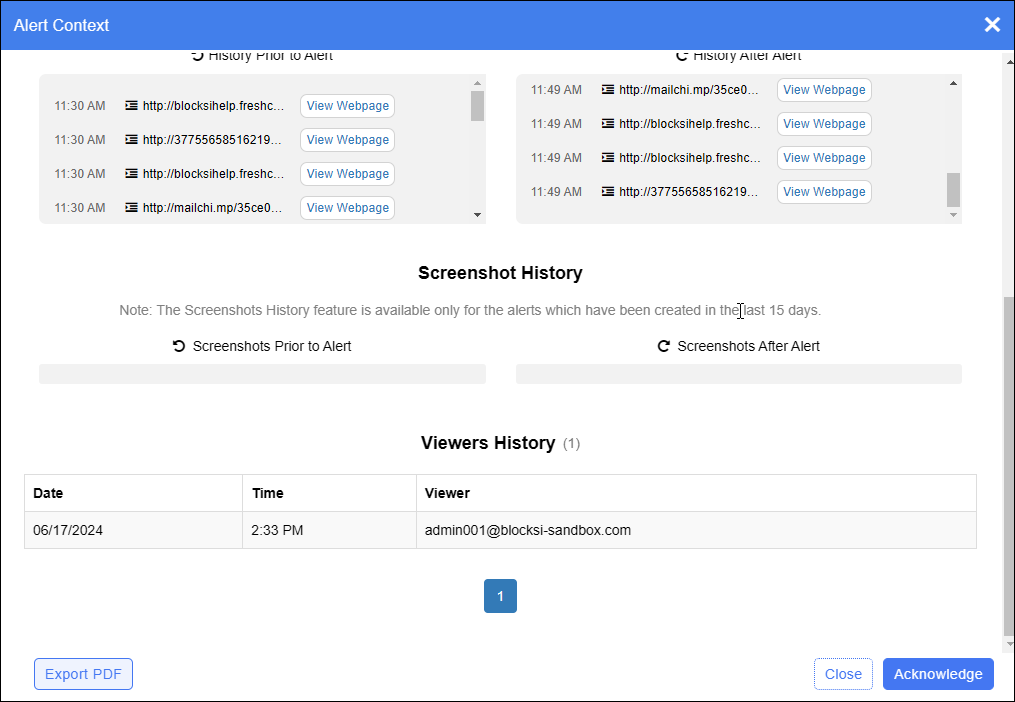
Click Close to close the window or Acknowledge to acknowledge the alert. If you acknowledge the alert, click Close to close the window.
Blocksi provides alert viewing history to show how many times an alert was viewed, when it was viewed, and who viewed it.
Click Student Safety from the Main Menu and then click Alerts from its sub-menu. The Alerts screen appears.
Click Logs on the Alerts page or click the All Reported Alerts -> button on the Configure Alerts page. A listing of all alerts appears. The eye icon and number indicate how many times the alert was viewed.
Click the View Alert Context link to the right of the alert name. The Alert Context window opens.
At the bottom of the window, the viewer history shows who viewed the alert and when it was viewed.
Click Close to close the window or Acknowledge to acknowledge the alert. If you acknowledge the alert, click Close to close the window.
Click Student Safety from the Main Menu and then click Alerts from its sub-menu. The Alerts screen appears.
Click Logs on the Alerts page or click the All Reported Alerts -> button on the Configure Alerts page. A listing of all alerts appears. The eye icon and number indicate how many times the alert was viewed.
Click the View Alert Context link to the right of the alert name. The Alert Context window opens.
Click the Export PDF button in the lower right-hand corner of the screen.
Save the report to the desired location. The report contains the alert context and content, student history timeline, and screenshot and viewer's history.