Access Requests
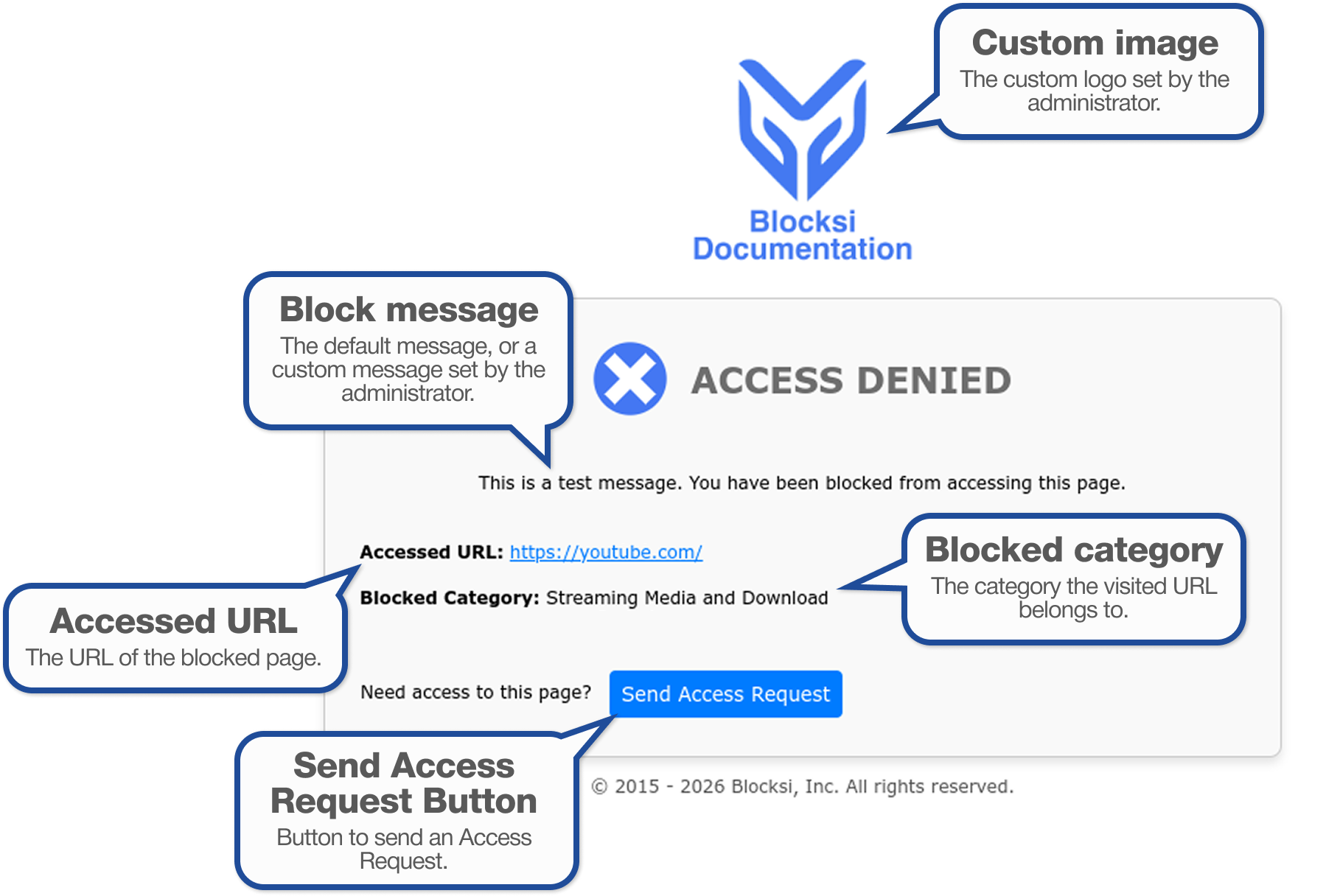
When a filtering policy blocks your child from a web page at home, the Access Denied page appears. Your child can send an Access Request from that page, if enabled by their school's Blocksi administrator.
Important
You receive the requests your children submit outside school hours, when your parent filtering applies.
To open the Access Requests page, click Access Requests from the Main Menu. The page appears, showing all pending requests from your children.
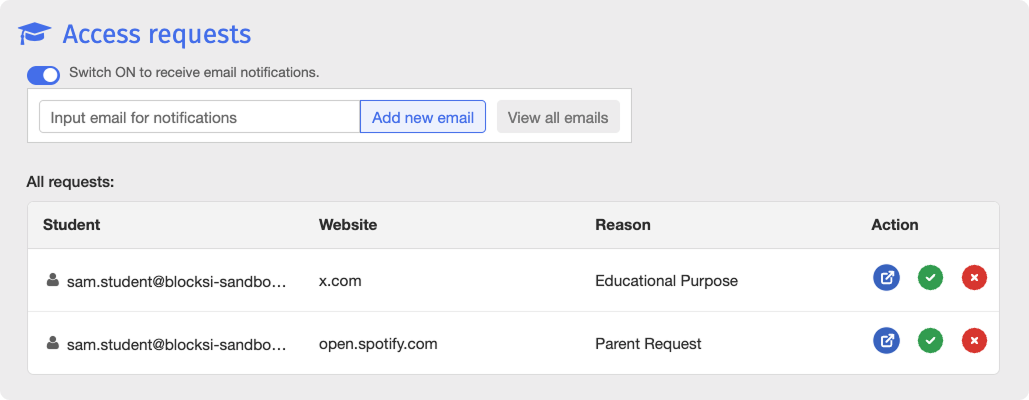
From there, you can also enable email notifications for incoming requests. Click Switch ON to Receive Email Notifications to turn notifications on, and click it again to turn them off. When notifications are on, Blocksi emails every address on the recipient list each time a student in your organizational units submits an Access Request.
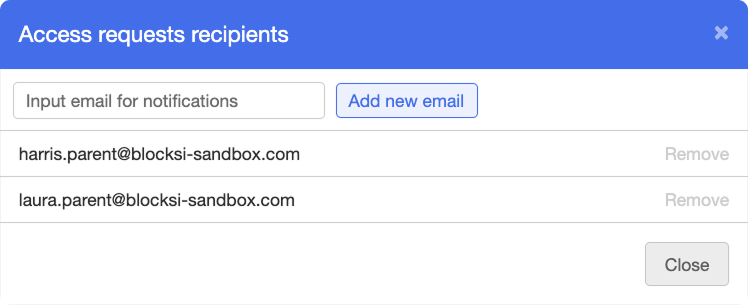
To add a recipient, type their email address in the Input email for notifications text box, then click the  button. To review and manage the full list, click the
  button. The Access Requests Recipients window opens.
When your child submits an Access Request while out of school and parent filtering is in effect, the request appears in the Access Requests table. Each row shows the following:
Student - Your child's email address.
Website - The URL your child tried to access.
Reason - The reason your child selected: Educational Purpose, Teacher Request, Parent Request, or Other.
Action - The available actions for the request.

Locate the request in the Access Requests table, then click one of the following icons in the Action column:
Icon | Action | Description |
|---|---|---|
| Open URL | Opens the requested page so you can review its content before deciding. |
| Allow | Grants your child access to the page and adds the URL to your Exception List. The change applies to your child's device immediately. |
| Deny | Denies the request and removes it from the table. |


Allowed URLs appear in your Exception List, where you can edit or remove them like any other entry.