Screen Time
Screen Time shows how much time your child spends browsing on their school device each day, split into time in school and time out of school.
You can view daily screen time for every child on your dashboard, open an individual child for a detailed breakdown, and set an out of school daily limit for each child.
When your child reaches the limit, browsing on the school device is blocked for the rest of the day, unless you raise or remove the limit.
Note
Screen Time counts browsing activity only. Activity outside the browser is not counted, so Screen Time does not reflect total device use.
What Counts as Screen Time
Screen Time counts the time your child spends browsing websites on their school device.
Locked screen or closed lid - Time does not count.
Device left untouched - Time keeps counting until the screen turns itself off. This is why a video counts even though your child is not typing or clicking. Once the screen sleeps, counting stops.
New tab page or browser settings page - Time does not count.
Closed browser - Time does not count.
Screen Time is recorded whether or not a daily limit is set. If you turn a limit on partway through the day, it accounts for the time your child has already spent that day rather than starting a fresh allowance.
Note
Usage is reported from the device every few minutes rather than continuously, so the figures shown can trail actual use by a few minutes.
Daily screen time shows how your child's browsing time is distributed across the day and across the past week or month.
To view daily screen time, navigate to Screen Time from the Main Menu, then select the All Children tab for a summary of every child, or select a child's name for their individual view.
For All Children
The Daily Screen Time by Child chart shows one stacked bar per day, with a separate colour for each child and a shared colour for time recorded in school. A day with no recorded activity shows a thin marker in each child's colour rather than an empty column.
Below the chart, the Out of School Daily Limit list shows each child's progress against their own limit for today, as time used against the limit set. Children who have used their full allowance are marked Limit Reached.
Click the arrow button at the end of a row to open that child's individual view.
For an Individual Child
The Daily Screen Time section displays two panels for the current day.
Total - The total browsing time recorded on the device.
Out of School - The portion of that time recorded outside school hours.
Each figure is compared against your child's seven-day average. The Out of School figure also carries a badge showing how much of today's allowance is left, or Limit Reached where it has been used.
The chart below shows one bar per day, split into in-school and out-of-school time. Hover over a bar to see the date, both figures, and the day's total.
Select 7 Days or 30 Days to change the period the chart covers.
Note
Click the refresh button to fetch the latest figures without reloading the page. A refresh fetches everything the device has reported so far, so if the figures do not change, there is no newer usage to show yet.
The Out of School Daily Limit setting caps how long your child can browse on their school device outside school hours. The limit is set separately for each child, and it counts out-of-school browsing only - time in school and time in a class session never count toward it.
Important
A time zone must be set on your Parent Dashboard before you can set a daily limit. The allowance resets at midnight in your own time zone, not the device's.
Click Screen Time from the Main Menu. The Screen Time screen appears.
Select the child you want to set the limit for.
Turn on the Out of School Daily Limit toggle at the bottom of the screen. The time setter, the presets, and a usage bar appear.
Set the allowance using the minus and plus buttons, or select one of the 1h, 1.5h, 2h, or 3h presets. The allowance moves in 15-minute steps, from a minimum of 15 minutes to a maximum of 6 hours. The usage bar beside the setter shows how much of the allowance has been used today.
Note
Your changes are saved as you make them and reach your child's device within about half a minute.
To change the allowance later, adjust it the same way. To remove the limit, turn the Out of School Daily Limit toggle off.
When the Limit Is Reached
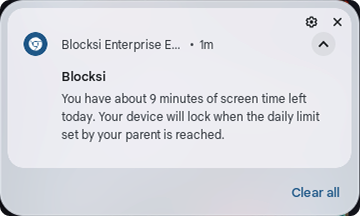
About ten minutes before the allowance runs out, your child receives a notification on their device telling them roughly how much time is left and that browsing will be blocked when the limit is reached.
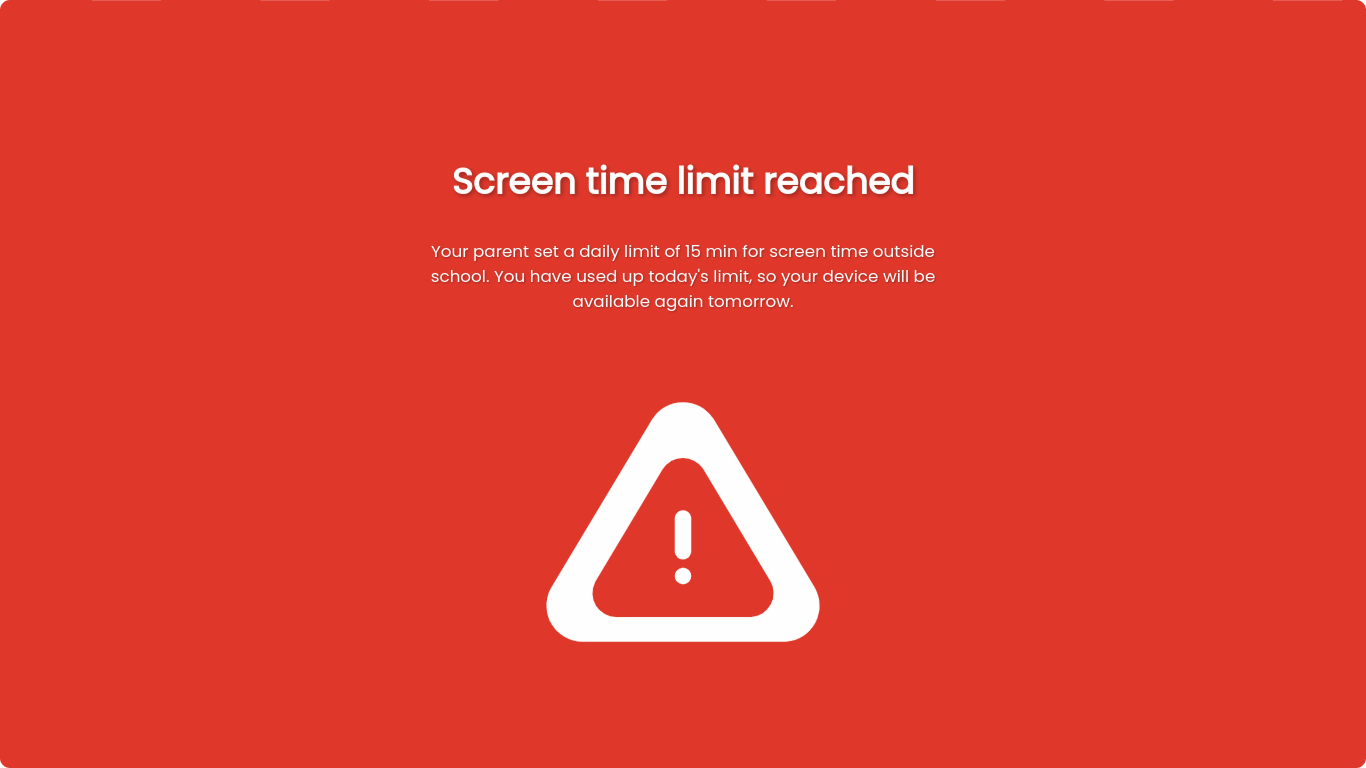
When the allowance runs out, a full-screen message appears on the device that your child cannot dismiss. It states the limit you set, that today's allowance has been used, and that the device will be available again tomorrow.
You raise the limit above the time your child has already used.
You turn the limit off.
The day rolls over at midnight in your time zone.